Adding Multi-Stop Locations
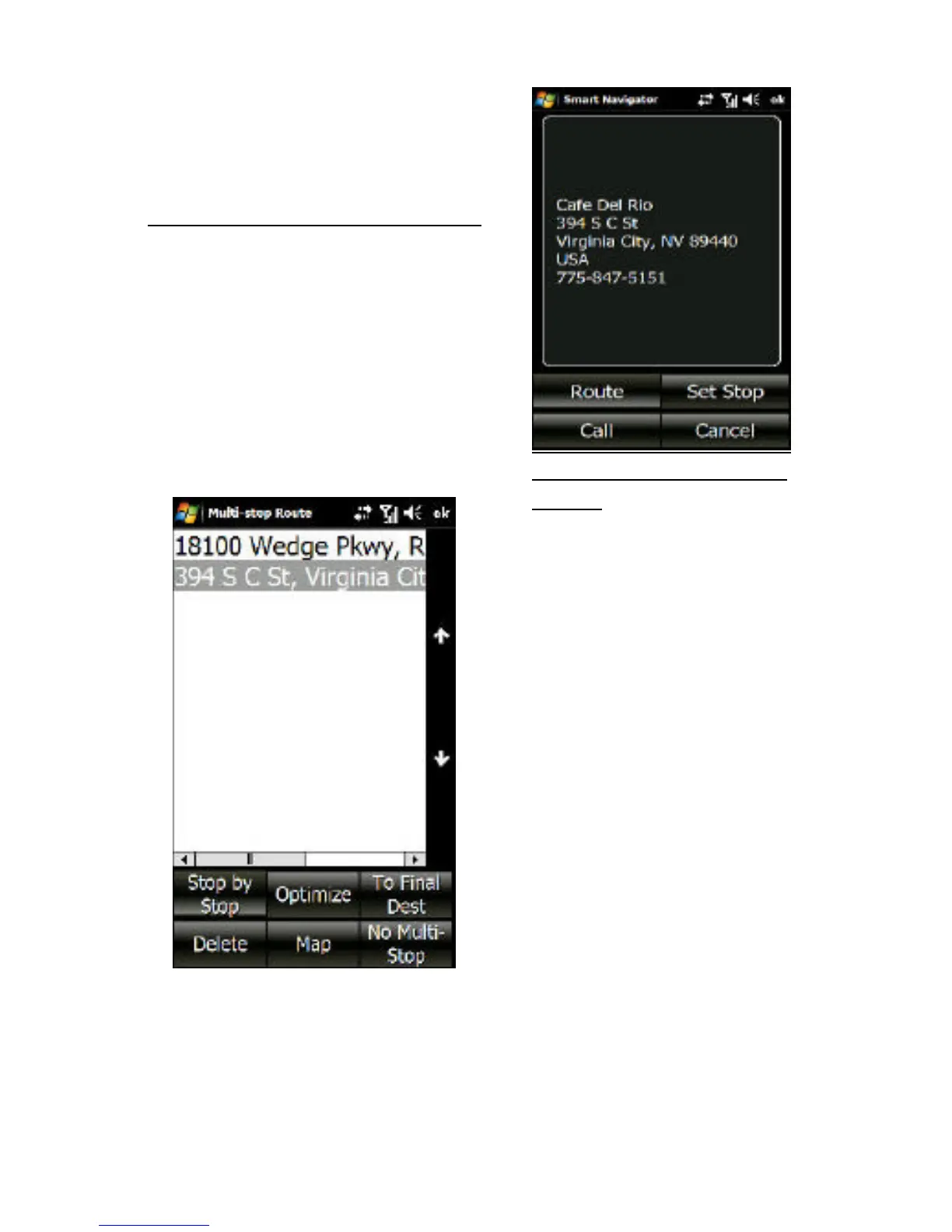
As you add additional stops, tap
the Set Stop button. This will add
the new location to the list of
stops.
Route
Once all Stops are set (limit
up to 10 between Origin and
Destination) plus the Origin
and Destination locations,
tap the map to display the
Multi-stop Route screen.
This screen will allow you to
change the order of the
stops, to Optimize the order
of the stops based on your
routing options, to create a
route Stop-By-Stop, to
create a route connecting all
the Multi-stops to the
Destination, or to not use
the Multi-stops in the route.
You also have the option
here to delete any of the
Multi-stops in the list.
Note: You can only create a multi-stop route if the Route, More,
Advanced option is selected.



 To Next Page