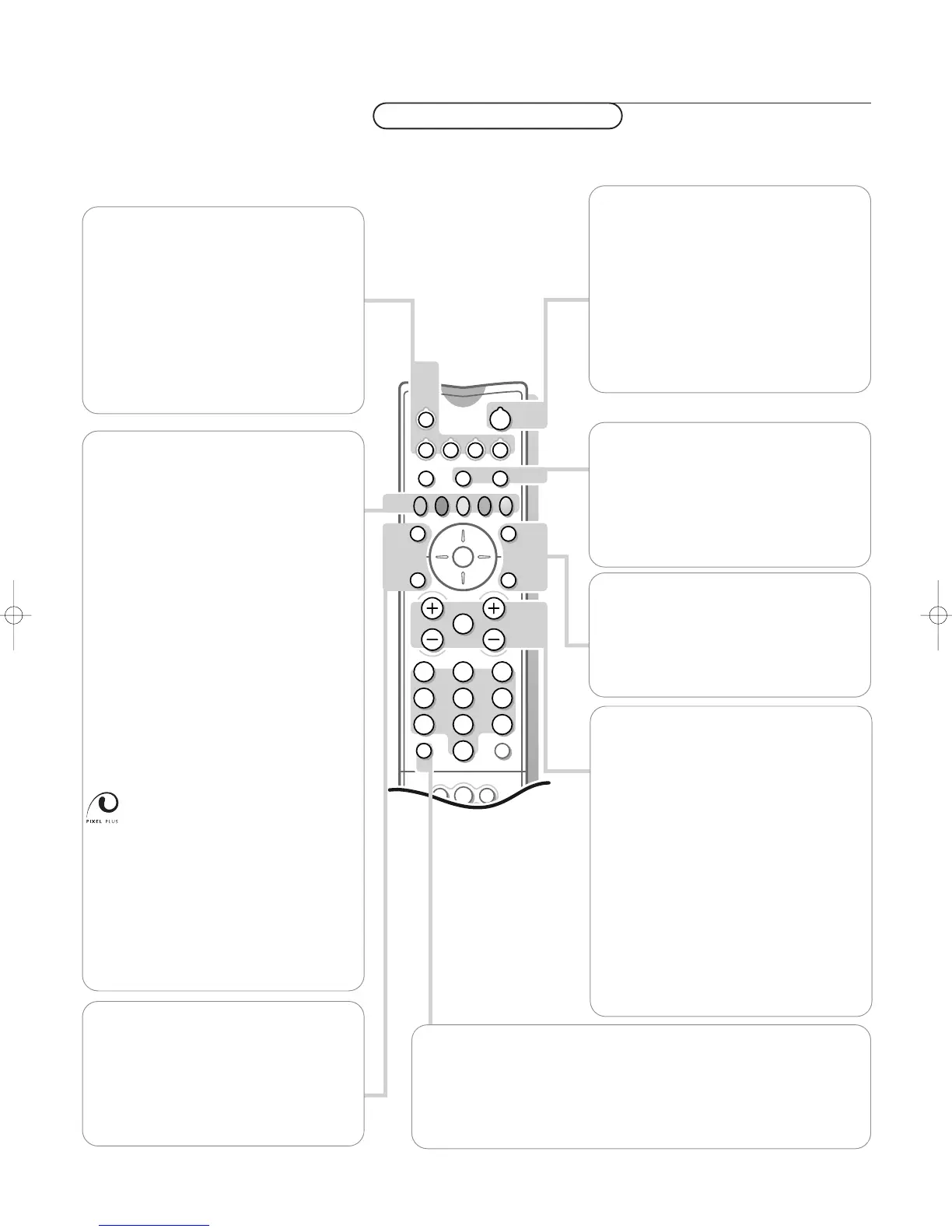
v Select peripherals
Press this key to select
EXT1, EXT2, EXT3 or
SIDE, according to where you connected the
peripherals (p. 21).
VCR DVD AMP AUX (see p. 21)
Press one of these keys to use the remote
control directly in the video recorder, DVD,
amplifier or other auxiliary mode (CD, SAT).
A green indicator lights up.
Press the key again to return to TV mode.
B Standby
Press to switch the TV on or off.
When switched off, a red indicator (orange
when acquiring
NEXTVIEW information) lights
up.When acquiring
NEXTVIEW the TV is
switched to full standby after a period of
max. 1 hour and the red indicator lights up.
If your EasyLink video recorder has the
system standby function and you press the
standby key for 3 seconds, both the TV and
video recorder are switched to standby.
æ NEXTVIEW see p. 15
Press this key to activate
NEXTVIEW/Teletext
Guide. Press the æ key to select
Picture/
NEXTVIEW- Teletext Guide in dual
screen format. Press æ again to display a full
screen picture.
OK Press this key to activate your choice,
when in the menus.
S Freeze
To activate/de-activate the frozen picture and
to hold a teletext page.
Ì Cinema Go
See separate Cinema Link instruction manual
supplied.
i Screen information
Press to display information about the selected TV channel and programme.
Menu information
When the menu is on screen, press i to display info on the selected menu
item.While the menu info is displayed, press any key to display remote
control info.
Use of the remote control
b Teletext see p. 17
Press this key to activate Teletext.
Press b to select Picture/Teletext in dual
screen format. Press b again to display a full
screen picture.
Ï Main menu on/off see p. 6
V Press + or - to adjust the volume.
¬ Interrupt the sound or restore it.
P Programme selection
To browse through the TV channels and
sources stored.
Only those channels which are in the
favourite list can be selected with the -P+
keys.
0/9 Digit keys
To select a TV channel.
For a two digit programme number, enter
the second digit within 2 seconds.
To switch immediately to a selected one
digit TV channel, keep the digit key pressed a
bit longer.
®Ò‡π†Video recorder see p. 21
Select TV channels by theme
If NEXTVIEW with defined themes is
broadcast, it is possible to quickly select TV
programmes with the coloured keys.
& Press the red, green, yellow or blue key to
select one of the four predefined theme
categories
MOVIES, SPORTS, CHILDREN,
NEWS.
The TV switches to the first TV channel
broadcasting a programme of the selected
theme. At the same time a list of all the
TV channels currently transmitting a
programme of the selected theme appears
on the screen.
é Use the cursor up/down to select a
programme.
“ Press the same colour key again to
remove the list. (After 10 seconds the list
is removed automatically.)
Switching Pixel Plus demo
on/off
& Press the PIXEL PLUS key.
The TV screen is divided into 2 parts:
- in the left part Pixel Plus and Digital
Natural Motion switched off;
- in the right part Pixel Plus and Digital
Natural Motion switched on.
é Press the PIXEL PLUS key again to switch
the Pixel Plus demo off.
Use the on-screen info for more information about the different keys. See p. 5









 To Next Page