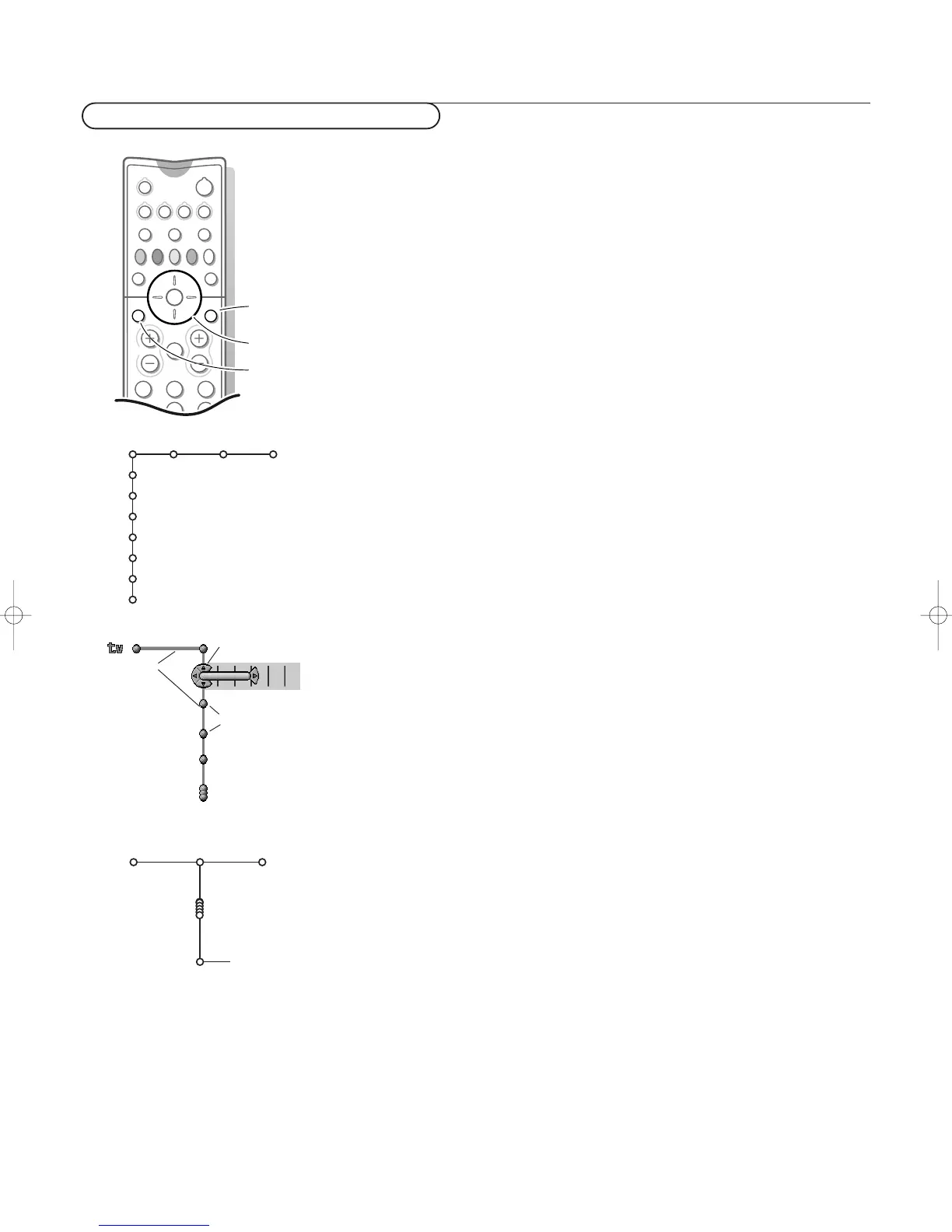
OK key to activate
cursor to select
adjustments
return or switch
main menu on/off
TV
(DVD)
(Recorder)
(Receiver)
Setup
Demo
Install
(Exit)
Picture Sound Features
Picture Sound
Picture format
Auto format
Superzoom
4:3
Movie expand 14:9
Movie expand 16:9
16:9 Subtitle
Widescreen
TV
pipes
puck
balls
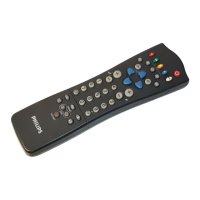
Attention: point the remote control to the indicator of the TV.
& Press the MENU Ï key on the remote control to summon the main menu.
Which items appear in the main menu depends on the peripherals connected.
In case of an Cinema Link VCR or DVD, the menu items
Recorder and DVD
are present, see p. 21.
In case of a Cinema Link audio receiver or DVD, the menu item
Receiver or
DVD is present. See the separate Cinema Link booklet supplied.
Note:The Main menu only contains the item
Exit to dismiss the menu, when
you switch on your TV for the first time, or when the Main menu is summoned
with the
M key on top of the TV.
é Use the cursor in the up/down direction to select the TV, (DVD), (Recorder),
(Receiver), Setup, Demo or Install menu.
Note: Sometimes not all the menu items are visible on the screen. Press the cursor
down to reveal all items.
“ Use the cursor in the left/right direction to select the menu item.
‘ Use the cursor up/down again to select the control you want to select or to
adjust.
( Press the MENU Ï key again to turn off the main menu.
The menu system
Pipes, balls and a puck
The hierarchy of menus and controls is represented by an animated visual
mechanism of pipes, balls and a puck.The animated mechanism constantly
shows the current whereabouts and continually expands the view of the
immediate neighbourhood.
The puck surrounds the ball indicating the user’s current position in the menu
hierarchy.
The puck is always present when the menu system is displayed.
The puck is divided into 4 parts.They correspond to the directional controls
(up/down, left/right) on the remote control.The arrows on the cursor
indicate which directions to choose.
In this way users can navigate through the menu hierarchy to the control they
wish to adjust.
When items are more numerous than can fit comfortably on the TV display,
only a portion are shown.Those omitted are indicated by a cluster of balls
which indicates that there are ‘more’ items.
Direct selection and control
Menu items are controlled as soon as they are selected by the puck. Only a
few items require confirmation with the OK key.
List controls
A list control is used to select one or more items from a list of options.
For instance, the Picture format option list with 4:3, Movie Expand 14:9, etc.
Press the right key to move the puck into the list.At least one item is the
current value and is highlighted.
Moving the puck up or down with the up/down key causes the list to move
down or up.




 To Next Page