4
Remote Control
4.1
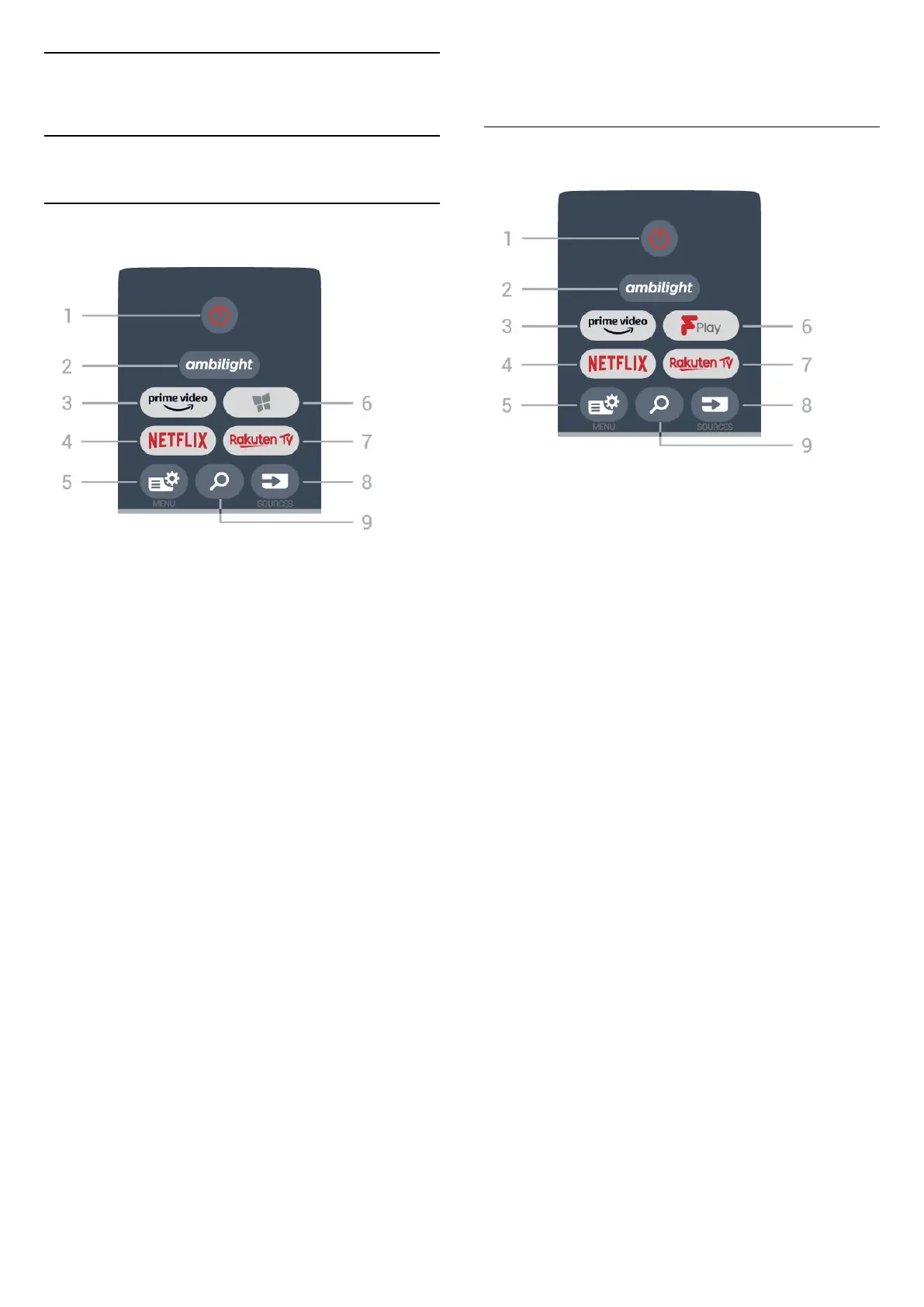
Key Overview
Top
1 - Standby / On
To switch the TV on or back to Standby.
2 -
To select one of the Ambilight style.
3 -
To launch the Amazon prime video App.
4 -
To open the Netflix App directly. With the TV switched
on or from standby.
• If you have a Netflix membership subscription, you
can enjoy Netflix on this TV. Your TV must be
connected to the Internet.
• To open Netflix, press to open the Netflix
App. You can open Netflix immediately from a TV in
standby.
www.netflix.com
5 - Quick Menu/MENU
To open the Quick Menu with typical TV functions.
Hold the MENU key to show the Gaming control bar
when game signal detected and game mode enabled.
6 - Smart TV Collection
To launch Smart TV Collection App.
7 -
To launch the Rakuten TV App.
8 - SOURCES
To open or close the Sources menu.
9 - Search
To start the Google search.
* Note: When specific TV apps running, pressing the
Search key may launch the Google Assistant™ ,
you can press Back key to exit.
Top (for UK models)
1 - Standby / On
To switch the TV on or back to Standby.
2 -
To select one of the Ambilight style.
3 -
To launch the Amazon prime video App.
4 -
To open the Netflix App directly. With the TV switched
on or from standby.
• If you have a Netflix membership subscription, you
can enjoy Netflix on this TV. Your TV must be
connected to the Internet.
• To open Netflix, press to open the Netflix
App. You can open Netflix immediately from a TV in
standby.
www.netflix.com
5 - Quick Menu/MENU
To open the Quick Menu with typical TV functions.
Hold the MENU key to show the Gaming control bar
when game signal detected and game mode enabled.
6 - Freeview Play
To launch Freeview Play.
7 -
To launch the Rakuten TV App.
8 - SOURCES
To open or close the Sources menu.
9 - Search
To start the Google search.
* Note: When specific TV apps running, pressing
Search key may launch the Google Assistant™ ,
you can press Back key to exit.
10



 To Next Page