49BDL5057P
9
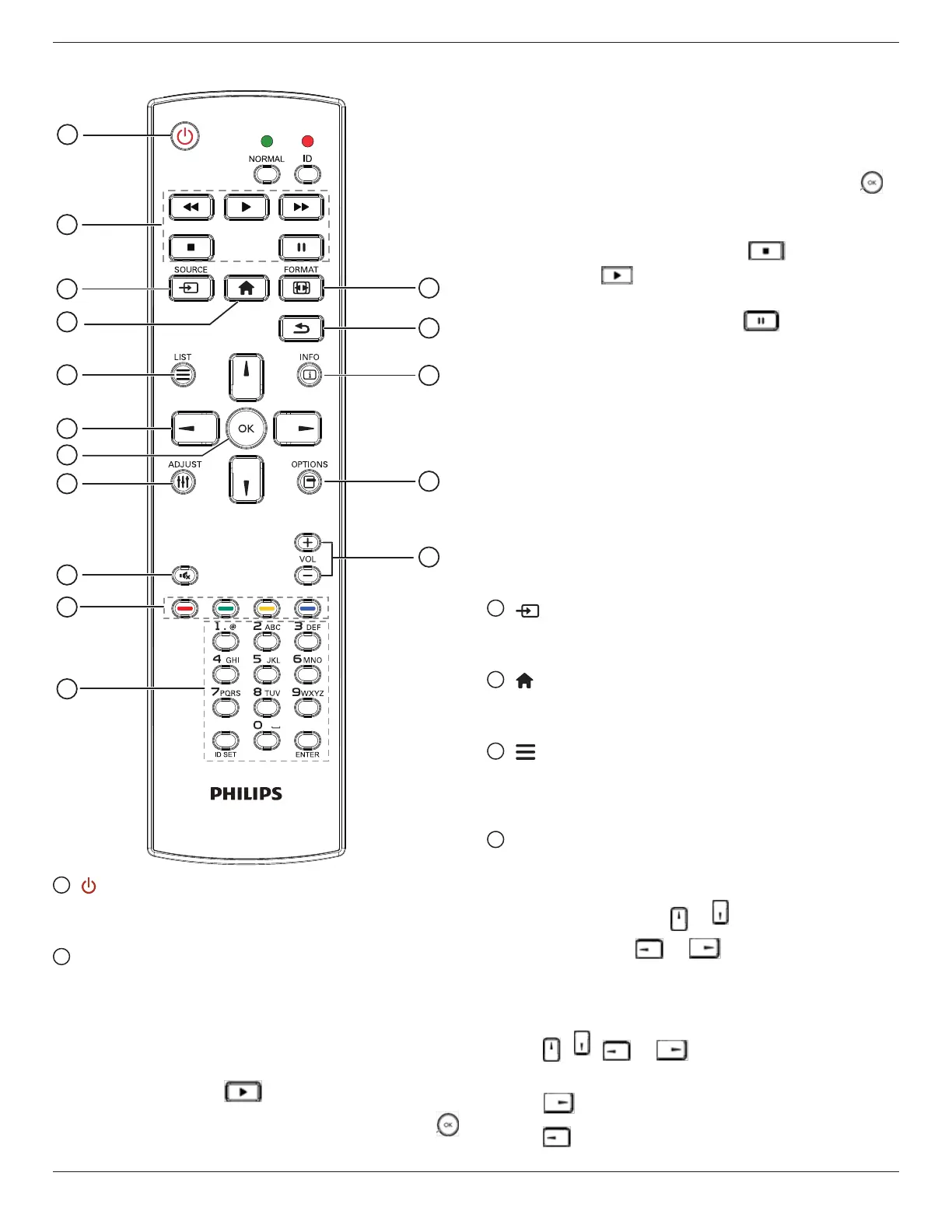
2.3.3. Remote Control buttons on Android source
1
2
3
4
5
6
7
8
10
9
12
14
15
11
13
16
1
[ ] POWER button
Turnthedisplayonorputthedisplaytostandby.
ThebuttonisonlycontrolledbyScalar.
2
[PLAY] buttons
1.Controlplaybackofmedia(video/audio/picture)les.
Thereare4waystoplaymediales.
1)FileManager
FindthemedialefromtheFileManagerandselectittoplay.
2)MediaPlayer->Compose->editornewaddplaylist->choose
anymediales->press toplaythemedialedirectly.
3)MediaPlayer->Play->choosenon-emptyplaylist->press
toplayallthemedialesintheplaylist.
4)SetmediaplaylistinBootonSourceorSchedulebyOSDmenu.
2.PlayPDFle
Thereare3waystoplaymediales.
1)FileManager
FindthepdflefromtheFileManagerandselectittoplay.
2)PDFPlayer->Play->choosenon-emptyplaylist->press to
playallthePDFlesintheplaylist.
3)SetpdfplaylistinBootonSourceorSchedulebyOSDmenu.
3.WhenplayingPDF,videoormusic,press tostopplaying.
Thenifpressing again,playingwillbestartedfromthebeginning
ofthele.
4.WhenplayingPDF,videoormusic,press buttontopause
playing.
5.Allmediaorpdflesshouldbeputatthefolder,whichisnamed
“philips”withsub-folder,undertherootdirectoryofthespecied
storage(internal/USB/SDCard).Allsub-folders(video/photo/music/
pdf)arenamedbymediatypesandshouldn’tbechanged.
videos:{rootdirofstorage}/philips/video/
photos:{rootdirofstorage}/philips/photo/
music:{rootdirofstorage}/philips/music/
pdfs:{rootdirofstorage}/philips/pdf/
Notethattherootdirectoriesofthreestoragesare
Internalstorage:/sdcard
USBstorage:/mnt/usb_storage
SDcard:/mnt/external_sd
3
[ ] SOURCE button
Chooseinputsource.
ThebuttonisonlycontrolledbyScalar.
4
[ ] HOME button
AccessOSDmenu.
ThebuttonisonlycontrolledbyScalar.
5
[ ] LIST button
1.Inthecontentofthewebpage,movethefocusuptothenext
clickableitems.
2.Movethefocusuptothenextcontrolorwidgetsuchasbuttons.
6
NAVIGATION buttons
1.Navigatethroughmenusandchooseitems.
2.Inthecontentofthewebpage,thesebuttonsaretocontrolthe
scrollbarofthescreen.Press or isformovingverticalscroll
barupordown.Press or isformovinghorizontalscroll
barleftorright.
3.ForPDFles,
»
whenzoomin/outhasbeenperformed,
Press , , or toadjustthepositionofthescreen.
»
whenzoomin/outhasbeennotperformed,
Press togotothenextpage.
Press togotothepreviouspage.







 To Next Page