49BDL5057P
26
5. Signage display
5.1. Setting
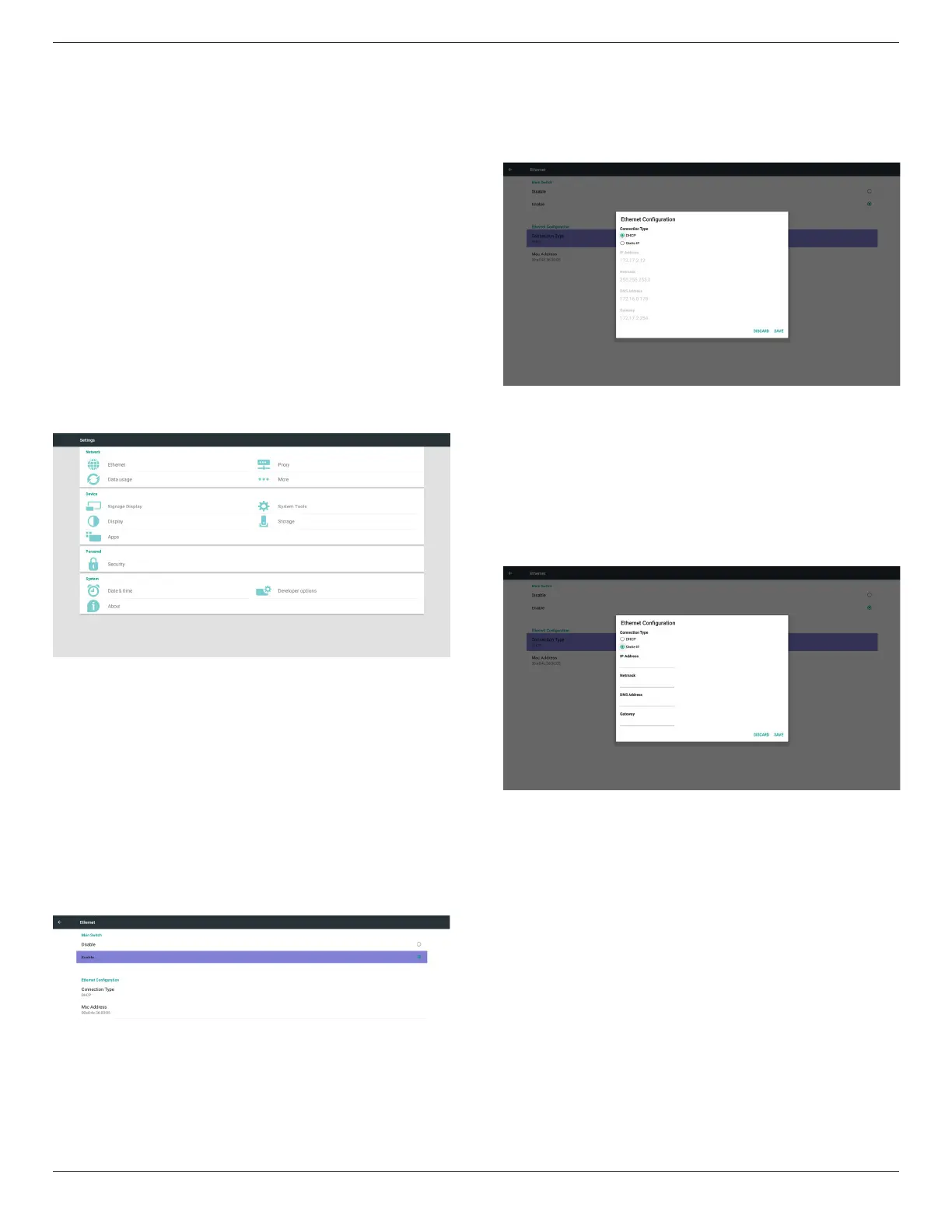
Mainitems:
(1)Ethernet
(2)Proxy
(3)Datausage(Showupwhen4Gmoduleconnected)
(4)More(Showupwhen4Gmoduleconnected)
(5)SignageDisplay
(6)SystemTools
(7)Display
(8)Storage
(9)Apps
(10)Security(Showupwhen4Gmoduleconnected)
(11)Date&time
(12)Developeroptions
(13)About
5.2. Ethernet
Enable/Disabletoturnon/offEthernet
AfterenableEthernet,thesettingswillshow:
(1)ConnectionType(Availableconnectiontype:DHCP/StaticIP)
A.DHCP
B.StaticIP
C.IPAddress
D.Netmask
E.DNSAddress
F.Gateway
(2)MacAddress
Note:
Ethernetwillbedisabledautomaticallywhenwionandconnectto
network.
5.2.1. DHCP
DHCPmode:
(1)CannotmodifyIPAddress,Netmask,DNSAddressandGateway.
(2)Ifconnectsuccessfully,itwilldisplaycurrentnetwork
conguration.
5.2.2. Static IP
InStaticIPmode,usercaninputIPAddress,Netmask,DNSaddress
andGateway
Note:
IPaddress,netmask,DNSaddressandgatewayaddressinputlimitation
(1)Format:
I. number0-9
II. decimalpoint“.”
5.3. Proxy
BrowserconnecttoProxyserverandaskProxyservertoconnect
somewebsiteonInternet.
Enable/Disabletoturnon/offProxyserver.
• Click“Enable”toswitchproxyfunction“ON”
• Inputthe“Proxyhostname”.(ProxyserverIPaddress)
• Inputthe“Proxyport”.(Proxyserverportnumber)
• Selectan“Type”.(Proxyservertype.)
• Done.
- Iftheproxyserverisneedanauthenticationtoconnect,please
“checkon”theAuthenticationandinputUsername&Password.
- Iftheproxyserverisnotneedanauthenticationtoconnect.




 To Next Page