49BDL5057P
23
Ex./storage/emulated/legacy/philips/bookmarklist.txt
Step3.Startbrowserapp,itwillautoimportbrowsertextle.
Note:Oncetheplaylistle(text)isimported,ifanuserchange
playlistbyremotecontroller,thischangewillnotbewritten
toplaylisttextle.
4.6. PDF reader play
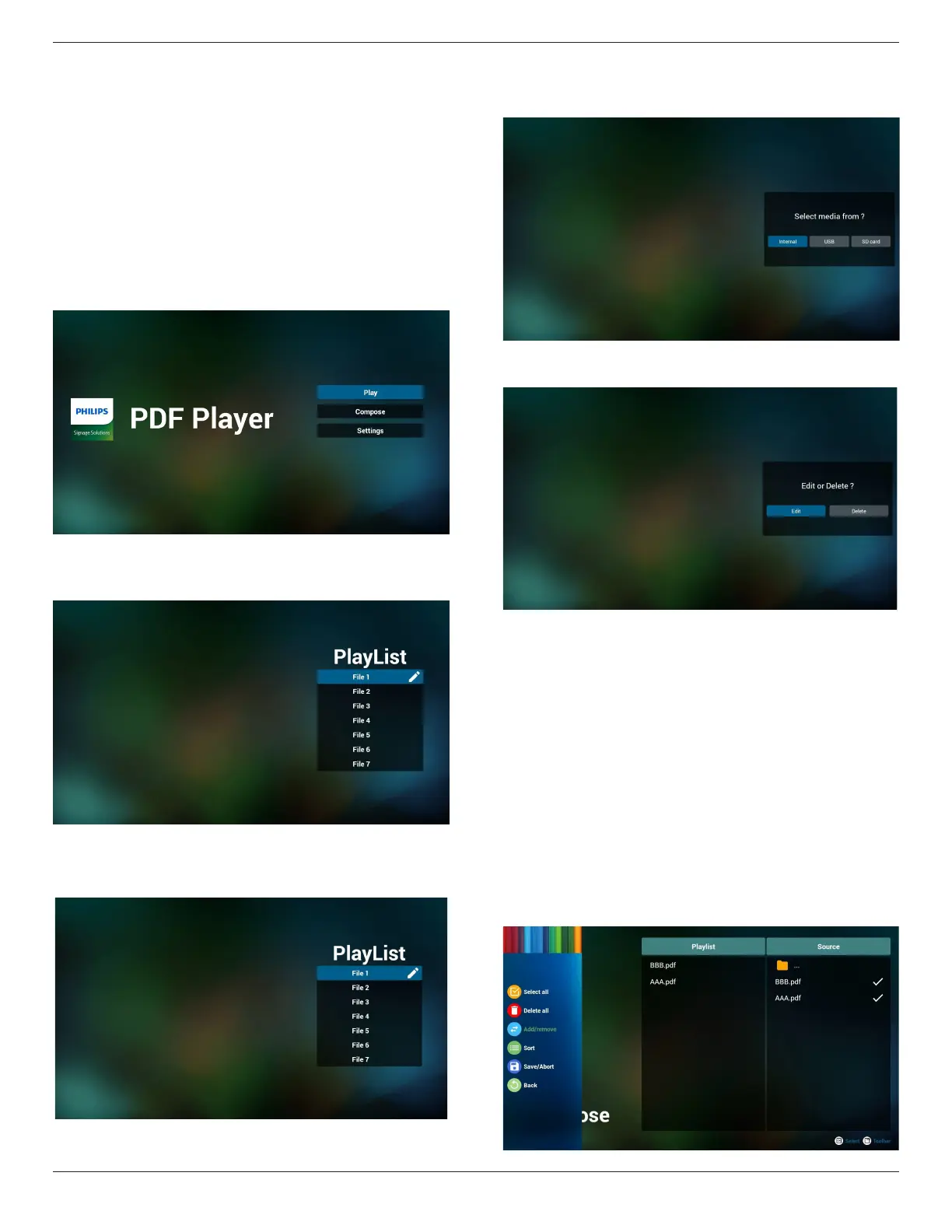
1. HomepageofPDFPlayer,thispagehasthreeitems:“Play”,
“Compose”and“Settings”.
Play:selectplaylisttoplay.
Compose:editplaylist.
Settings:settingplayproperties.
2. Select“Play”onhomepage,rstyoushouldchooseoneplaylistto
playbetweenFILE1andFILE7.
Thepenciliconmeanstheplaylistisnon-empty.
3. Select“Compose”onhomepage,rstyoushouldchooseone
playlisttoeditbetweenFILE1andFILE7.
Thepenciliconmeanstheplaylistisnon-empty.
4. Ifanemptyplaylistischosen,theappwillguideyoutoselectthe
mediasource.
Allmedialesshouldbeplacedin/philips/ofrootdirectory.For
example,
-pdfsin/root/philips/pdf/
5. Youcouldeditordeleteanon-emptyplaylist,justchoosethe
desiredplaylistwhichiswithpencilicon.
6. Onceyoustarttoeditaplaylist,youwillseebelowscreen.
Source-lesinstorage.
Playlist–lesinplaylist.
Thereare4iconswhichmaptothekeysofremotecontroller.
Optionkey–launchslidebar
Playkey–playmediale.
Infokey–showmediainfo.
Okkey–select/unselectle.
6-1.Intheslidebar,ithelpsyoutodothefollowing:
-selectall:selectallstorageles.
-deleteall:deleteallplaylistles.
-add/remove:updateplaylistfromsource.
-sort:sortplaylist.
-save/abort:saveorabortplaylist.
-back:return.




 To Next Page