49BDL5057P
41
Theaboveexample,thebootanimationwillplayataresolutionof1920
by1080pixels,ataframerateof30fps,startingwiththecontentsof
part0folderandafterplayingtheminoneloop,switchingtocontents
ofpart1folderandplayingthemcontinuouslytillthedeviceboot
complete.
3. Ziple:
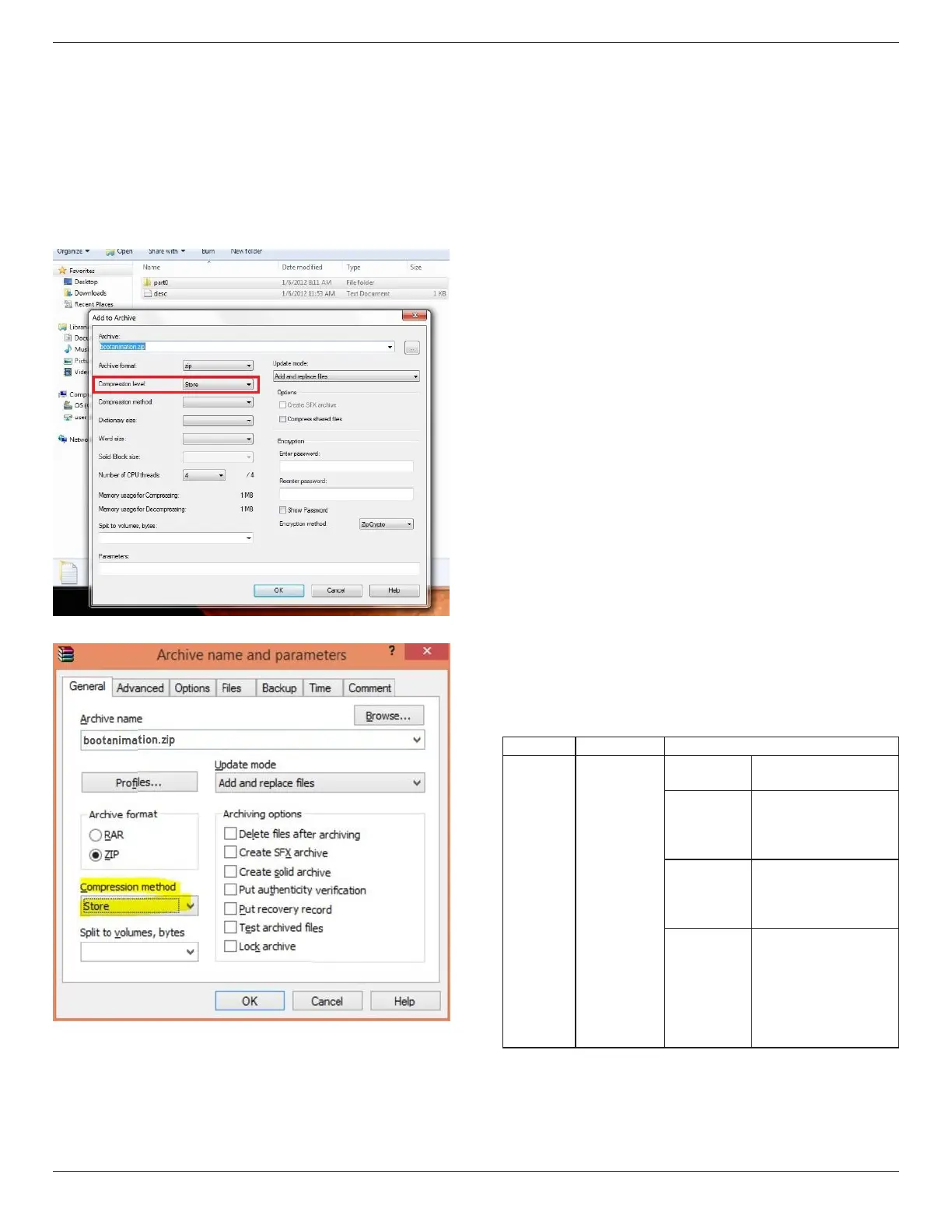
Selecteverything(imagefoldersanddesc.txt)insidetheBootanimzation
folderandzipthemintoanewuncompressed zip archiveusingyour
favoritecompressionutilitylike7ziporWinRARandsoon.
Ifusing7zip,setcompressionlevelto“Store”
IfusingWinRAR,set“Compressionmethod”to“Store”
orelsebootanimzationWON’Twork
4. Applythecustombootanimzation
Procedure:
(1).Putyourcustombootanimztion.zipleintoexternalSDcardor
USBandplugintoPhillipsPDplatform.
(2.)MakesuretheLogooptionisenabled.
PressHomekeyonRCU:OSDmenu->Conguration2->Logo
->set“on”
(3.)Presscombinationkey“Home+1888”onRCUtogotoAdmin
mode:
Settings->SignageDisplay->GENERALSETTINGS->BootLogo
(4).Thesystemwillndthebootanimzation.zipinexternalSDcard
orUSBautomaticallyandcopyitto/data/local
(5.)Oncestep1~4hasbeendone,restartthesystem.Thenew
customizedbootanimationshouldbedisplayedduringboottime.
5.16.3. How to Install Android app?
Thereare3waystoinstallyourownandroidapp.
(a)ViaFileManagerinAdminMode
1.Ifyouhaveapkalready
1.1copyyourapktoUSBdiskorSDcard,andthenplugthem
intoPhilipsAndroidSignageDisplay.
1.2GotoAdminMode>Apps>FileManager
1.3UsingFileManagerandndoutyourapkandthenyoucan
install.Justpress“ok”ontheselectedapk.
2.DownloadapkbyChromiumbrowser,andthengoto<internal
storagepath>/Download/byFileManager.
2.1Therestofstepsisthesameasabove.Pleasenote,eachmodel
mayhavedifferent<internalstoragepath>.
(b)ViaAdbShell
1.MakesurethatyourPCcanconnecttoPhilipsAndroidSignage
Displayusingadb.
2.Prepareyourapkinafolder(forexample,C:\apkfolder)onPC.
3.Executethefollowinginstructionbycommandlinetool.
C:\apkfolder>adbinstall-rapk_name.apk
(c)ViaCustomizedIntent
1.Ifyoudevelopanapkwhichcandownloadanyandroidapp,then
yourapkcanissueacustomizedintent.
2.Givingtheapknameandthepathitwasstored.Thesystemwill
helpyoutoinstallbyprogram.
Description Intent Parameters
SwUpdate
php.intent.
action.
UPDATE_APK
lePath
Theabsolutelepath
includingthelename.
Keep
Indicatethatyouwant
tokeeptheleornot
afterupdating.Thedefault
valueisfalse.
packageName
Thetargetpackage
youwanttolaunch
automaticallyafter
updating.
activityName
Thetargetactivity
youwanttolaunch
automaticallyafter
updating.Butifcurrent
topactivityisnot
activityName,nothing
happened.
Forexample,
Intentintent=newIntent();
intent.setAction(“php.intent.action.UPDATE_APK”);
intent.putExtra(“lePath”,“/sdcard/Download/apk_name.apk”);
intent.putExtra(“keep”,true);








 To Next Page