EasyManua.ls Logo

Philips Alpha Series - User Manual

Philips Alpha Series
26 pages
Print Icon
To Next Page IconTo Next Page
Loading...
EasyKey
Alpha series
Alpha-V-5HWS
Smart Video Door
Lock
User
manual
Register your produc t(s) to get
support from below link:
www. philips.com/support
Question and Answer IconNeed help?

Do you have a question about the Philips Alpha Series and is the answer not in the manual?

Summary

Important information and Safety

Safety Precautions

Guidelines for safe usage, handling, and installation of Philips EasyKey.

Usage Cautions

Warnings regarding battery placement, component usage, and environmental exposure.

Disposal of Used Products and Batteries

Instructions for environmentally responsible disposal of the product and its batteries.

Product Installation Guide

Packaging Contents

List of all items included in the Philips EasyKey product packaging.

Exploded View of Components

Detailed visual breakdown of the door lock components for installation reference.

Pre-Installation Steps

Guidance on preparing the door and adjusting the latch bolt orientation before installation.

Step-by-Step Installation Instructions

Detailed instructions for assembling and mounting the Philips EasyKey door lock.

Getting to Know Your EasyKey

Front Escutcheon Overview

Identification of components on the exterior part of the door lock.

Rear Escutcheon Overview

Identification of components on the interior part of the door lock.

EasyKey Setup and Configuration

Initial Setup Modes

Explanation of General mode and Dual verification mode for the EasyKey.

User Code Management

Guidance on managing user information and deleting user records.

Icon Reference Guide

Visual guide to icons used for PIN codes, fingerprints, and keytags.

Entering Master Mode

Procedure for accessing the master mode using PIN or fingerprint.

User Setting Operations

Instructions for adding new user PIN codes and fingerprints.

Master Fingerprint Setup

Steps to enroll or change the master fingerprint.

One-Time PIN Code Creation

How to generate and set up a temporary PIN code for users.

Changing Master PIN Code

Procedure to modify the existing master PIN code for enhanced security.

Deleting User Information

Steps to remove specific user PINs, fingerprints, or keytags.

System Settings Configuration

Options for customizing language, volume, and eco mode settings.

Dual Verification Mode Setup

Enabling or disabling the dual verification mode for enhanced security.

Infrared Sensor Settings

Enabling or disabling the infrared sensor for indoor unlocking.

Network Connection Setup

Instructions for connecting the EasyKey to a Wi-Fi network.

Mobile App Pairing Guide

Steps for integrating the door lock with the Philips EasyKey Plus mobile application.

Using Your Philips EasyKey

Unlocking from Outside

Methods to unlock the door from the exterior using PIN, fingerprint, or keytag.

Unlocking from Inside

Methods to unlock the door from the interior using rotary knob, button, or sensor.

Locking and Interior Lockout

Instructions for locking the door and activating interior lockout mode.

Mechanical Key Unlocking

Procedure for using the mechanical key for unlocking in emergencies.

Additional EasyKey Functions

Indoor Infrared Sensor Operation

Using the infrared sensor for convenient indoor unlocking.

Outside Forced Lock Feature

Activating a security mode that triggers an alert if unlocked from inside.

Mute Mode Activation

Disabling voice prompts for silent operation.

Restoring Default Settings

Procedure to reset the EasyKey to factory default settings.

Doorbell Functionality

Using the doorbell to notify visitors and capture video.

Two-Way Video Intercom

Communicating with visitors remotely via the mobile app.

Understanding Indicators and Alerts

Door Lock Status Indicator

Interpreting the LED color codes for lock status (blue, green, red).

Low Battery Voltage Indicator

Recognizing the indicator for low battery and the need for replacement.

Outside Forced Lock Indicator

Identifying the indicator that signifies the outside forced lock mode is active.

Interior Lockout Indicator

Understanding the keypad display when interior lockout mode is enabled.

System Lockup Indicator

Recognizing indicators for system lockup due to multiple incorrect inputs.

Troubleshooting and Emergency Procedures

Philips EasyKey Alerts

Understanding various alerts like forced lock, low battery, and anti-dismantling.

Anomalous Deadbolt Alert

Troubleshooting issues related to abnormal deadbolt operation.

Motion Sensor Alert

Managing alerts triggered by unexpected motion detection.

Emergency Power and Charging

Procedures for powering the lock in emergencies and charging the lithium battery.

Battery Replacement Guide

Instructions on how to replace the internal lithium battery.

Overview

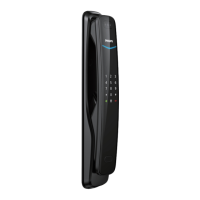
The Philips EasyKey Alpha-V-5HWS is a smart video door lock designed for enhanced security and convenience. It offers multiple unlocking methods, advanced security features, and smart home integration capabilities.

Function Description

The EasyKey Alpha-V-5HWS serves as a comprehensive smart door lock system. It provides secure access control through various authentication methods, including PIN codes, fingerprints, key tags, and mechanical keys. The lock also features a built-in camera for video intercom and motion sensing, allowing users to monitor their doorstep remotely. It supports both general mode and dual verification mode for unlocking, offering flexibility based on security preferences.

Usage Features

Unlocking from Outside:

  • With PIN code: Users can unlock the door by touching the digit input area to light up the keypad, entering a registered PIN code, and confirming with [#]. A voice prompt of "Door opened" will confirm successful unlocking, after which the handle can be pushed or pulled.
  • With fingerprint: Placing a registered finger on the fingerprint sensor will unlock the door. A "Door opened" voice prompt will indicate success, allowing the handle to be pushed or pulled.
  • With a Keytag: Presenting a registered Keytag against the keytag reader will unlock the door, followed by a "Door opened" voice prompt and the ability to push or pull the handle.

Unlocking from Inside:

  • With a rotary knob: The Philips EasyKey utilizes an indoor fast-opening mortise. Rotating the rotary knob allows for quick unlocking from the inside.
  • With a functional button: Double-pressing the [OPEN/CLOSE] functional button within one second, then pushing or pulling the handle, will unlock the door.
  • With an infrared sensor: The handle incorporates an infrared sensor. When triggered, simultaneously touching the sensing area on both the rear and front sides of the handle will unlock the door. This sensor can be enabled or disabled by long-pressing the [OPEN/CLOSE] button.

Locking from Outside or Inside: The latch bolt automatically pops up when the door is closed, accompanied by a "Door Close" voice prompt, indicating successful locking.

Interior Lockout: When the door lock is locked, long-pressing the [CLOSE] button activates the "inside deadlock enabled" mode. In this mode, the front escutcheon locks up, and all operations from the front escutcheon are disabled. Master PIN code verification or mechanical key opening is required to release the door from interior lockout.

Unlock with Mechanical Key: In emergencies (e.g., dead battery, forgotten PIN code, or system malfunction), a mechanical key can be used. The key is accessed by cutting the mechanical box and pushing aside its cover. The key is inserted vertically into the keyhole, turned 90° towards the handle, then twisted 180° clockwise to align the key shell parallel to the horizontal plane. Finally, the key cover is rotated horizontally in the direction of the handle to unlock. It is recommended to use mechanical keys only in emergencies.

Other Functions:

  • Mute mode: This feature allows users to turn off the voice guide, useful in situations where disturbing others is undesirable. Long-pressing the [Mute] key for 2 seconds when the system is awake enters mute mode ("Mute mode" voice prompt). Long-pressing it again turns off mute mode ("Voice mode" voice prompt).
  • Restore to default settings: Double-clicking the [RES] button with a sharp object restores the door lock to factory settings, emptying all user information.
  • Doorbell: When a visitor presses the doorbell on the keypad, the indoor chime produces a "dingdong" sound. The smart lock's camera captures a video clip of the visitor and sends it to the paired app, notifying the user to check the situation remotely. The smile curve indicator flashes blue when the doorbell key is pressed.
  • Two-way video intercom: When integrated with the mobile app, users can view the situation outside the front door and engage in real-time two-way communication with visitors.
  • Outside forced lock: Once the door is successfully locked, long-pressing the number key "8" for 2 seconds activates outside forced lock mode. Unlocking from inside will trigger an alert. This function does not affect normal unlocking from outside.
  • Infrared sensor: This sensor, enabled by default, allows for easy indoor unlocking. When disabled, indoor inductive unlocking is inactive, and touching the sensing area on the handle will show a red light to indicate this.

System Settings:

  • Language settings: Users can choose between Chinese and English. The default language is English.
  • Volume settings: Options include high, low, and mute modes. The default volume is high.
  • Eco mode: This mode can be enabled or disabled. It is turned off by default.
  • Dual verification mode: This mode requires a combination of two different verifications (PIN code, Keytag, or fingerprint) to unlock, enhancing security. The default verification option is single verification.
  • Network connection: The lock can be connected to a network, automatically exiting master mode upon successful connection.

App Pairing Guide: The Philips EasyKey Plus app facilitates integration. Users can pair the lock via QR code scanning (found on the battery cover) or manual operations. The lock is compatible with 2.4 GHz Wi-Fi routers, and a distance of less than 10 meters between the lock and router is recommended for optimal connectivity.

Indicators Meaning and Usage:

  • Door lock status indicator: Glows blue when the system is awake and ready for operation, green when unlocked and the door is open, and red when locked and the door is closed.
  • Low battery voltage indicator: Flashes red when the battery voltage is too low, accompanied by a voice prompt to replace the battery.
  • Outside forced lock indicator: The number key "8" glows white when outside forced lock mode can be enabled.
  • Interior lockout indicator: When in inside deadlock mode, the keypad locks and displays "15937 (X)" with a voice prompt "inside deadlock enabled".
  • System lockup indicator: If there are 5 consecutive incorrect inputs of fingerprint, PIN code, or Keytag within 5 minutes, the system locks for 100 seconds.

Maintenance Features

Charging EasyKey in an Emergency: If the battery voltage is low and the door cannot be opened from outside, a 5V power bank can be plugged into the micro USB interface to power up the lock. After unlocking, the battery should be replaced immediately. If the system crashes, powering it with a 5V power bank will automatically reboot it.

Replacing Batteries: The Philips EasyKey is powered by a 5000mAh lithium battery located in the upper part of the rear escutcheon. To replace it, push the battery cover upward, remove it, and insert the new battery.

Charging Lithium Battery: The lithium battery can be removed from the door lock and charged via a charging cable. The charge cut-off voltage for the lithium battery is 5V. A poor network connection can increase power consumption, leading to faster battery drain.

Troubleshooting Alerts:

  • Alert to unlock from inside under outside forced lock mode: Triggered when the door is unlocked from inside while in outside forced lock mode. Alerts repeat until identity verification is successful.
  • Low battery voltage alert: Triggered when the system detects low battery voltage, prompting a "Low battery voltage, please replace all batteries" voice message upon unlocking. Alerts cease once the battery is replaced.
  • Anti-dismantling alert: Triggered if the door is pried apart, the latch bolt pops out, or the front escutcheon is pried open creating a gap. Alerts repeat until identity verification or normal unlocking.
  • Anomalous deadbolt alert: Triggered if the deadbolt malfunctions, causing locking or unlocking failure. Alerts repeat until the issue is resolved.
  • Motion sensor alert: Triggered when an unexpected person stays in the detected area for a given time. The camera captures a short video and sends notifications to the mobile app. This function is off by default and can be enabled/disabled via the app. Setting a minimum sensitivity level for the motion sensor is recommended to reduce power consumption from frequent video functions.

Philips Alpha Series Specifications

General IconGeneral
BrandPhilips
ModelAlpha Series
CategoryDoor locks
LanguageEnglish

Related product manuals