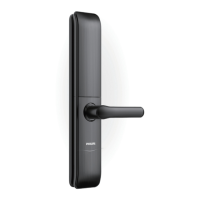
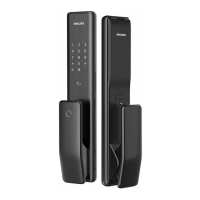
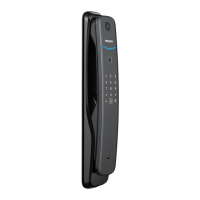
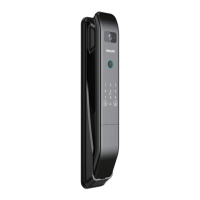
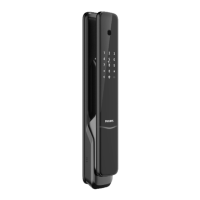
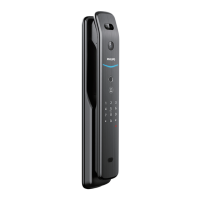
This document describes the Philips Home Access Smart Deadbolt, 4000 series, a smart deadbolt designed for home security and convenience. It offers multiple ways to lock and unlock the door, along with various programmable features to enhance security and user experience.
Function Description
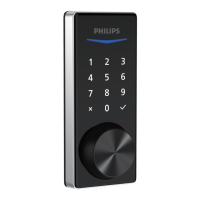
The Philips Smart Deadbolt is a home access device that provides secure locking and unlocking mechanisms for doors. It operates as a smart deadbolt, integrating with smart home systems via Z-Wave technology. The primary function is to secure a door, preventing unauthorized access, while offering convenient entry methods for authorized users. It supports both traditional mechanical key access and modern digital entry via PIN codes and smartphone applications. The deadbolt is designed to be user-friendly, with a touchscreen keypad for PIN entry and a physical thumb turn on the interior for manual operation.
Usage Features
The smart deadbolt offers several features to facilitate its use and enhance security:
- 3 Ways to Unlock: Users can unlock the door using PIN codes entered on the touchscreen, a traditional mechanical key, or through a smartphone application. This provides flexibility and redundancy in access methods.
- Master PIN Code: A Master PIN Code (4 to 10 digits) is essential for programming and adjusting the lock's settings. The default Master PIN Code (12345678) must be changed immediately after installation for security purposes. This code can also unlock the deadbolt in Away Mode and Privacy Mode.
- User PIN Codes: The lock supports up to 250 User PIN Codes (4 to 10 digits), which can be programmed in Master Mode. These codes allow multiple individuals to have unique access to the property.
- One-Touch Locking: For quick and easy locking, users can simply press and hold any key on the touchscreen for 2 seconds to engage the deadbolt in Manual Mode.
- Auto-Lock: This feature automatically locks the door after it has been unlocked. It is disabled by default but can be programmed in Master Mode on the lock or via the Z-Wave system's user interface. The time delay for auto-locking can be set between 30 and 180 seconds.
- Silent Mode: Users can mute the sounds produced when pressing the touchscreen. However, low battery warnings and system alerts will still be audible. This mode can be programmed in Master Mode or via the Z-Wave system's user interface.
- Away Mode: Designed for when the user is away for an extended period, this safety feature restricts all User PIN Code access. Only the Master PIN Code can unlock the door when Away Mode is active. If the lock is unlocked by the Thumb Turn while in Away Mode, an alarm will sound for 1 minute. This mode can be programmed in Master Mode or via the Z-Wave system's user interface and can be disabled by entering the Master PIN Code.
- Privacy Mode: Activated by pressing and holding the Privacy Button on the Interior Assembly for 3 seconds, this mode restricts all User PIN Code access. Privacy Mode is automatically disabled after unlocking the door with the Thumb Turn or the Master PIN Code.
- Wrong Code Entry Limit: To prevent brute-force attacks, the touchscreen will shut down and become unusable for 3 minutes after 10 unsuccessful attempts to enter a PIN code.
- Low Battery Alarm: When the batteries are running low, the battery indicator will flash, and a voice prompt will announce "Low battery. Please replace batteries as soon as possible."
- Z-Wave Network Setup: The lock can be integrated into a Z-Wave network, allowing for remote control and management through a smart hub or panel. It supports SmartStart Learn Mode for easy inclusion by scanning a QR code, as well as manual setup for adding and removing the lock from the network.
- System Language Change: The system language can be changed, offering options such as English, French, and Spanish.
Maintenance Features
The device includes features and procedures for maintenance and troubleshooting:
- Factory Reset & Default Settings: This procedure erases all user and network settings, unpairs the lock from the Z-Wave network, and restores the lock to its default settings. This also activates the lock-handing process. The default Master PIN Code after a factory reset is 12345678.
- Battery Replacement: The lock uses four AA alkaline batteries. The low battery alarm prompts users to replace them when necessary. It is crucial to use new AA alkaline batteries and avoid rechargeable or mixed old/new batteries.
- Troubleshooting Guide: The manual provides a comprehensive troubleshooting section addressing common issues such as incorrect latch bolt operation, lock not working after installation, lock handing not activated, lock turning in the wrong direction, key removal problems, and issues with auto-lock or touchscreen responsiveness. Solutions often involve checking installation steps, performing a factory reset, or replacing batteries.
- Installation Buckles: The interior assembly includes installation buckles that aid in securing the mounting plate and interior assembly during installation.
- Reset Button: A dedicated reset button is used in conjunction with battery removal for performing a factory reset.
The Philips Smart Deadbolt is designed to be a reliable and versatile security solution, offering a blend of traditional and smart functionalities for modern homes.


 To Next Page
 General