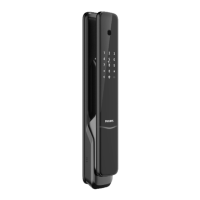
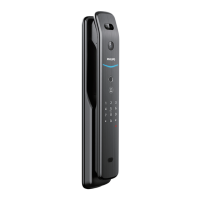
If the lock is connected to a network controller, it is recommended that all programming of PIN codes and settings is completed
through 3rd party user interface to ensure stable communication between the lock and controller is maintained.
Attention
4 Z-Wave Network Setup
1 timePress
Green light is on
2 timesPress
Enter Master
PIN Code
1 timePress
Green light is on
Press
0
Press
1
1 timePress
Green light is on
2 timesPress
Enter Master
PIN Code
1 timePress
Green light is on
Press
0
Press
2
2. Add the lock to your Z-Wave network
3. Remove the lock from your Z-Wave network
1. Follow the user guide of your Smart Hub or Panel to enter Learning or Pairing mode.
Manual Setup
SmartStart-enabled products can be added into a Z-Wave network by scanning the Z-Wave QR Code
present on the product with a controller providing SmartStart inclusion. No further action is required and
the SmartStart product will be added automatically within 10 minutes after this product being powered
on in the network vicinity.
SmartStart Learn Mode
18


 To Next Page
 Loading...