User Manual BDH4222V/BDH4223V
20
6.2 CONNECTING A HDTV DECODER SET-TOP
BOX
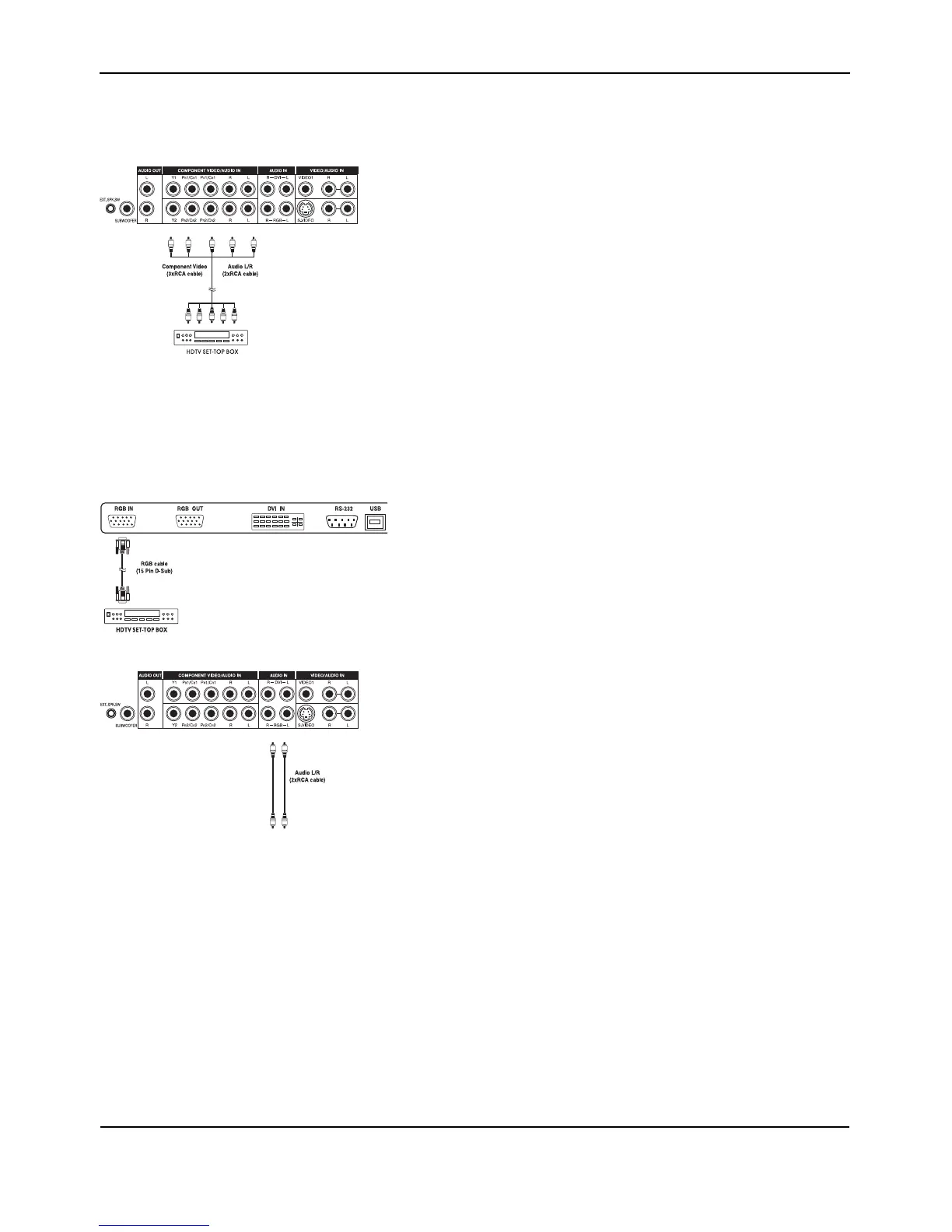
Using Component Video Input
1 Connect the green (labeled as "Y") jack of the HDTV Set-top box to
the green "Y1" jack of the monitor.
2 Connect the red (labeled as "PR" or "CR") jack of the HDTV
Set-top box to the red "PR1/CR1" jack of the monitor.
3 Connect the blue (labeled as "PB" or "CB") jack of the HDTV
Set-top box to the blue "PB1/CB1" jack of the monitor.
4 Connect the red (R) and white (L) audio jacks of the HDTV
Set-top box to the R and L audio-in jacks of the monitor.
Notes:
● Some HDTV Set-top boxes may not have a Component Video
output. Instead, use RGB input method.
● There are two sets of component inputs provided. You can use
either set of component inputs to connect your HDTV Set- top box.
Using RGB Input
1 Connect the 15-pin D-Sub RGB connector of the HDTV Set-top box
to the RGB-IN connector of the monitor.
2 Connect the red (R) and white (L) audio-out jacks of the HDTV Set-
top box to the R and L audio-in jacks of the monitor.
Notes:
● Some HDTV Set-top boxes may not have an RGB output.
Use Component Video input method if this is the case.
● Upon connecting your HDTV Set-top box to the RGB input of the
monitor, it may be necessary to adjust various picture settings on the
monitor to correctly match the output of the HDTV Set-top box.
This is caused by the different video timings set by various HDTV
Set-top box manufacturers.
● This plasma supports 576p, 720p and 1080i under RGB mode.


 To Next Page