EN 9
2.2. System Information
˝Version Info” screen provides information about this unit’s software version.
You can also download the latest software from the Philips website and update it yourself if it is newer than the
version currently on your unit. The current version of software on your unit can be seen on the “Version Info” screen.
To access “Version Info”, follow the procedure below.
1. Press [Q (HOME)].
2. Use [
] to select “Setup”, then press [OK].
3. Use [
] to select “Advanced”, then press [OK].
4. Use [
] to select “Version Info”, then press [OK].
2.3. Symbols Used in this Owner’s Manual
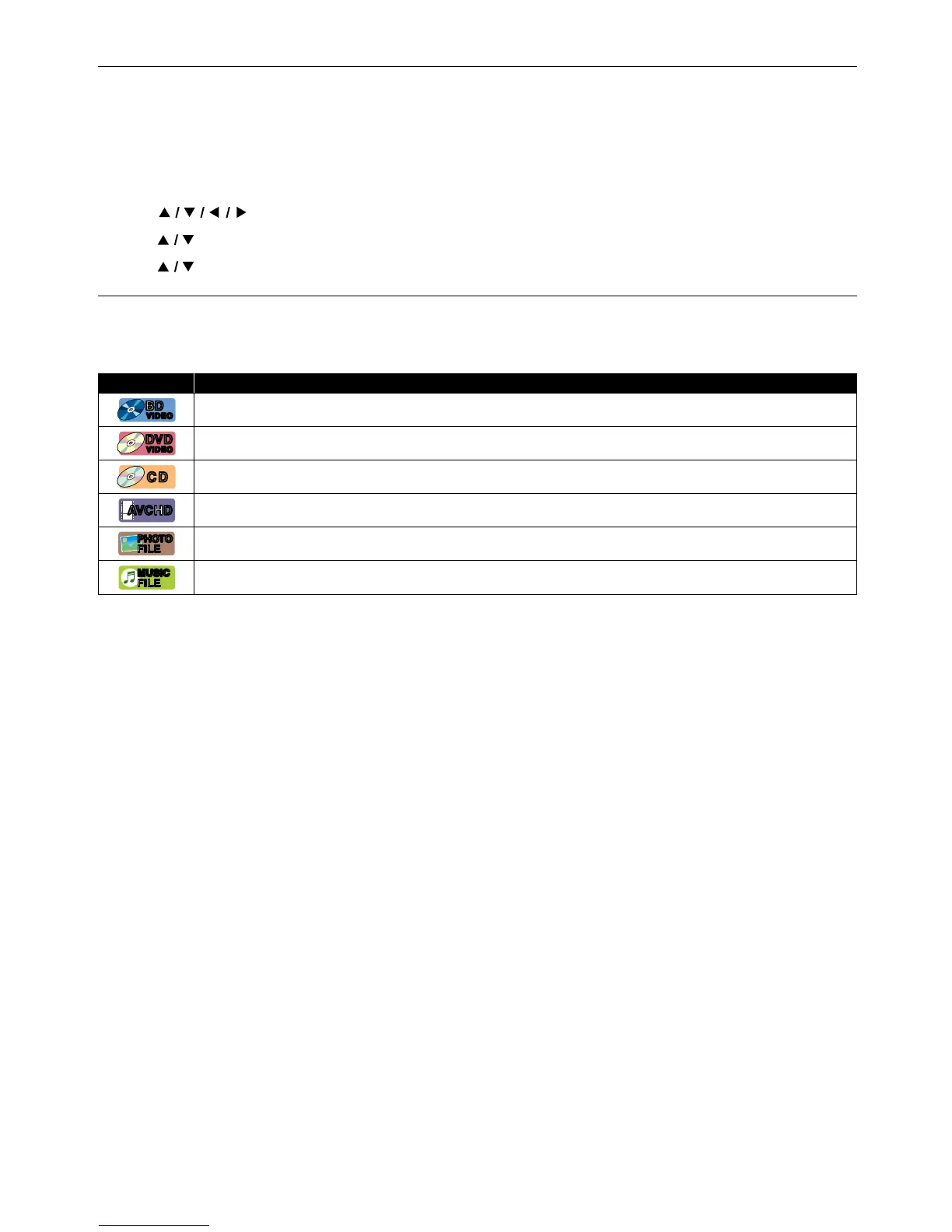
To specify which media type each function is applicable to, a combination of the symbols shown below will be
depicted next to that function's explanation.
Symbol Description
[BD Video]
BD
VIDEO
BD
VIDEO
Description refers to BD-Video
[DVD Video]
DVD
VIDEO
DVD
VIDEO
Description refers to DVD-Video
[CD]
CDCD
Description refers to Audio CD / DTS-CD
[AVCHD]
AVC HDAVC HD
Description refers to DVD-RW/-R with AVCHD files
[JPEG]
PHOTO
FILE
PHOTO
FILE
Description refers to BD-RE/-R, DVD-RW/-R, CD-RW/-R and USB Memory Stick with Photo files.
[MUSIC]
MUSIC
FILE
MUSIC
FILE
Description refers to BD-RE/-R, DVD-RW/-R, CD-RW/-R and USB Memory Stick with Music files.
If you do not find any of the symbols listed above under the function heading, the operation is applicable to all
media types.


 To Next Page