EN 10
3.3. Remote control
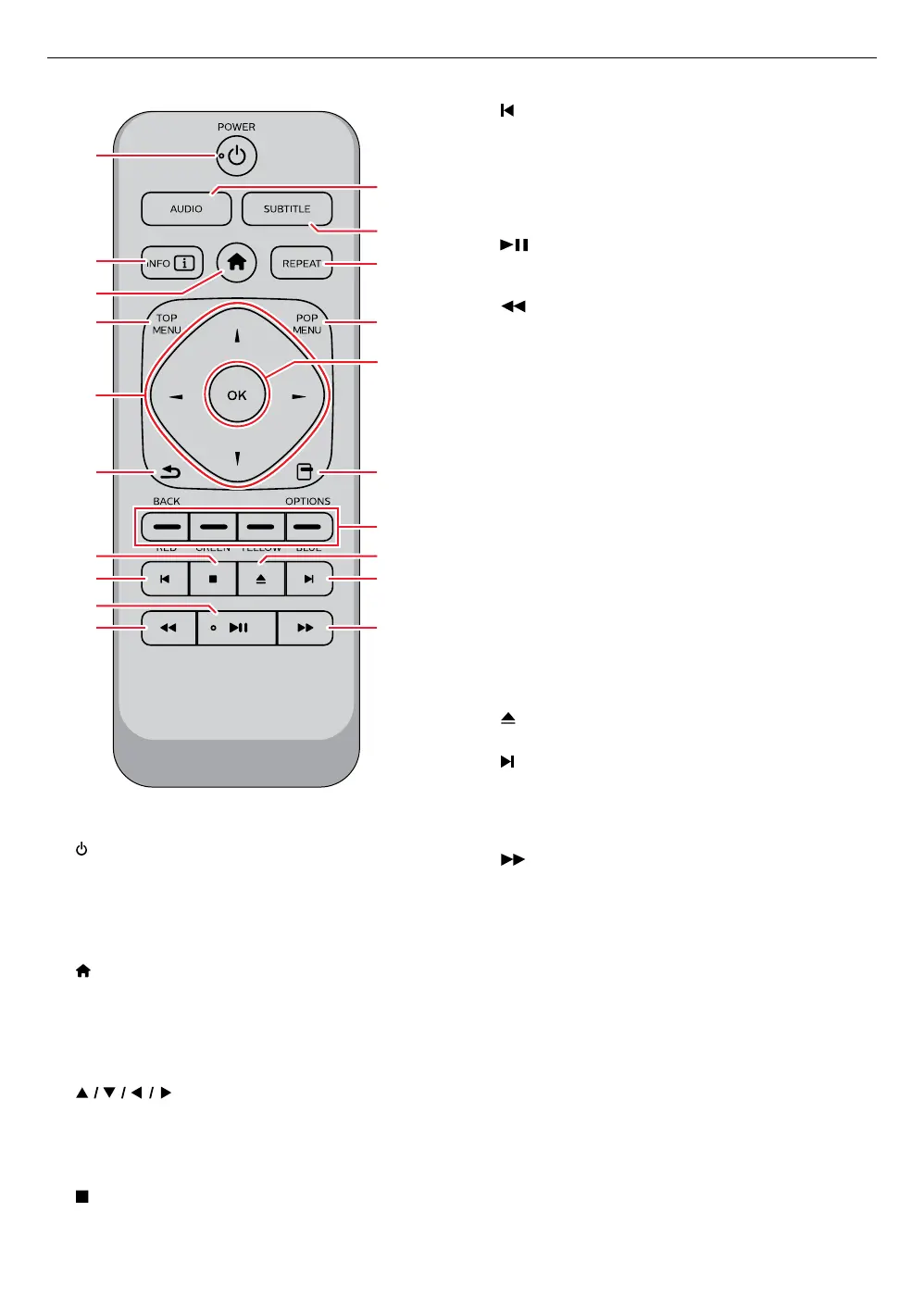
1
16
17
19
18*
20
12
2
3
4
14
13
11
6
7
8
9*
10
5
15
* The unit can also be turned on by pressing these
buttons.
1.
(POWER) button
• Press to turn on the unit, or to switch the unit into
standby mode. (To completely turn off the unit,
you must unplug the AC power cord.)
2. INFO button
• Press to display the information display.
3.
(HOME) button
• Press to display the home menu.
4. TOP MENU
Ultra HD Blu-ray™, Blu-ray Disc™:
Press to display the top menu.
DVD: Press to display the title menu.
5.
buttons
• Press to select items or settings.
6. BACK button
• Press to return to the previously displayed menu
or screen function.
7.
(STOP) button
• Press to stop playback.
8.
(SKIP) button
• During playback, press once to return to the
beginning of the current title, chapter, track or file.
• During playback, press twice to return to the
previous title, chapter, track or file.
• During photo playback, press to return to the
previous File.
9.
(PLAY/PAUSE) button*
• Press to start playback or resume playback.
• Press to pause playback.
10.
(REVERSE) button
• During playback, press to Fast Reverse the
playback.
11. AUDIO button
• Press to select the audio channel (such as audio
languages) on a disc.
12. SUBTITLE button
• Press to select subtitles on a disc.
13. REPEAT button
• Press to select repeat mode.
14. POP MENU
Blu-ray Disc™: Press to display the Pop menu.
DVD: Press to display the disc menu.
15. OK button
• Press to confirm or select menu items.
16. OPTIONS button
• During playback, press to display the play menu.
17. RED / GREEN / YELLOW / BLUE buttons
• Press to activate shortcut keys on some BD-video
functions.
18.
(OPEN/CLOSE) button*
• Press to open or close the disc tray.
19.
(SKIP) button
• During playback, press to Skip to the next chapter,
track or file.
• When playback is in pause mode, press to
Forward the playback picture by picture.
20.
(FORWARD) button
• During playback, press to Fast forward the
playback.
• When playback is in pause, press to Slow forward
the playback.
continued on next page


 To Next Page