Service Modes, Error Codes, and Fault Finding
EN 43BJ3.1E LA 5.
Upgrade via PC and ComPair interface
It will be possible to upgrade the Stand-by software via a PC
and the ComPair interface. Check paragraph "ComPair" on
how to connect the interface. To upgrade the Stand-by
software, use the following steps:
1. Disconnect the TV from the Mains/AC Power.
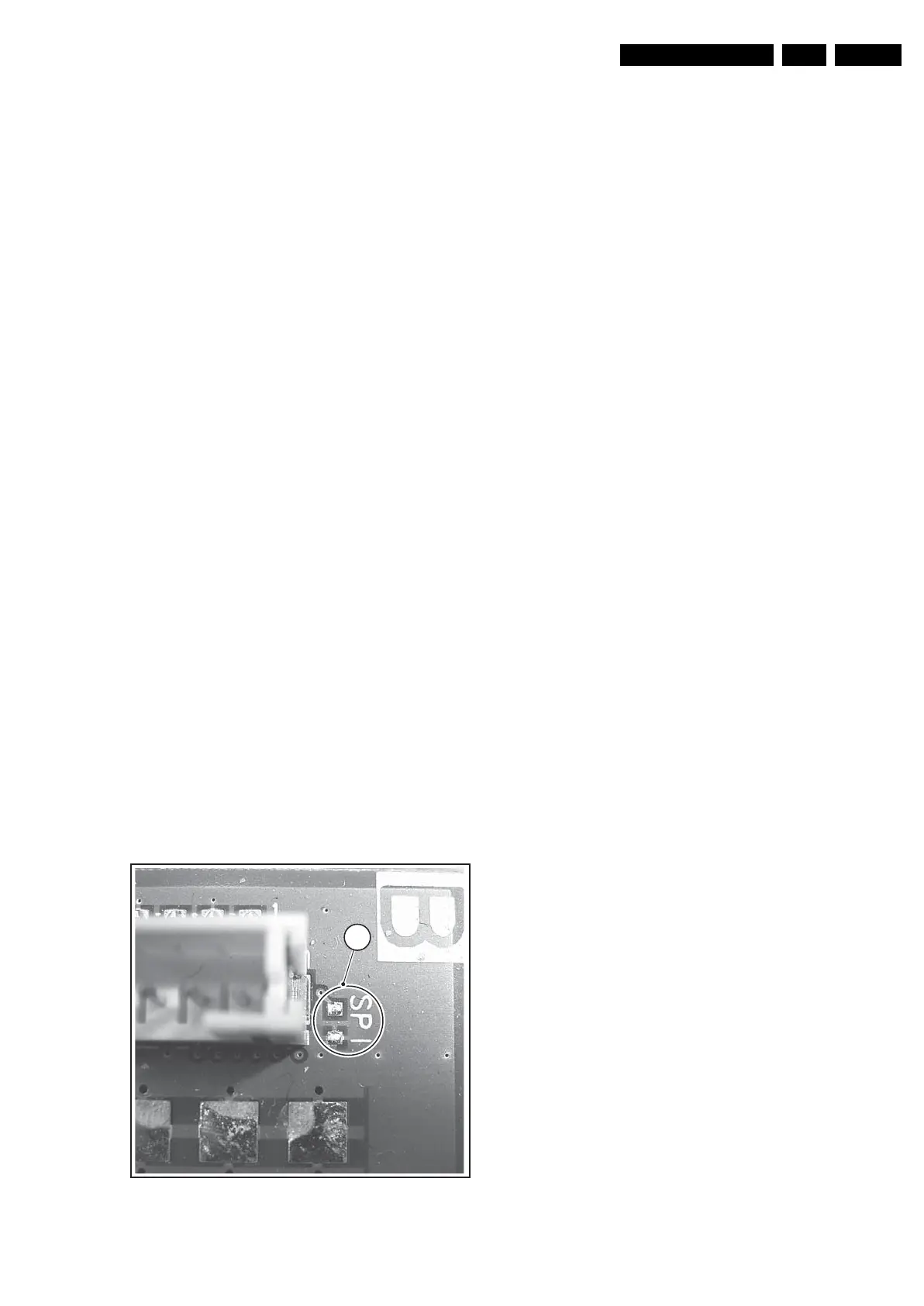
2. Short circuit the SPI pins [2] on the SSB. They are located
outside the shielding (see figure “SPI service pads”).
3. Keep the SPI pins shorted while connecting the TV to the
Mains/AC Power.
4. Release the short circuit after approx. two seconds.
5. Start up HyperTerminal (can be found in every Windows
application via Programs -> Accessories ->
Communications -> HyperTerminal). Use the following
settings:
–COM1
– Bits per second = 38400 (9600)*
– Data bits = 8
– Parity = none
– Stop bits = 1
– Flow control = None
6. Press “Shift U” on your PC keyboard. You should now see
the following info:
– PNX2015 Loader V1.0
– 19-09-2003
– DEVID=0x05
–Erasing
– MCSUM=0x0000
–=
7. If you do not see the above info, restart the above
procedure, and check your HyperTerminal settings and the
connections between PC and TV.
8. Via “Transfer” -> “Send text file ...”, you can send the
proper upgrade file to the TV (e.g. *.hex). This file will be
distributed via the Service Organization.
9. After successful programming, you must see the following
info (this can take several minutes!):
– DCSUM=0xECB3
–:Ok
– MCSUM=0xECB3
– Programming
– PCSUM=0xECB3
– Finished
10. If you do not see this info, restart the complete procedure.
11. Close HyperTerminal.
12. Disconnect and connect Mains/AC Power again.
(*) When having problems with upgrading, use the values
between brackets.
Figure 5-22 SPI service pads
F_15400_104.eps
110505
2




 To Next Page