36 Smart Picture, Picture Setting
Just as you can adjust your picture on your TV, you
can adjust some picture elements at the DVD
Player. Choose a Smart Picture setting that best dis-
plays the Disc you are playing.
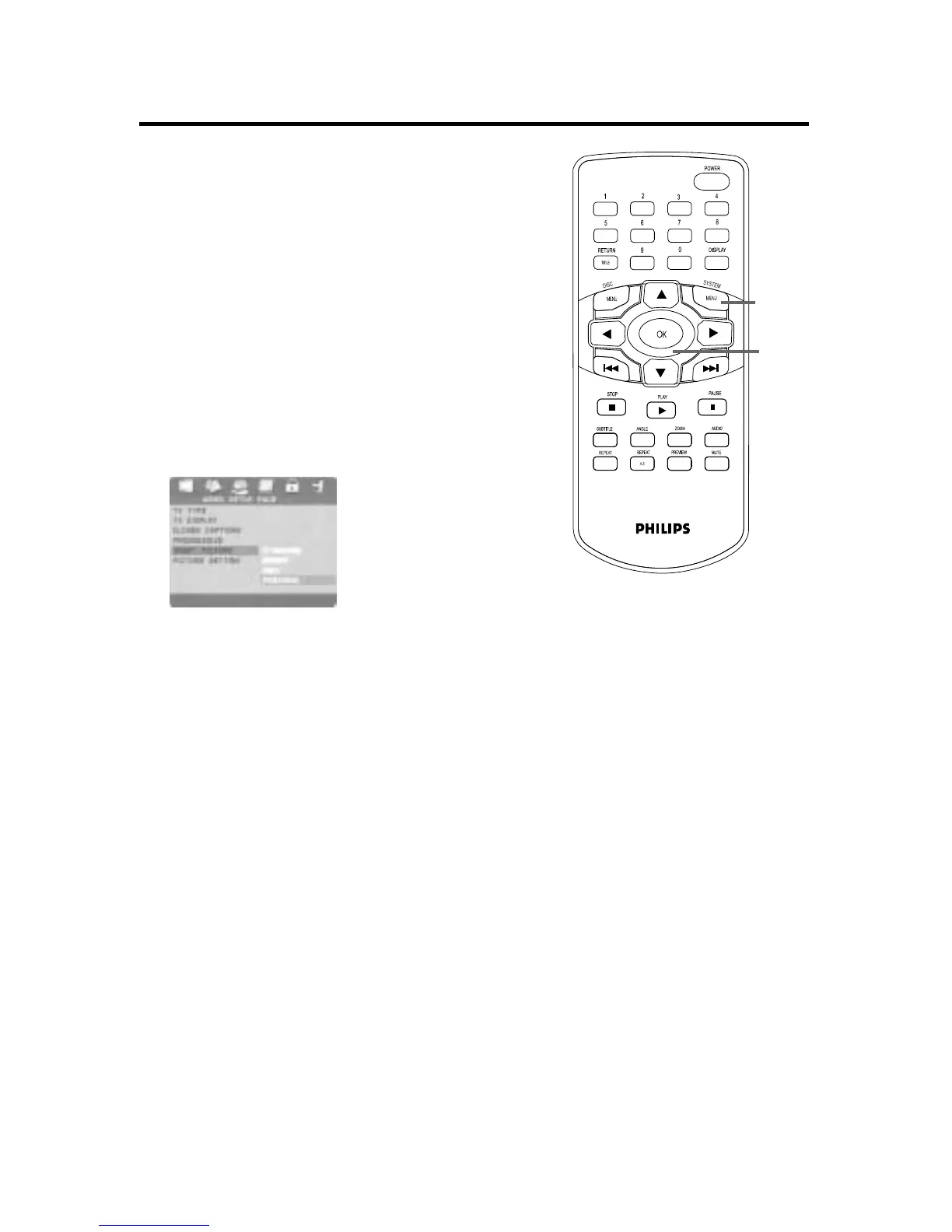
1
Press SYSTEM MENU.
2
Press 2 to select the VIDEO SETUP
PAGE. Press OK.
3
Press 4 to select SMART PICTURE.
Press 2.
4
Press 3 or 4 to select STANDARD,
BRIGHT, SOFT, or PERSONAL, then
press OK.
5
If you selected BRIGHT, STANDARD, or
SOFT, you are finished. Press SYSTEM
MENU to remove the menus. You may want
to play a Disc for a few minutes in each setting
to decide which you prefer.
If you selected PERSONAL, you can adjust
specific picture elements for your prefer-
ence. Go to step 6 to adjust these items.
6
SMART PICTURE will be reselected in green.
Press 4 to select PICTURE SETTING,
then press 2.
7
Press 3 or 4 to select BRIGHTNESS,
CONTRAST,TINT, or COLOR, then press
OK.
1,5
2-7


 To Next Page