Progressive Scan 39
If you connected the Player to a TV using the Y Pb Pr
jacks and your TV has Progressive Scan, set PRO-
GRESSIVE to ON. This provides the best picture.
1
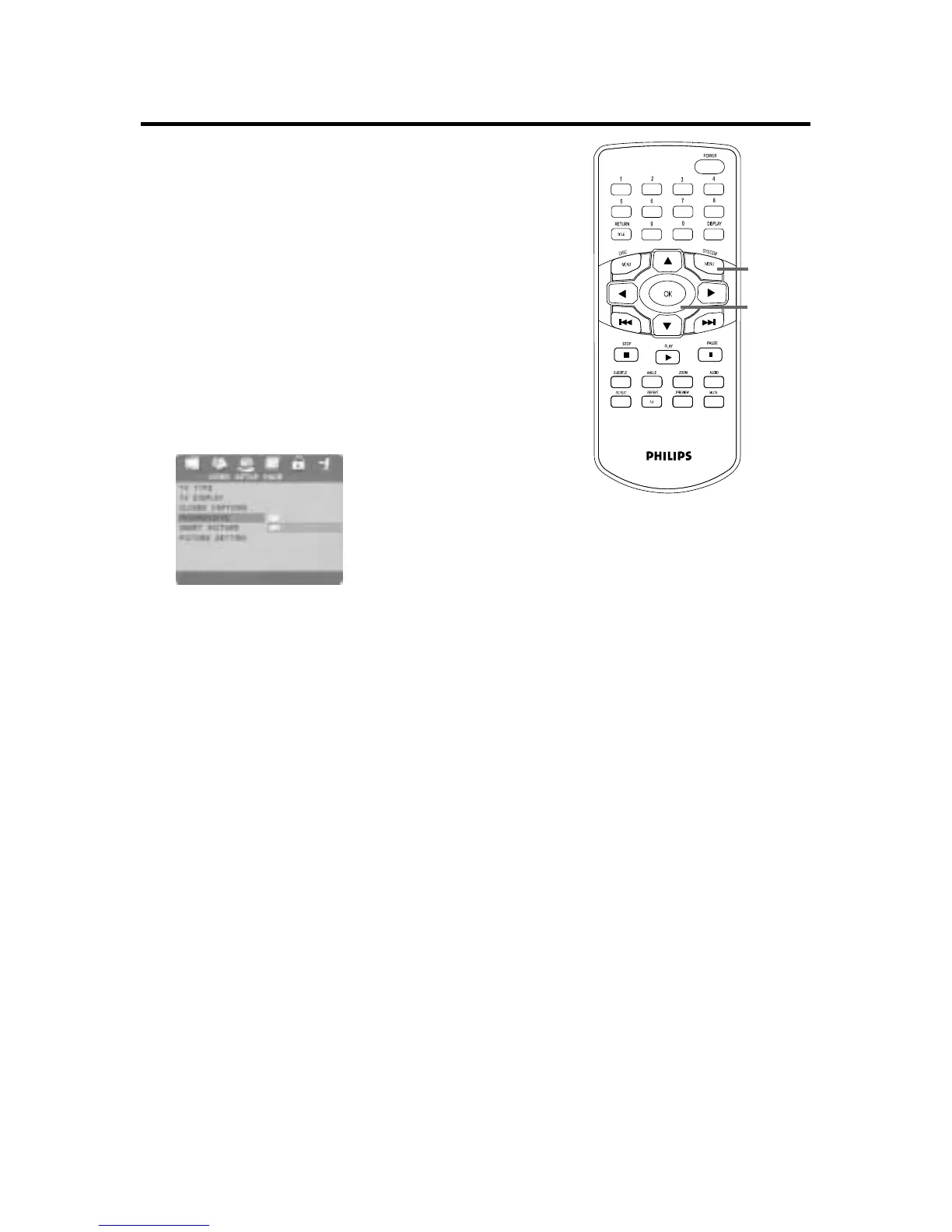
Press SYSTEM MENU.
2
Press 2 to select the VIDEO SETUP
PAGE, then press OK.
3
Press 3 or 4 to select PROGRESSIVE,
then press 2.
4
Press 3 or 4 to choose ON or OFF, then
press OK. Choose ON if your TV has
Progressive Scan.
5
A message will ask you to verify your hookups
and the availability of Progressive Scan.
Press 2 or s to choose OK, then press
OK. If Progressive Scan is not detected, the
VIDEO SETUP PAGE will reappear. Repeat steps
3-4 to set PROGRESSIVE to OFF.
If you realize you do not have Progressive Scan,
choose CANCEL and press OK. Repeat steps 3-
4 to set PROGRESSIVE to OFF.
6
Press SYSTEM MENU to remove the menus.
1,6
2-5


 To Next Page