20
English
Step 1: Turning on the DVD
system
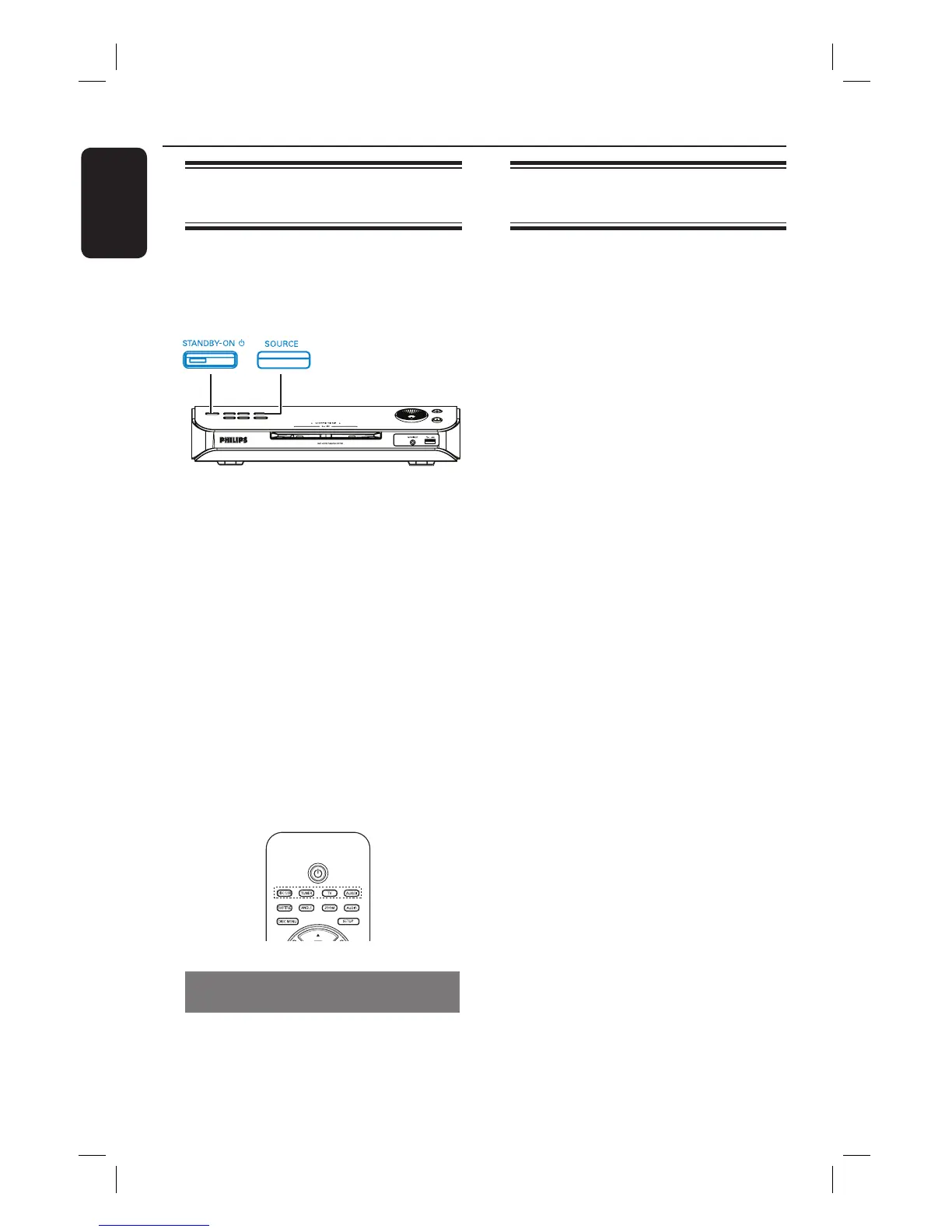
Press the SOURCE button on the front
panel repeatedly to select :
DISC ¤ MP3 DIRECT ¤ FM ¤ MW ¤
TV ¤ AUX ¤ DI ¤ DISC ....
Or
Press DISC/USB, TUNER, TV,
AUX/DI or MP3 DIRECT on the
remote control.
If the USB is detected, pressing the
DISC/USB will toggle between DISC
and USB mode.
Press TUNER to toggle between FM
and MW band.
Press AUX/DI to toggle between
analogue audio input and digital audio
input.
Press MP3 DIRECT to playback the
audio tracks from your portable audio/
HDD player which is connected to this
DVD system.
Turning off to Eco Power standby
mode
Press STANDBY ON (2).
The display screen will turn off.
Getting Started
Step 2: Finding the correct
viewing channel
Before you start ...
Make sure you have completed all the
necessary connections.
A Press SOURCE button until “DISC”
appears on the display panel.
B Turn on the TV and set it to the correct
video-in channel. You should see the
blue DVD background screen on the TV.
You may go to Channel 1 on your TV,
then press the Channel Down button on
your TV’s remote control until you see
the Video In channel.
You may press ° button repeatedly
on your TV’s remote control.
Usually this channel is between the
lowest and highest channels and may be
called FRONT, A/V IN, VIDEO. See your
TV manual for more details.




 To Next Page