25
English
Step 6: Setting the
Ambisound speakers
There are three parameters to adjust the
Ambisound speakers: Room Acoustics,
Speaker Distance and Listening Position.
You can adjust the Ambisound speaker
settings according to your room
environment and setup for optimum
performance.
A Press and hold SOUND on the remote
control to enter Ambisound speaker
settings mode.
B Use W X keys to select { ROOM
ACOUSTICS } and press OK.
To return to the main Ambisound
speaker settings selection, press S or T
key.
C Use W X keys to select the condition of
the room and press OK to con rm.
{ HARD } for concrete/glass walls.
{ SOFT } for wooden walls.
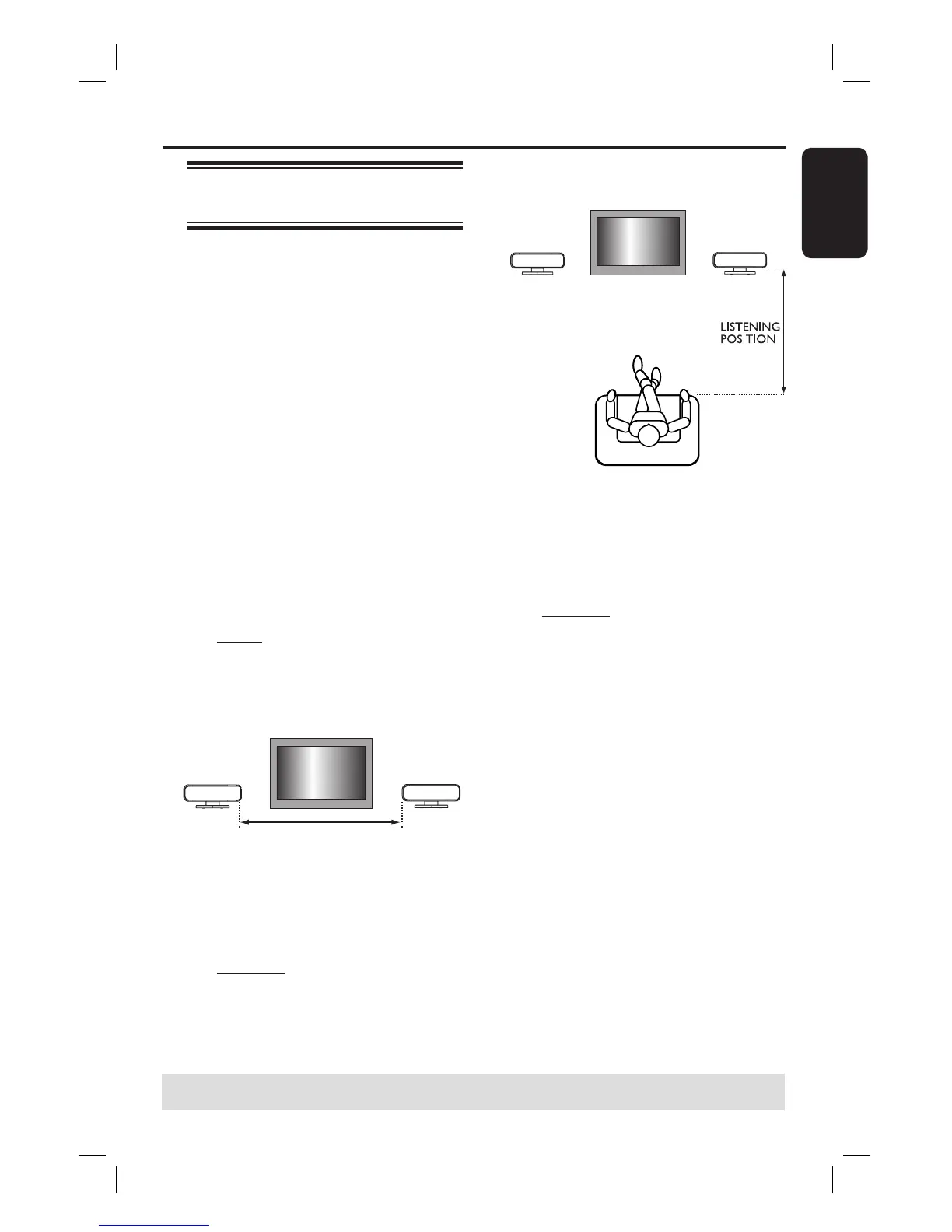
D Use W X keys to select { SPEAKER
DISTANCE } and press OK.
FRONT RFRONT L
TV
SPEAKER DISTANCE
E Use W X keys to select the distance
between the two Ambisound speakers
and press OK to con rm.
{ NEAR } for distance less than 1
metre (3’ 5”).
{ DEFAULT } for distance between 1
metre (3’ 5”) to 2.5 metres (7’ 7”).
{ FAR } for distance more than 2.5
meters (7’ 7”).
F Use W X keys to select { LISTENING
POSITION } and press OK.
TV
FRONT RFRONT L
G Use W X keys to select the distance
between the listening position and the
Ambisound speakers and press OK to
con rm.
{ NEAR } for distance less than 1.5
meters (4’ 7”).
{ DEFAULT } for distance between 1.5
meters (4’ 7”) to 2.5 meters (7’ 7”).
{ FAR } for distance more than 2.5
meters (7’ 7”).
H The Ambisound speaker settings are now
completed and the system will exit the
setting automatically.
Getting Started (continued)
TIPS: The underlined option is the factory default setting.
Press W to go back to the previous menu item. Press SETUP to exit the menu.




 To Next Page