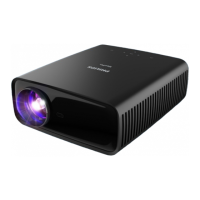
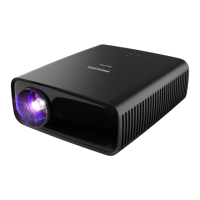
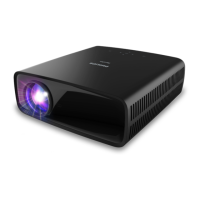
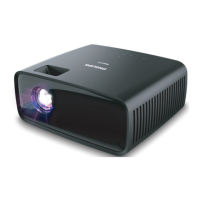
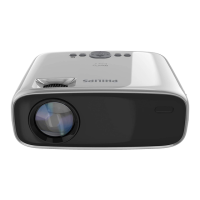
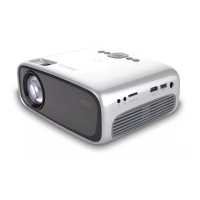
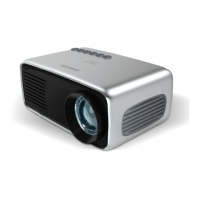
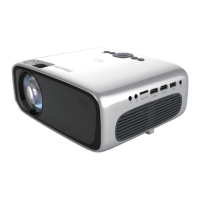
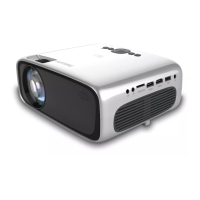
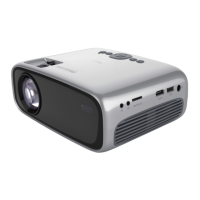
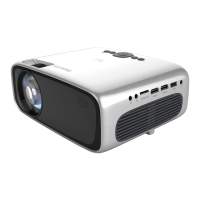
This document is a user manual for the Philips NeoPix Ultra 2TV home projector, model NPX643/INT. It provides comprehensive instructions for setting up, operating, and maintaining the device, as well as troubleshooting common issues.
Function Description
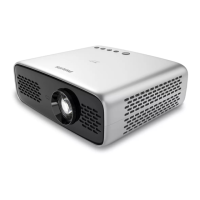
The Philips NeoPix Ultra 2TV is a home projector designed to display images and videos on a projection surface. It features an integrated Android TV system, allowing users to access a wide range of entertainment options directly from the projector. The device supports various input sources, including HDMI, and offers digital audio output through SPDIF. It also includes Chromecast built-in for streaming content from mobile devices. The projector is equipped with built-in speakers and supports external audio connections for a more immersive sound experience.
Usage Features
Initial Setup:
The manual guides users through the initial setup process, which includes placing the projector, connecting the power supply, and preparing the remote control. For first-time use, it details how to pair the remote control via Bluetooth, select a language, and set up the projector with an Android phone to sign into a Google account and connect to a Wi-Fi network.
Image Setup and Adjustment:
Users can adjust the projection screen size, which is determined by the distance between the projector lens and the projection surface. The projector supports a projection distance from 80 cm to 200 cm, creating image sizes from 20" to 100". Digital zooming is available to reduce the screen size. Image focus can be adjusted manually using a knob on the front of the projector. The device also offers screen height adjustment via a foot release slider on the bottom. For image shape correction, both auto keystone correction and manual adjustment for distorted images are available.
Placement Options:
The projector can be installed in four different configurations: front table, front ceiling, rear table, and rear ceiling. The manual provides guidelines for each placement, including recommendations for projector mounts for ceiling installations and the need for a special rear projection screen for rear placements. The projector automatically adjusts for the correct projection orientation based on the chosen placement.
Android TV Integration:
The NeoPix Ultra 2TV features an Android TV home screen, providing direct access to Android TV services and settings. Users can watch movies and shows from various apps, stream music, get apps from Google Play, play online games, and use voice input for search. The supplied remote control is used for navigation within the Android TV interface.
Connectivity:
The projector offers multiple connectivity options:
- HDMI: For connecting playback devices such as Blu-ray players, gaming consoles, camcorders, digital cameras, or PCs.
- SPDIF: For connecting to a digital home cinema system or sound bar for audio output.
- USB: For connecting power USB devices like streaming sticks or wired keyboards/mice. It also supports charging USB devices.
- Bluetooth: For pairing with the remote control, keyboards, mice, or gamepads.
- Wi-Fi: For connecting to the internet and enabling Chromecast streaming.
Audio Features:
The projector has built-in speakers and supports external speakers or headphones via a 3.5 mm audio output. It also features HDMI ARC (Audio Return Channel) for outputting audio to a connected HDMI ARC device. Users can adjust the volume, select preset sound effects, or customize bass and treble. The manual advises turning down the volume before connecting headphones to prevent hearing damage.
Chromecast Streaming:
With Chromecast built-in, users can stream content (videos, photos, music) from Chromecast-enabled apps on their mobile devices (Android or iOS) to the projection screen. It requires both the projector and the mobile device to be connected to the same Wi-Fi network, preferably a 5 GHz network for better performance.
System Settings:
The projector allows users to change various Android TV and projector system settings. These include Wi-Fi settings, Google account management, language selection, date and time settings, keyboard settings, Bluetooth pairing, app management, picture settings (screen resolution, position, picture mode, custom color values, DNR, backlight), and sound options (system sound, surround sound, audio output format).
Scheduled Shutdown:
A sleep timer function allows users to set a specific period after which the projector will automatically turn off.
Maintenance Features
Cleaning:
The manual provides instructions for cleaning the projector's surfaces and lens. For surfaces, a soft, lint-free cloth is recommended, avoiding liquid, gaseous, or flammable cleansers. For the lens, a soft brush or lens cleaning paper should be used, strictly avoiding any liquid cleaning agents to prevent damage to the coating film.
Software Update:
Users can update the projector's software via a USB device. The manual details how to check the current software version, download the latest software from the Philips support website, save it to a FAT32 formatted USB flash drive, and then install it on the projector. It emphasizes not turning off the projector or removing the USB drive during the update process.
Troubleshooting:
A dedicated troubleshooting section addresses common problems such as the projector not turning on/off, remote control issues, no sound output, no image from external devices, and streaming problems. It offers solutions like power cycling, re-pairing the remote, checking cable connections, and verifying settings.
Factory Reset:
The projector can be reset to its factory default settings, which will erase all installed files and apps.
General Safety Information:
The manual includes important safety information, such as proper product placement, avoiding damp or dusty environments, protecting from direct sunlight and extreme temperatures, and handling batteries correctly to prevent overheating, explosion, or leakage. It also warns against looking directly into the projector lens due to the high-power LED. Repairs should only be performed by an authorized service center.


 To Next Page
 General