Page 19 of 33
11. Verify or select the ‘Recording
Format and Microphone
Sensitivity’ settings. Set the
microphone sensitivity on high
for conference. Select Classic
DSS mode and checkmark to
enable the noise reduction.
Then click [Next] to continue.
12. At the DMP File names screen, verify the settings: File name is set to Author
and Dictation number is set to ‘Continue existing sequence’. Then click [Next]
to continue.
13. At the Keyword Definition screen, click [Next] to continue.
14. At the Download Mode and File Type screen, select the Download Mode as
‘After connecting’ – so files will
download automatically when
recorder is attached to
computer.
a. Select the Download file
type as EOL (End of Letter)
files. Only the EOL
(finished) files will be
downloaded.
b. Verify whether the user
wants this option: ‘Delete
files on the DMP (recorder)
after download is finished’.
c. Click [Next] to continue.
15. At the DPM buttons screen all options are selected, click [Next] to continue.
16. At the Barcode settings screen, click [Next] to continue since will we will not
work with barcodes.
17. At the Protection screen, check the checkbox ‘Protect Device Configuration’.
Then click [Next] to continue.
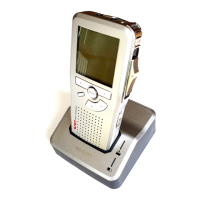
18. At the Completed screen, plug the docking station to the DCR computer (where
the SpeechExe software has been installed) using the USB cable. Next turn the
recorder to the ‘ON’ position then insert the recorder into the docking station.
Then click on the [Finish] button.
19. You will get confirmation of the transfer of the DPM settings to your recorder.


 To Next Page
 Loading...