User Guide
10
Setting Time and Date
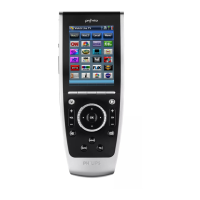
When you have installed the batteries and turned on the Pronto, you might want to
set the current time and date. To go to the Setup Pages, tap the Pronto icon in
the top center of the touch screen.
Changing the Time Format
There are three different options:
■ 12 hour (AM/PM): This is the default format.
■ 24 hour
■ No time
You can select the Time Format by tapping the Time Format button
in the first Setup Page. The Time Format button toggles between the three
formats.
Changing the Time
Note When the batteries are replaced, the time is reset to 12.00 a.m.
1 Tap the Time button in the first Setup Page.
The Time button is selected. The labels ‘+’ and ‘-‘ appear for the two middle
hard buttons.
2 To increase the time, press (and hold) the hard button labeled ‘+’.
-or-
To decrease the time, press (and hold) the hard button labeled ‘-’.
3 Tap the Time button again.
The new time is set.
Changing the Date
To change the year
1 Tap the Year button in the first Setup Page.
The Year button is selected. The labels ‘+’ and ‘-‘ appear for the two middle
hard buttons.
2 To increase the years, press (and hold) the hard button labeled ‘+’.
-or-
To decrease the years, press (and hold) the hard button labeled ‘-’.
Getting Started





 To Next Page