User Guide
33
Operating Pronto with the Cursor
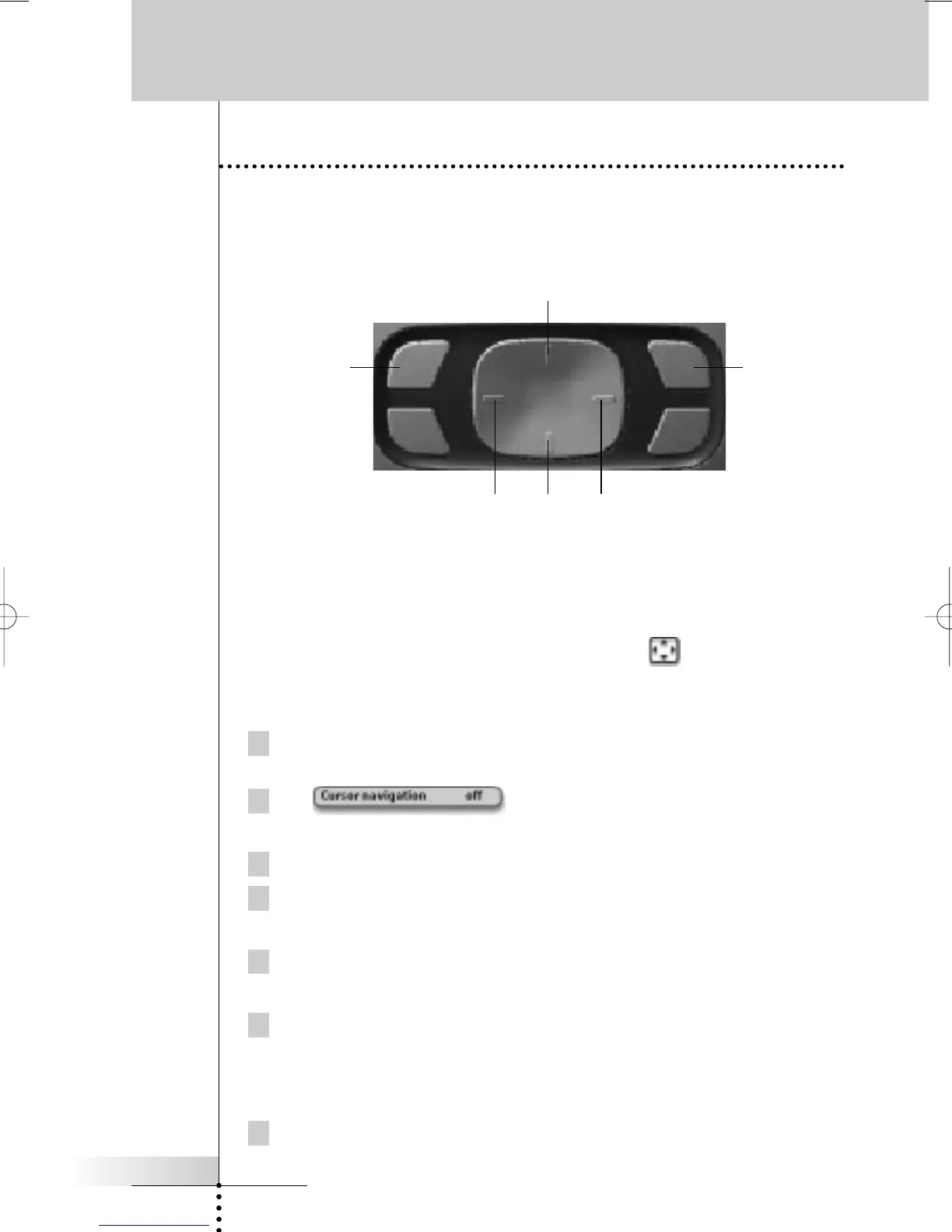
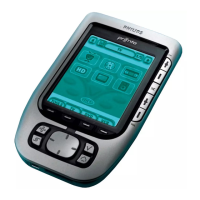
The cursor is set by default to operate the devices, e.g. to navigate through an on-
screen TV menu. The cursor contains 4 cursor keys: Right, Left, Up and Down. Each
cursor key contains an action list. This list depends on the device that is being
operated.
The cursor can also be used to navigate through devices and pages on Pronto’s
touch screen.
When you enable the cursor navigation in the Setup Pages, the touch screen
navigation with the Left Device and Right Device buttons at the top area of the
touch screen disappears and the cursor navigation icon appears in the top left
corner. You use the cursor for navigating, and not for operating your devices, until
you disable the cursor navigation again.
1 Navigate to the second Setup Page as described in ‘Adjusting the
Settings’ on page 27.
2 Tap in the second Setup Page.
The cursor navigation is enabled. The Toggle hard button is activated.
3 Exit the Setup Pages.
4 Press the Left and Right buttons of the cursor.
Pronto navigates through the devices.
5 Press the Up and Down buttons of the cursor.
Pronto navigates through the pages.
6 Press the Toggle button to easily switch from navigating on Pronto to
controlling audio/video equipment.
The Device Left and Device Right buttons appear in the top area of the
touch screen and the cursor is used for controlling audio/video equipment.
Press the Toggle hard button again to switch back to cursor navigation.
Using the Power Features
OKToggle button
Up
DownLeft Right




 To Next Page