User Guide
35
Selecting RF to Operate your Devices
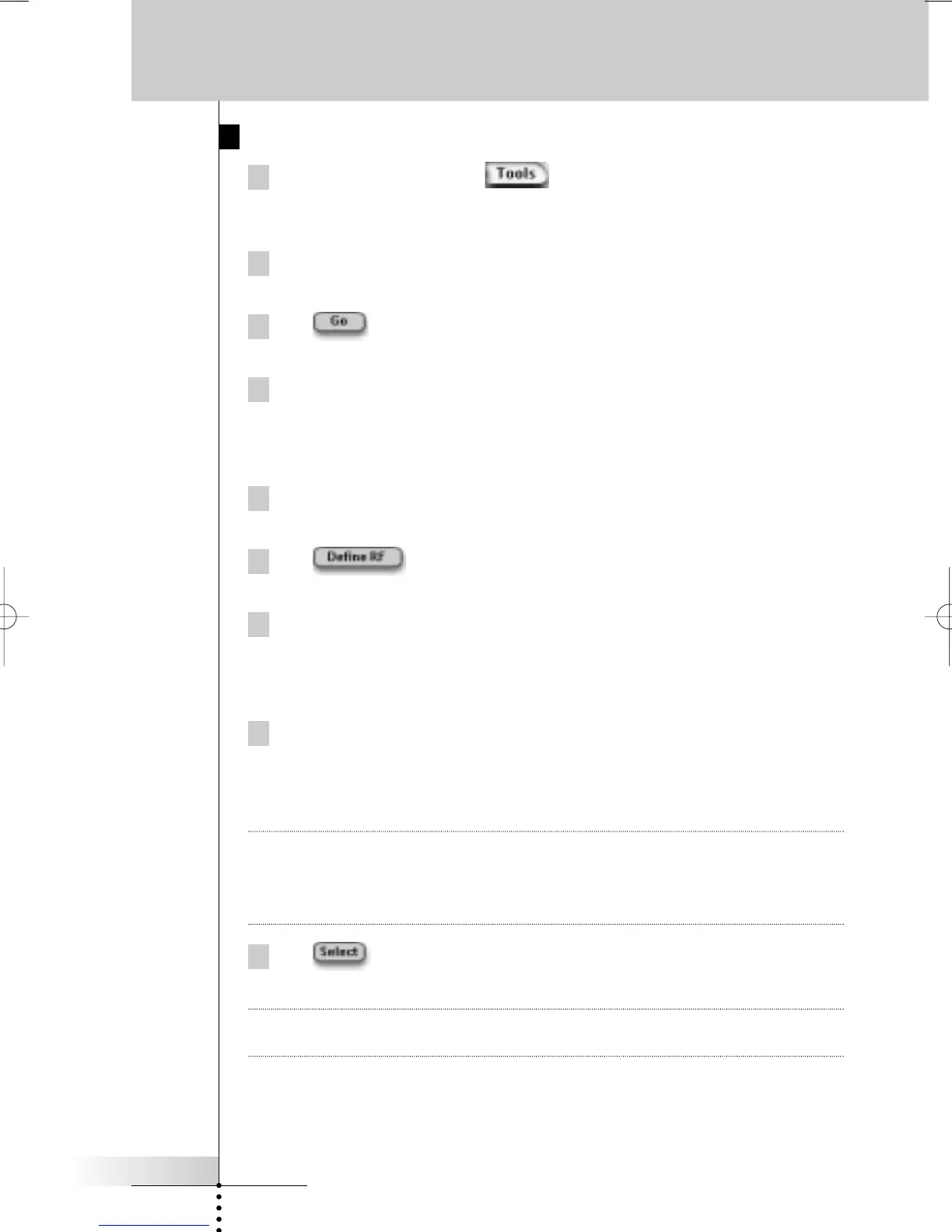
1 Press the left hard button below the touch screen for
3 seconds.
The Tools menu appears.
2 Tap RF IR in the Tools Menu.
The ‘RF IR Tool’ screen appears.
3 Tap .
The Device Overview appears.
4 Tap the Device for which you want to select RF.
The ‘Select IR or RF’ screen appears. By default IR is selected in the Sending
Signals list.
The Define RF button is disabled.
5 Choose RF in the Sending Signals list.
The Define RF button is enabled.
6 Tap .
The ‘RF Settings’ screen appears.
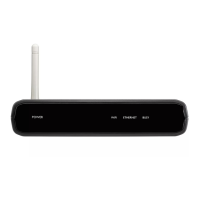
7 Select the RF Channel in the RF Channel list you use for the
RF Extender.
The RF Channel on the RFX6000 has to be the same as the RF Channel on
Pronto.
8 Select the Extender ID in the Extender ID list you use for the
RF Extender.
The Extender ID on the RFX6000 has to be the same as the Extender ID on
Pronto.
Note You can use several RF Extenders with your Pronto. For each RF Extender you use
for your devices, you need to set the RF Channel and the Extender ID.
The RF Channel is identical for all RF Extenders. The Extender ID on the RFX6000
is unique for each RF Extender.
9 Tap in the ‘RF Settings’ screen.
Pronto will send out RF signals for the selected device.
Note Try to keep Pronto and the RF Extender away from metal objects, as this will have
a negative impact on the range.
Using the Power Features




 To Next Page