User Guide
21
Customizing Pronto
Labeling Elements
The Label tool allows you to label a button, a device or a page. In the Label Tool
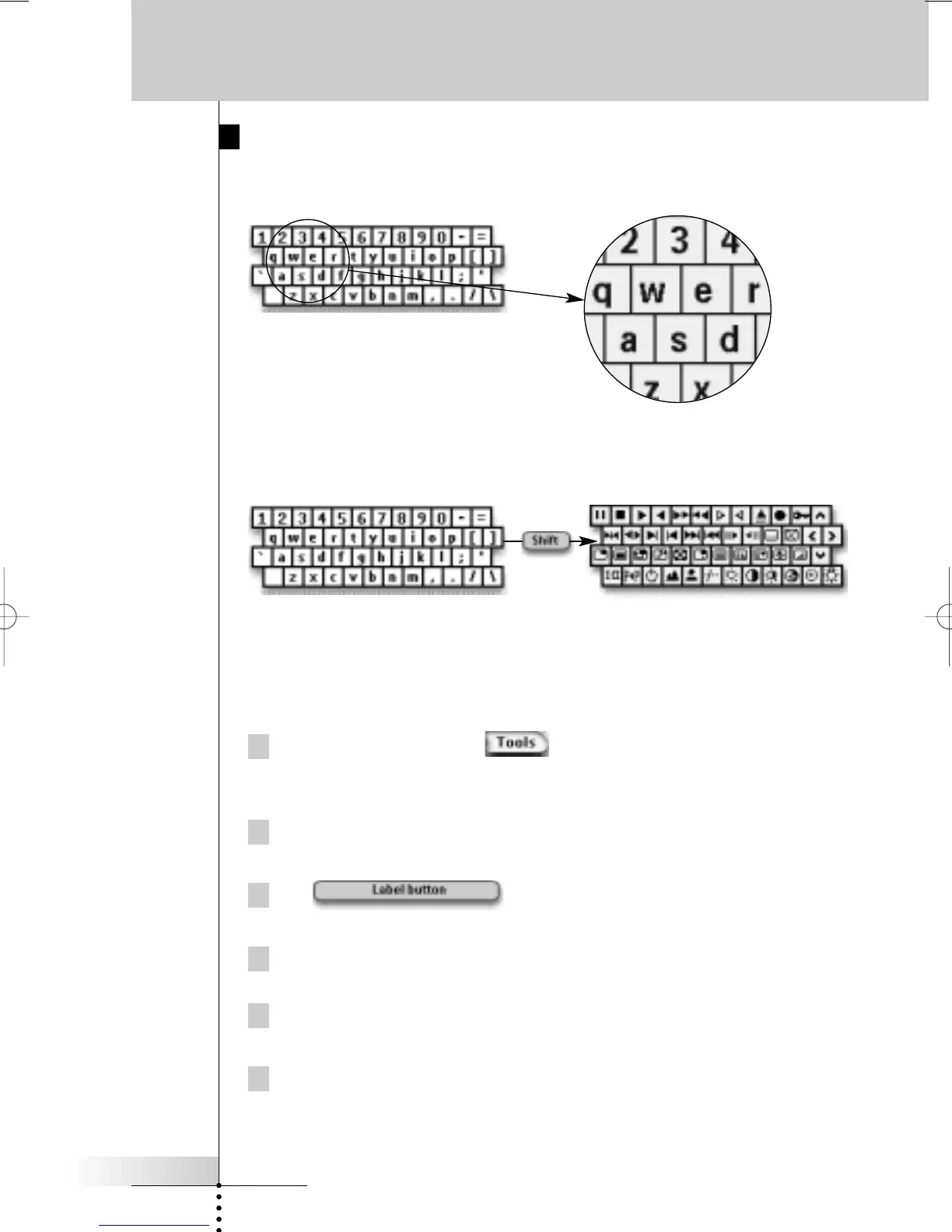
you can find a virtual keyboard. This keyboard zooms in when you tap a character.
The keyboard contains four different character sets, including a series of symbols
you can use for labeling. You use the Shift button to switch between the four
character sets on the keyboard.
For a complete list of the symbols, see “List of Symbols” on page 43.
Labeling a Button
1 Press the left hard button below the touch screen for
3 seconds.
The Tools menu appears.
2 Tap Label in the Tools Menu.
The ‘Label Tool’ screen appears.
3 Tap .
The page you last visited appears.
4 Navigate to the Device and the Page that contains the button you want
to label.
5 Tap the button you want to label.
The ‘Labeling’ screen appears.
6 Tap the keyboard.
The keyboard zooms in.




 To Next Page