User Guide
24
4 Tap the device template you want to add.
The ‘IR Code’ screen appears.
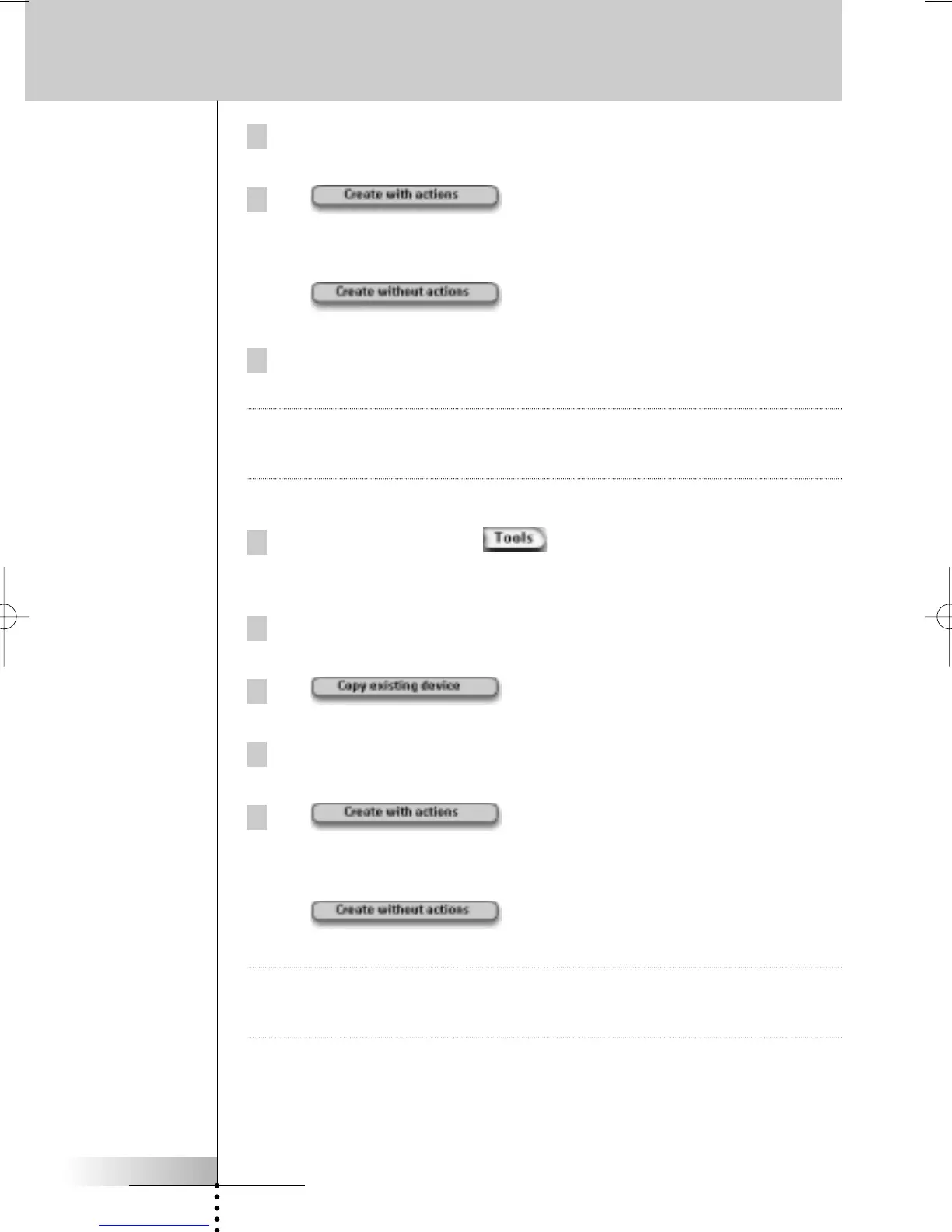
5 Tap in the’ IR Code’ screen.
The Device is added to Pronto with IR codes.
-or-
Tap in the ‘IR Code’ screen.
The Device is added to Pronto without IR codes.
6 To operate this device, you have to learn every button of the device.
Note Added devices are automatically positioned at the end of the Device Overview.
You can move devices with the Move Tool. See “Moving” on page 26 for more
information.
Copying an Existing Device
1 Press the left hard button below the touch screen for
3 seconds.
The Tools menu appears.
2 Tap Add in the Tools Menu.
The ‘Add Tool’ screen appears.
3 Tap in the ‘Add Tool’ screen.
The ‘Adding’ screen appears.
4 Tap the Device you want to copy.
The ‘IR Code’ screen appears.
5 Tap in the ‘IR Code’ screen.
The Device is copied to Pronto with IR codes.
-or-
Tap in the ‘IR Code’ screen.
The Device is copied to Pronto without IR codes.
Note Added devices are automatically positioned at the end of the Device Overview.
You can move devices with the Move Tool. See “Moving” on page 26 for more
information.
Customizing Pronto




 To Next Page