Service 21
3 Connect the USB flash drive to the USB 2.0
port (not the USB 3.0 port with blue) on the
projector.
4 Press , and select Software
Update - Software update - LOCAL
UPGRADE.
5 Follow the on-screen instructions to
complete the update.
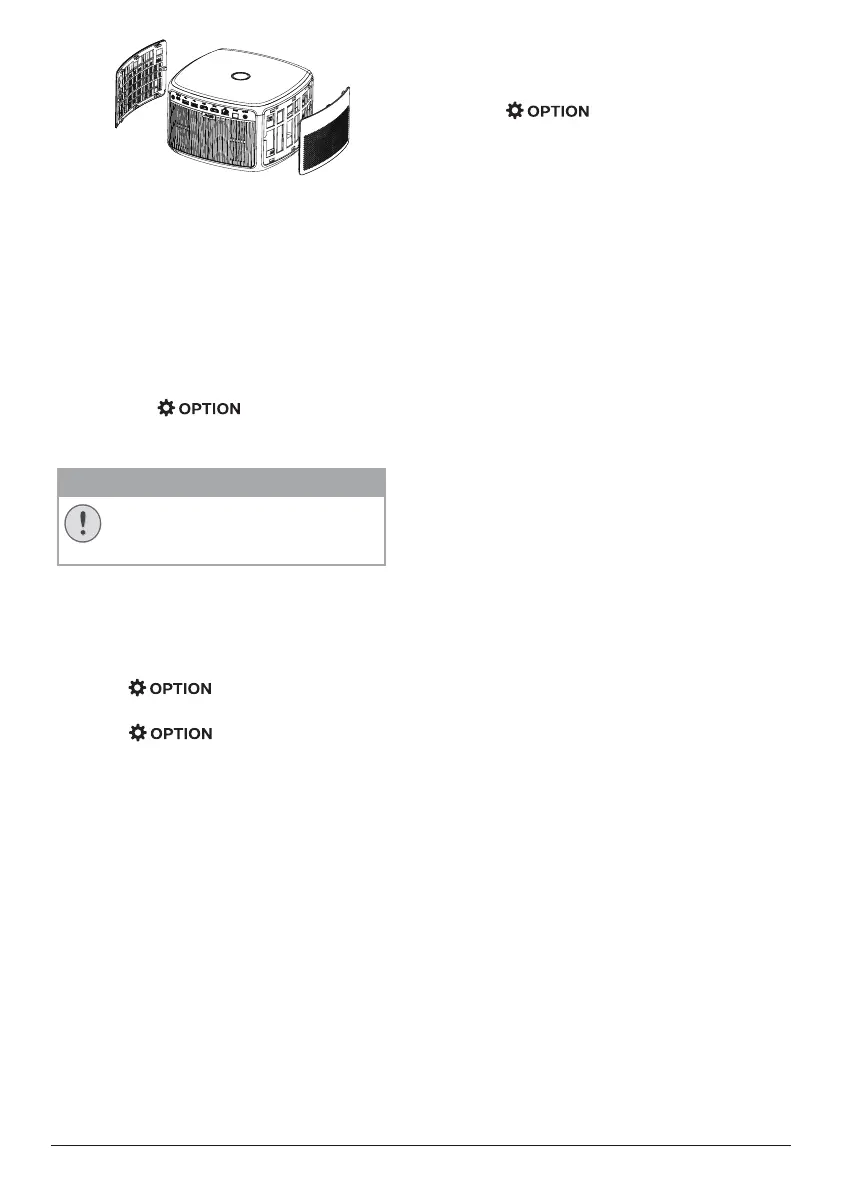
3 Replace the ventilation grilles after
cleaning.
Update software
The latest software of the projector can be
found on www.philips.com/support for you
to get the best features and support from the
projector.
Before you update the software of the
projector, check the current software version:
• Press , and then select
About - System Version, UI Version and
MCU Version.
CAUTION!
Do not turn off the projector or
remove the USB flash drive during
the update.
Update software through
Internet
1 Make sure the projector is connected to
Internet. To check Internet connection,
press and go to Wi-Fi or
Ethernet Connection.
2 Press , and select Software
Update - Software update - ONLINE
UPGRADE.
• If an upgrade is available, you are
prompted to start or cancel the update.
3 Follow the on-screen instructions to
complete the update.
Update software through USB
1 Check the latest software version on www.
philips.com/support. Find your product
(model number: SCN650), and locate
‘Software and drivers’.
2 On a computer, download the software into
the USB flash drive, and rename the file
name as “update_screeneo�zip”. Save the
file in the root directory of the USB flash
drive, and do not unzip the file.





 To Next Page