6 Philips · Screeneo S6
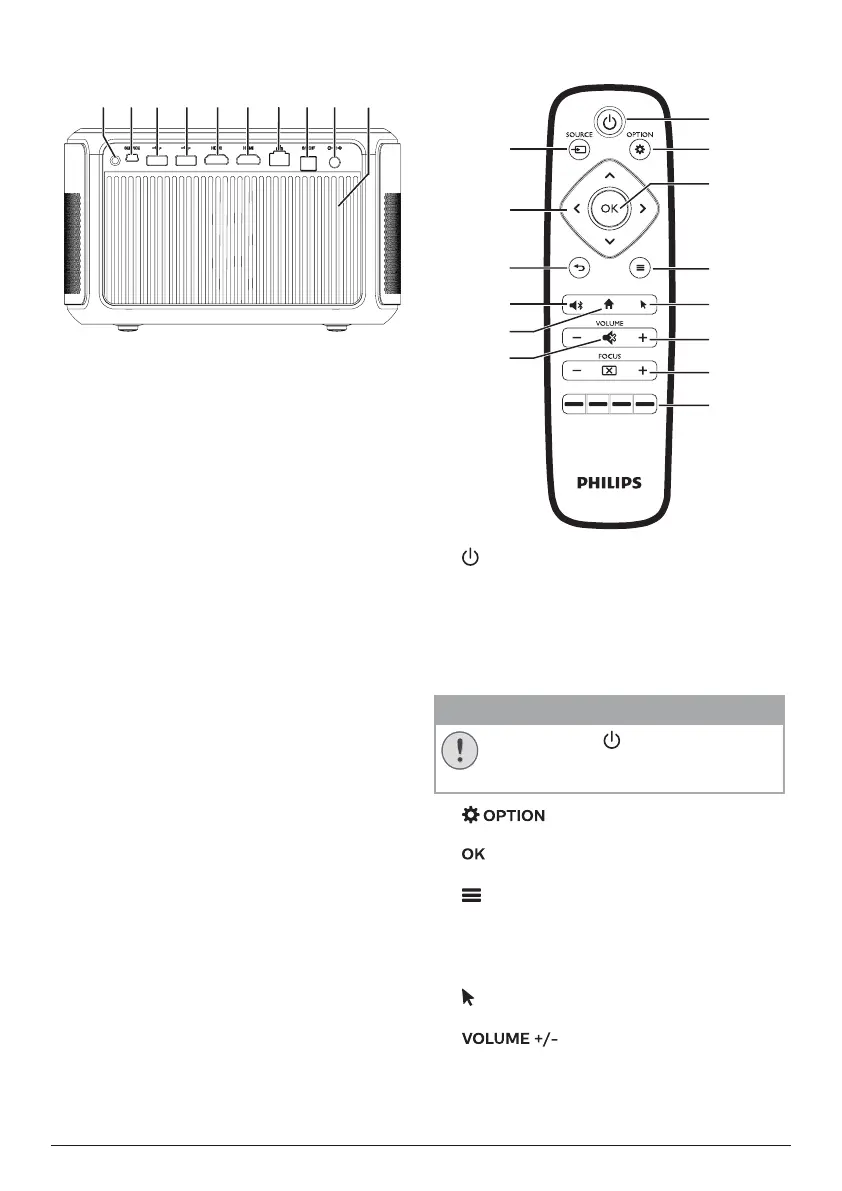
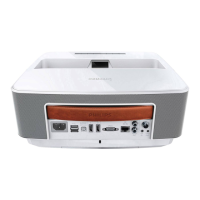
Rear view
befg
h
ij
d c a
a
Vents
b
DC socket
Connect to the power supply.
c
S/PDIF connector
Connect to an optical input on a playback
device.
d
LAN port
Connect to a LAN port on a broadband
modem or router.
e
HDMI 2 connector
Connect to an HDMI output on a playback
device.
f
HDMI 1/ARC connector
• Connect to an HDMI output on a
playback device.
• Connect to a home theater system or AV
receiver through HDMI ARC connector
for audio output from the projector.
g
USB 3�0 port
Connect to a USB storage device for media
play.
h
USB 2�0 port
Connect to a USB storage device for media
play.
i
SERVICE (Mini USB port)
For use by the service centre only.
j
Rear IR sensor
Remote control
a
b
d
e
f
g
h
c
l
m
n
k
j
i
a
• Press once to switch the projector on
• Press twice within one second to switch
the projector to standby.
• When the projector is switched on, the
LED turns white. When the projector is
in standby, the LED turns red.
CAUTION!
Always use the button to turn off the
projector.
This is essential to prevent
damage to the LED lamp.
b
Access the settings menu.
c
Confirm a selection or entry.
d
(Android menu button)
• When browsing apps, access more
options.
• When playing media, access more
options.
e
Enable or disable on-screen pointer.
f
Increase or decrease volume.





 To Next Page