EN
22
Selecting a Network Type
If the LCD screen displays ‘Select wireless mode’: (See ‘Network Environments
Supported’ for a more complete description of network types.)
1 Press 4 to choose an option, then press 2.
2 Choose ‘Network (Infrastructure)’ if you have a base station.
-OR-
Choose ‘Point to Point (Ad-Hoc)’ if the SLA5520 is connecting directly to the
PC’s wireless adapter.
Selecting Security Type (Encryption Settings)
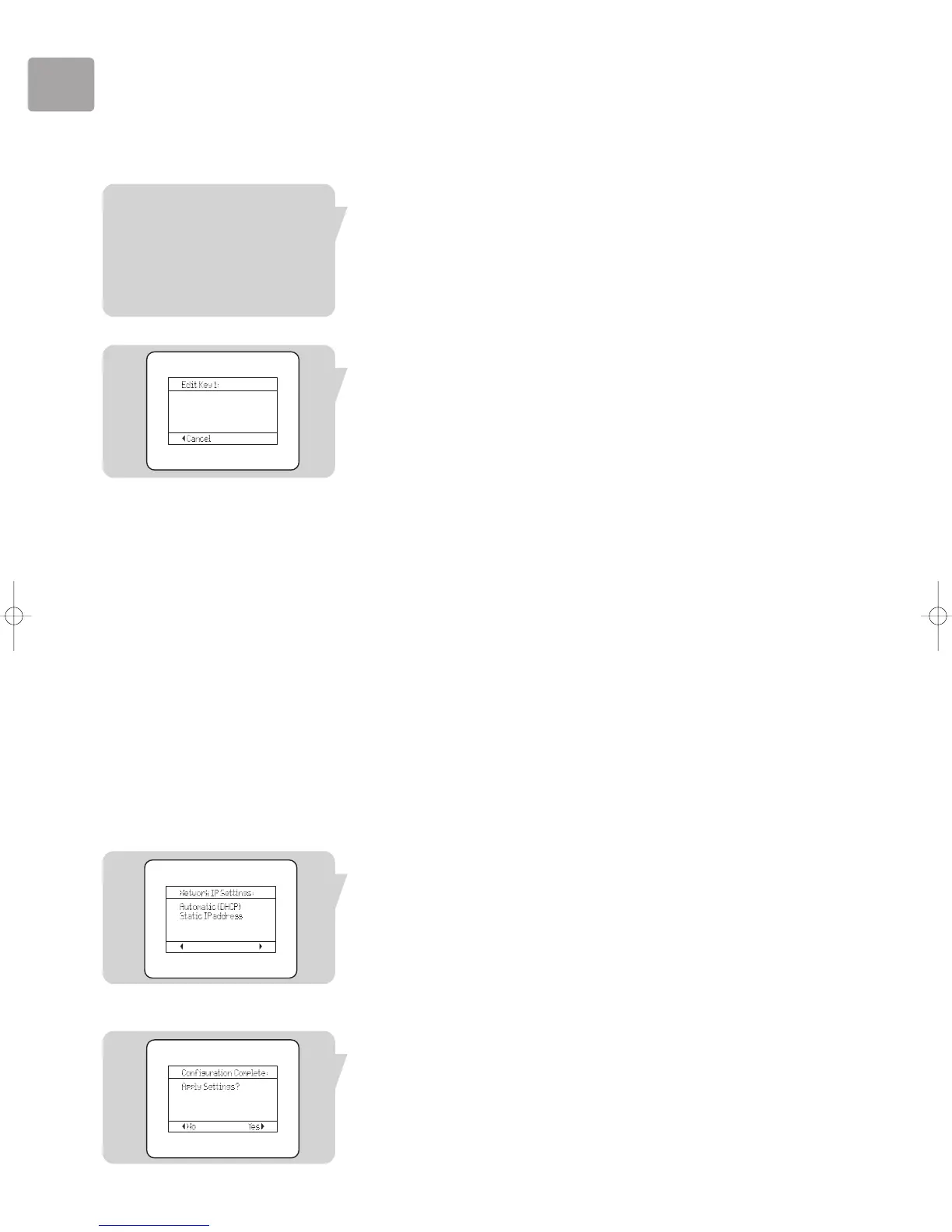
If the LCD screen displays ‘Select security type’ or ‘Edit Key 1’, you have the
following options to secure your wireless network:
– ‘WEP (64 or 128)’ or ‘None’ if the SLA5520 is connecting directly to the PC’s
wireless adapter;
– ‘WEP (64 or 128)’, ‘WPA’ or ‘None’ if the SLA5520 if you have a base station.
Note: If you wish to choose WPA security, first check that every wireless device on your
network has WPA capabilities. If not, you will need a software update for your
Access Point or wirless router, and a new driver (and maybe softwareware) for
each wireless adapter on your network.
• Choose ‘None’ if no encryption is used on the wireless network.
• If you choose ‘WEP (64 or 128)’, you will prompted to enter the WEP Key
(security code). If a key already exists in the current profile, asterisks (***) will be
displayed in place of the actual key. See ‘Entering Text in Edit Mode’.
• If you choose ‘WPA’, the LCD screen displays ‘Select WPA mode’.
Select ‘TKIP’ or ‘AES’. You will prompted to enter the WPA Key (security code).
If a key already exists in the current profile, asterisks (***) will be displayed in
place of the actual key. See ‘Entering Text in Edit Mode’.
Note: See the user manual of your wireless base station for details on how to identify
the WPA Key (security code).
• Press 2 (X) when you have finished entering the key (security code).
The Key Type and Key Length will be displayed in the top right of the LCD
screen, based on what you have entered: i.e. ASCII or Hex, 64 or 128 bit.
Note: By default, Key Index 1 will be used. To use another Key Index, see ‘Managing
Multiple Key Indexes’.
Selecting Network IP Settings
If the LCD screen displays ‘Network Settings’:
1 Press 4 to choose an option, then press 2.
2 Choose ‘Automatic (DHCP)’ if you are using DHCP or Auto IP on the network
or ‘Manual (Static IP)’ if the SLA5520 will need a fixed IP address.
3 If you choose ‘Manual (Static IP)’, you will be prompted to edit/confirm the
SLA5520's IP Address, Subnet Mask, Gateway, DNS Server Preferred and DNS
Server Alternate.
Press 2 after confirming/entering each IP address.
Completing the Configuration
1 When all required settings have been entered, the Configuration Wizard will
display the message: ‘Configuration Complete...Apply Settings?’.
2 If you are modifying an existing profile, press 2 to display the Save to Profile
menu. Press 4 to choose a profile in which to save the new settings.
3 Press 2 to finish. The message ‘Configuration Wizard...Applying Settings’ or
‘Configuration Wizard...Saved to Profile xxx.’ will be briefly displayed, depending
on whether you are applying changes to the active profile or to a different profile.
The Configuration Wizard will then display the home menu.
Note: If the message No Network or another error message appears, the SLA5520
was unable to connect to an available wireless network. Please see ‘Troubleshooting’.


 To Next Page