EN
23
Introduction
This chapter describes how to
• Turn on the SLA5520
• Browse and listen to Internet Radio stations through your audio system.
• Browse and listen to music files stored on your PC through your audio system.
• Use preset numbers to store and play up to 10 items (Internet Radio stations,
songs, playlists etc).
• Use a Dynamic Playlist to save and play up to 20 items (Internet Radio stations,
songs, playlists etc).
Powering on the SLA5520
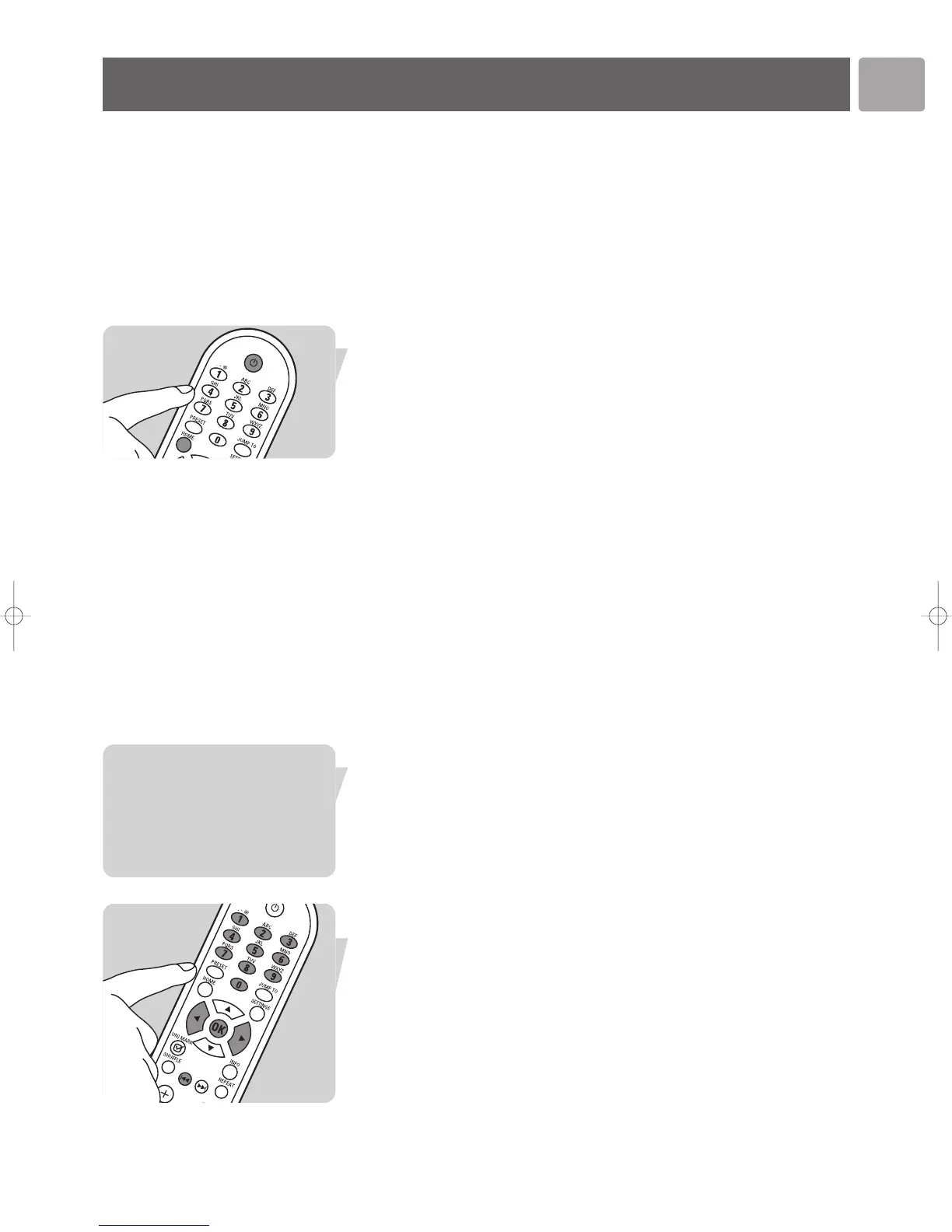
1 Press y or HOME to turn on the SLA5520.
2 If the device is correctly configured you will see the Home menu displayed.
If it is not correctly configured, the Configuration Wizard will be displayed
(see ‘Configuration’).
Listening to Internet Radio
The SLA5520 allows you to listen to Internet Radio stations through your audio
system.
Notes:
– If you have no access to the Internet, Internet Radio functions will not be available.
–
Internet services will only be available if you register. See below.
Registration for free Internet services
When the SL5520 connects to the Internet for the first time, or after you have reset all
menu settings, the SL5520 will ask you to register your email address.
Also, each new user you add will have to register an email address.
1 Check whether the PC on which you are running Philips Media Manager has Internet
access by opening a website on the Internet with your Internet browser program (e.g.
www.philips.com).
2 Press HOME (X) to displayu the Philips SLA5520 menu.
3 Press 4 (X) until ‘Internet radio’ is highlighted. Press 2.
> The LCD screen displays ‘Enter e-mail address’.
4 Use the remote control digit buttons (X) to enter the e-mail address. Each digit
button cycles through various characters. E.g.: The 1 button cycles through 1, ., –,
@, space, !, ~, _, & and :.
• Use 1 and 2 to move the cursor one character backwards / forward.
• Use ∞ to delete a character.
• Also see
‘Entering Text in Edit Mode’.
5 Press OK (X) to send your e-mail address.
Operation


 To Next Page