
 Need help?
Do you have a question about the Philips VoiceTracer VTR6960 and is the answer not in the manual?
Details the key features of the Philips VoiceTracer, including microphone, app sync, and connectivity.
Crucial safety guidelines for device usage, covering exposure to water, heat, and physical damage.
Recommendations for safe listening practices to protect hearing while using headphones.
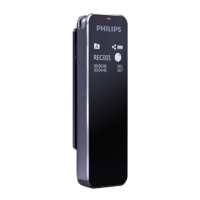
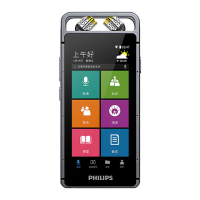
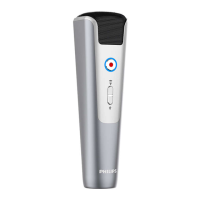
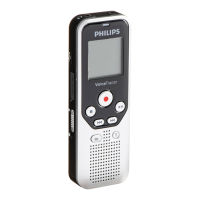
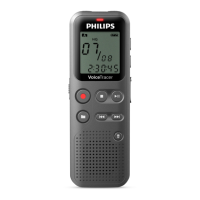
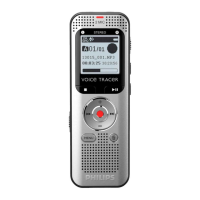
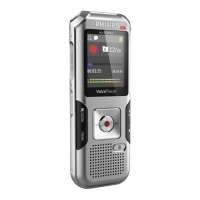
Visual identification and explanation of all physical buttons, ports, and features of the voice recorder.
Instructions on how to turn the voice recorder on and off, including initial charging advice.
Explains the meaning of LED lights and icons for recording, pausing, and other device states.
Describes how to play, pause, resume, and switch between audio files.
Guides users on removing individual or all files from the device.
Explains how to use buttons for quick navigation within audio files.
Accessing and managing voice recordings and related settings.
Explains the ABCD folder organization for storing files.
Managing music files, playback modes, and deletion.
Overview of various configurable options for the recorder.
Selecting optimal recording modes for different environments.
Setting the duration for the screen's backlight.
Configuring automatic shutdown based on inactivity.
Viewing the device's Bluetooth identifier.
Switching between internal storage and SD card.
Enabling or disabling the recording status indicator light.
Verifying the installed software version of the device.
Selecting playback sequences like sequential, repeat, or random.
Adjusting music playback with various audio effect modes.
How to format internal memory or SD card for data management.
Setting the device's date and time accurately.
Programming the device to start recording at specific times.
Choosing the interface language, including Chinese and English.
Restoring the device to its original factory default settings.
Checking total and remaining storage space on the device.
Unpairing the recorder from its associated mobile application.
Scanning a QR code to download and install the companion mobile app.
Using a USB cable to connect the recorder to a PC for file management.
Solution for power-on issues, recommending battery charging.
Troubleshooting transcription failures by checking network signal.
Instructions for resetting the device if it becomes unresponsive.
Steps to download and install the mobile application using a QR code.
How to establish a connection between the recorder and the mobile app for enhanced features.
Process for syncing, transcribing, editing, and deleting files via the APP.
Information on internal storage and expandability.
Size and weight specifications of the recorder.
Supported operating systems and connection interfaces.
Specifies the file format used for audio recordings.
Recommended temperature and humidity for device operation.
 General
| Brand | Philips |
|---|---|
| Model | VoiceTracer VTR6960 |
| Category | Voice Recorder |
| Language | English |




 To Next Page