8
Prepare Your 3D Printer
For first-time use, please thoroughly follow the steps below to conduct the LCD Test to make
sure that your 3D printer is ready to print.
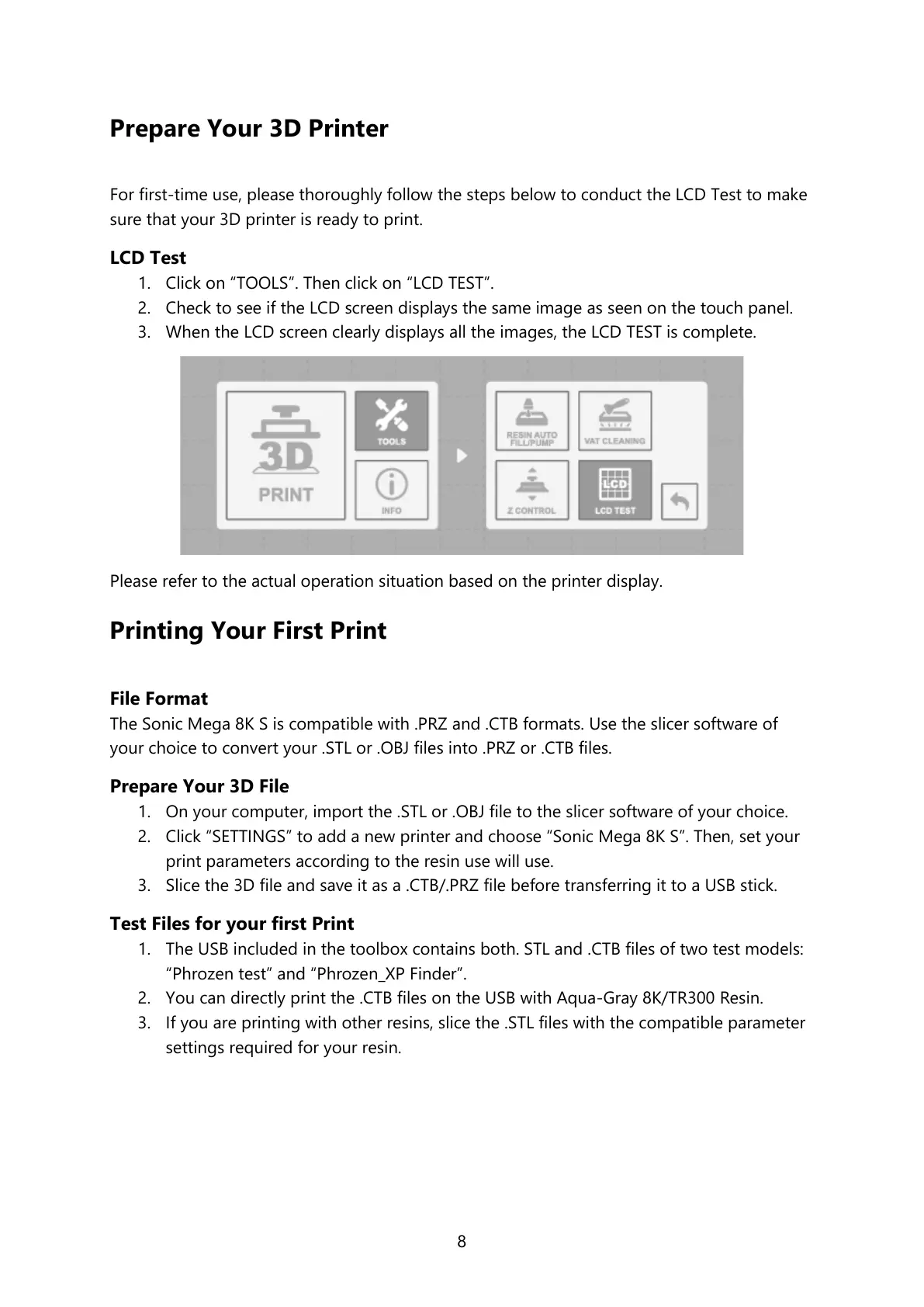
LCD Test
1. Click on “TOOLS”. Then click on “LCD TEST”.
2. Check to see if the LCD screen displays the same image as seen on the touch panel.
3. When the LCD screen clearly displays all the images, the LCD TEST is complete.
Please refer to the actual operation situation based on the printer display.
Printing Your First Print
File Format
The Sonic Mega 8K S is compatible with .PRZ and .CTB formats. Use the slicer software of
your choice to convert your .STL or .OBJ files into .PRZ or .CTB files.
Prepare Your 3D File
1. On your computer, import the .STL or .OBJ file to the slicer software of your choice.
2. Click “SETTINGS” to add a new printer and choose “Sonic Mega 8K S”. Then, set your
print parameters according to the resin use will use.
3. Slice the 3D file and save it as a .CTB/.PRZ file before transferring it to a USB stick.
Test Files for your first Print
1. The USB included in the toolbox contains both. STL and .CTB files of two test models:
“Phrozen test” and “Phrozen_XP Finder”.
2. You can directly print the .CTB files on the USB with Aqua-Gray 8K/TR300 Resin.
3. If you are printing with other resins, slice the .STL files with the compatible parameter
settings required for your resin.



 To Next Page