APPLICATION
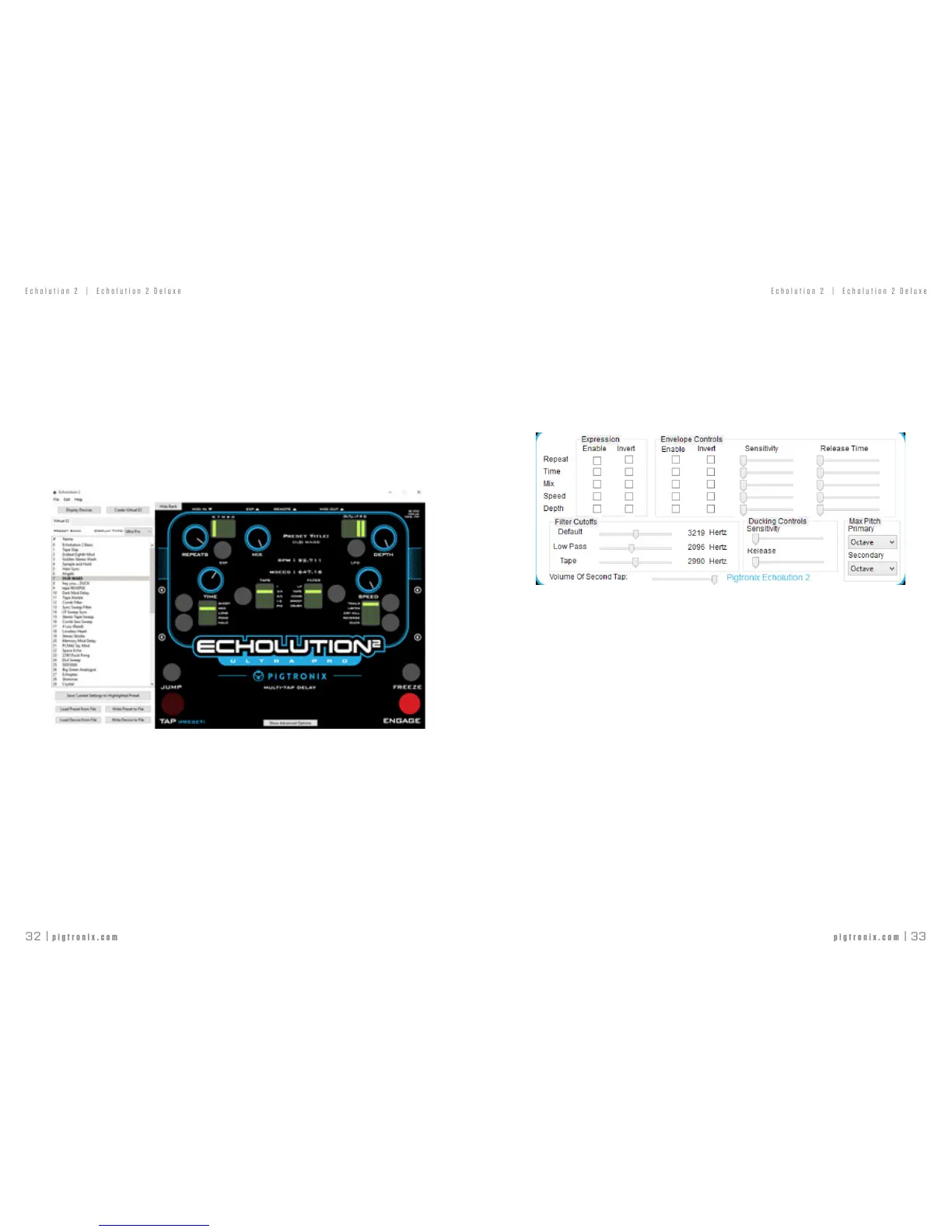
APC/MACapplicationhasbeendevelopedtoenableuserstocontroleveryfunctionoftheEcholution2viaUSB.
Theapplicationalsoenablesrmwareupdatesandextensivepresetmanagementincludingtheabilityto
import,exportandauditionpresets.
PLEASEtakeamomenttodownloadtheE2Applicationfromourwebsiteat:
www.pigtronix.com/E2application
StartingtheApplication:ToloadandchangepresetsontheE2,connecttheviaUSB.Tochangepreset
parameterswithoutconnectingtheE2,CreateaVirtualE2.
Ifyouwouldlike,youcanchangetheviewoftheapplicationtoeithertheFilterProortheUltraProbythe
DisplayTypedropmenu.
Note:Thefunctionalitydoesnotdifferwitheachview,andbotharecompatiblewithanyEcholutionpedal.
PresetsList:Ontheleftofthescreen,thereisalistofallofthecurrentpresetsstoredintheE2.Thislistis
orderedinthesamewayofthatattheendofthismanual.ByDOUBLE-CLICKING,theselected
presetloadsontheE2.Onceapresetisselected,itwillbedisplayedinboldinthePresetsList.
Buttonsforseveraloptionsaredisplayedunder thePresetsList:SaveTo:Thisallowstheusertosaveto
currentlydisplayedsettingstoanypreset.WhenSaveToisclicked,awindowwillpopup,addressingthe
usertohighlightthepresetfromthePresetListwhichhewouldliketooverwritethesesettingsto.Whenthe
desiredpresetishighlighted,clicksave.SavePreset/BanktoFile:Thissavesanindividualpresetorbank
toaleLoadPreset/BanktoFile:Thisloadsanindividualpresetorbanktoale
ADVANCED OPTIONS
Toaccessthisfeature,clickthe‘ShowAdvancedOptions’button,locatedundertheEcholution2logoon
the application.
EachrowrepresentsaknobontheE2,namedaccordingly.Therstandsecondcolumnscontrolparameters
fortheexpressionpedal,andthelastfourcolumnscontrolparametersfortheenvelope.
ByclickingaboxinanENABLEcolumnalloweithertheexpressionpedalortheenvelopetocontrol
thedesignatedknob.
Whenaparameterisassignedexpressionpedalcontrol,pointersfortheheelandtoebecomevisiblearound
thatparametersassociatedcontrolknob,movingthesepointerssettherangeofcontrol.
Note:WhenaparameterhasanyoftheseadvancedmappingfeaturesenabledfortheEXPRESSION
pedal,theLEDforthatparameterdimlyilluminatestoindicatetheexpressionorenvelopecontrol;dimlylit
LED’sindicateSecondaryControls.ThebrightlylitLEDindicatesthePrimaryControl.ThePrimaryControlis
NOTsubjecttotherangeofcontrolsetbythepointers,bututilizestheFULL RANGEoftheknob.If
NOPrimaryControlisdesired,presstheEXP buttonuntilthereisnotbrightlylitLED.
ByclickingaboxinanINVERTcolumn(secondandfourthcolumns),this‘inverts’therange.Onan
expressionpedal,theHEELsettingbecomestheTOEsettingandviceversa.Similarly,theenvelope’srangeinverts.
The ENV SENSITIVITYslideradjuststhesensitivityoftheenvelope,leftbeingtheleastsensitive,and
rightbeingthemost.Ifplayingwithaguitarwithastrongoutput,alowersensitivityisfavored.Ifplaying
withaguitarwithaweakeroutput,ahighersensitivityisfavored.
APPLICATION



 To Next Page