53
Chapter 4 Editing the Navigation UtilitiesNAVI
Traffic flow information
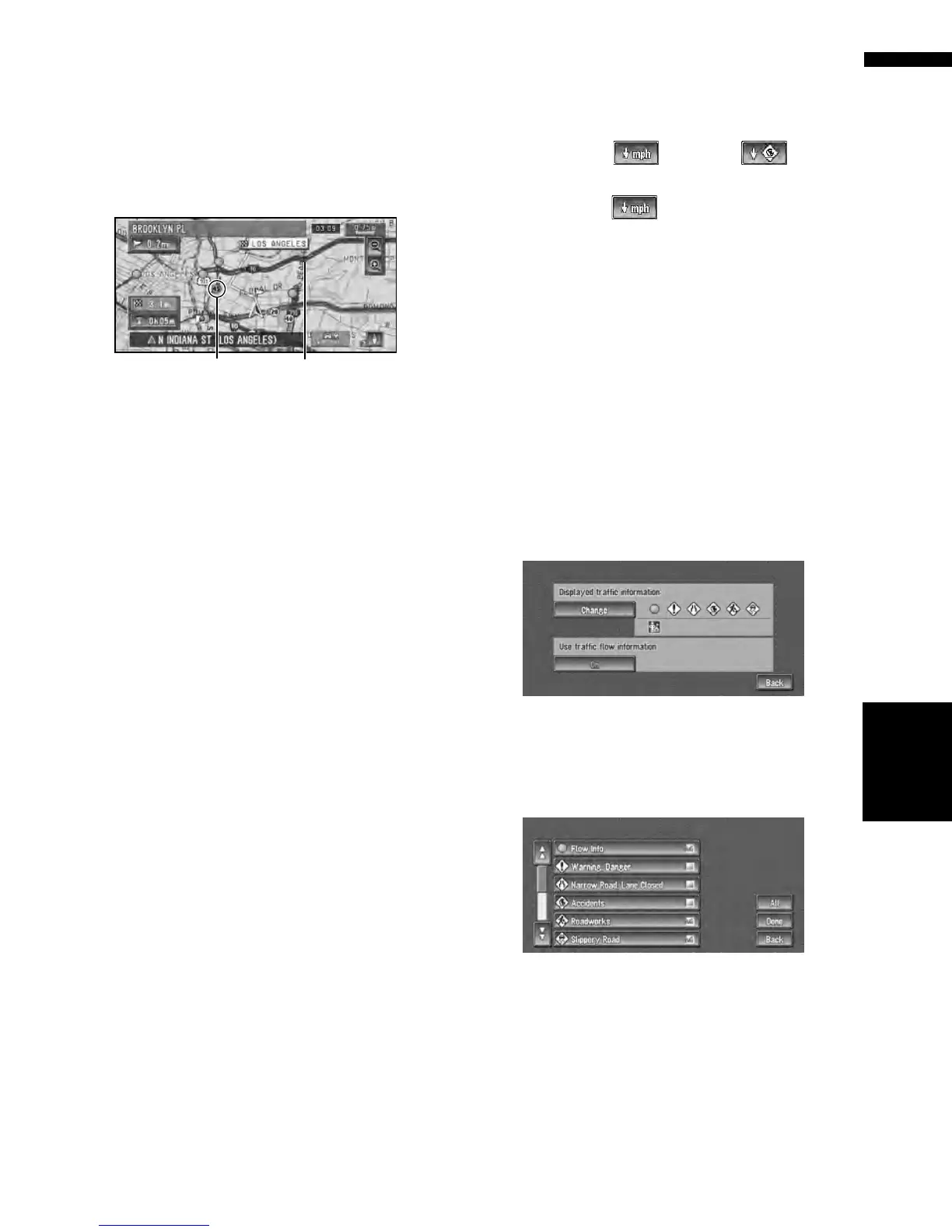
When the map scale is between 0.02 mi (25 m) –
0.75 mi (1 km), red, yellow, or green blinking lines
may appear on either side of a road. These colors
indicate the average speed at which traffic is
flowing along these streets. Here is a guide to the
colors and the average speed they indicate:
Red: average speed in this area is between
5 mph to 15 mph (8 km/h to 24 km/h)
Yellow: average speed in this area is between
20 mph to 40 mph (32 km/h to 64 km/h)
Green: average speed in this area is 45 mph (72
km/h) or faster (An icon without a number indi-
cates the average speed of the road is more than
70 mph (112km/h))
❒ In addition to these blinking lines, a round
icon with a number may appear on the map.
The number in the icon indicates the actual
average speed of that specific area.
❒ The lines for traffic flow are not displayed on
“City Map”.
❒ The flow icon appears only when the scale on
the map is 10 mi (20 km) or lower.
❒ You can turn off the use of Traffic flow infor-
mation.
➲ Set use of Traffic flow information setting to
off ➞ Page 54
Checking traffic flow information on the
list
The traffic flow information on the route can also
be displayed as an onscreen list.
❒ The method for checking the traffic flow infor-
mation displayed on the screen is the same
for “Checking all traffic information”.
➲ Checking all traffic information ➞ Page 50
1 Touch “Info/Traffic” in the Main menu,
then touch “Traffic Flow”.
The list with the traffic flow information is
shown.
You can use instead of . The list
will be sorted according to the average speed
by touching .
Selecting traffic information to
display
There are different types of traffic information
that can be received via the XM NavTraffic ser-
vice, and you can select which types will be incor-
porated and displayed on your navigation system.
1 Touch “Info/Traffic” in the Main menu,
and then touch “Traffic Settings”.
2 Touch “Change”.
The names of the displayed traffic information
items and a list of icons appears on the
screen.
3 Touch the traffic information item to dis-
play.
A red check appears next to the selected traf-
fic information.
❒ Touching “All” selects all the traffic infor-
mation.
4 Touch “Done”.
The selected traffic information icon is added
to the screen.
❒ Touch “Back” to cancel your selection.
Flow Icon The line for traffic flow





 To Next Page