21
Chapter 1 Basic OperationNAVI/AV
How to set your destination
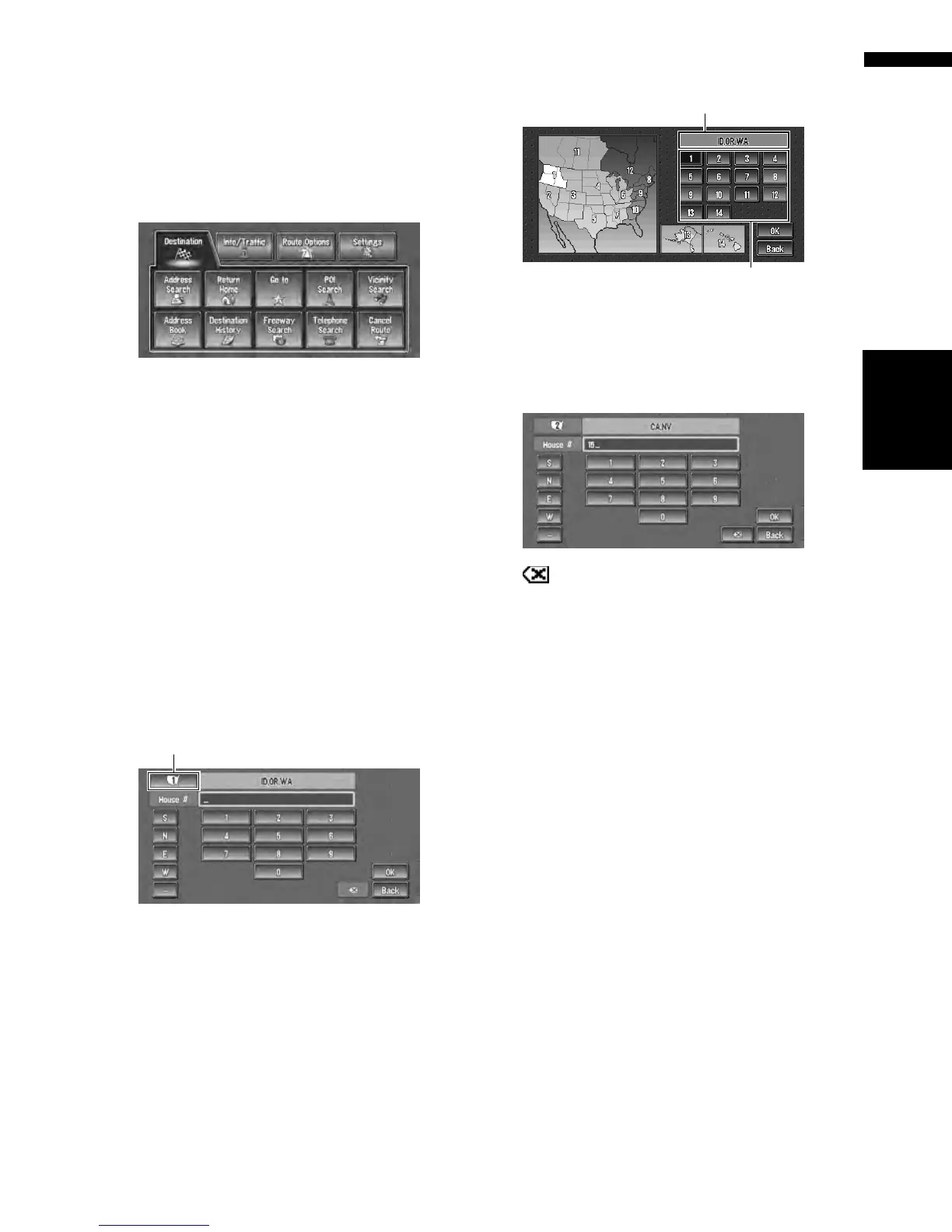
1 Press the DEST button to display the
main menu.
2 Touch “Address Search”.
Selects the method for searching the destina-
tion.
➲ Return Home ➞ Page 37
➲ Go to ➞ Page 37
➲ POI Search ➞ Page 35
➲ Vicinity Search ➞ Page 36
➲ Address Book ➞ Page 38
➲ Destination History ➞ Page 38
➲ Freeway Search ➞ Page 37
➲ Telephone Search ➞ Page 37
➲ Cancel Route ➞ Page 38
3 Touch “Zone code key”.
If the destination is in another zone, this
changes the zone setting.
❒ Once the zone has been selected, you only
have to change zones when your destina-
tion is outside of the zone you selected.
4 Touch the zone code of the destination
and touch “OK”.
Modifies the zone setting and returns you to
the previous display.
5 Input the house number and touch “OK”.
Touch the characters you wish to input.
:
The input text is deleted letter by letter from
the end of the text. Continuing to touch
deletes all of the text.
“Back” :
Returns you to previous screen.
❒ Also input a prefix to the house number.
❒ If the house number you have input is not
found among subsequently selected
“Street” or “City” data, a message appears
saying that the address has not been
found. In that case, try inputting the house
number again.
❒ Touching “OK” with no input allows you to
specify and search a street name or the
name of the city or area first.
Zone code key
Selected zone
Zone codes






 To Next Page