Setting the polarity of the rear
view camera
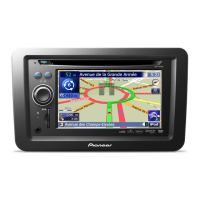
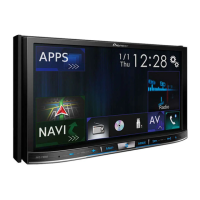
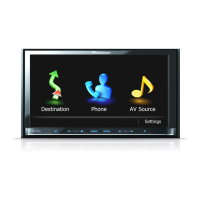
1 Press the HOME button to display the
Top menu screen.
2 Touch the following keys in the follow-
ing order.
The “System” screen appears.
3 Touch [Camera settings].
The following screen appears.
4 Touch [Camera Polarity] repeatedly
until the desired setting appears.
! Battery (default):
When the polarity of the connected lead is
positive while the gearstick is in the RE-
VERSE (R) position.
! Ground:
When the polarity of the connected lead is
negative while the gearstick is in the RE-
VERSE (R) position.
When the gearstick is aligned to the REVERSE
(R) position after setting the rear view camera,
the rear view image appears.
Setting the reversed image
display for the rear view image
Rear view camera images are displayed re-
versed (as mirror images) on the front screen
except when a rear view camera that can out-
put images in the correct direction is used.
You can set whether to reverse the rear view
camera images to be displayed on the front
screen.
p This setting is available only when you stop
your vehicle in a safe place and apply the
handbrake.
p This function is available only when “Back
Camera Input” is “On”.
= For details, refer to Setting rear view
camera activation on page 158.
1 Press the HOME button to display the
Top menu screen.
2 Touch the following keys in the follow-
ing order.
The “System” screen appears.
3 Touch [Camera settings].
The following screen appears.
4 Touch [Back Camera: Reverse Video] re-
peatedly until the desired setting appears.
! Off (default):
Does not reverse the rear view camera
images.
! On:
Reverses the rear view camera images.
Engb
159
Chapter
29
System settings
System settings


 To Next Page
 Loading...