Operating the Navigation
menu screen
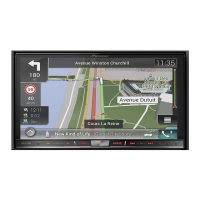
1 Press the MAP button.
The Map screen appears.
2 Touch the following key.
Displays the navigation menu on
the Map screen.
The following screen appears.
Touch panel keys (Page 1)
21 63 4
789
a
5
Touch panel keys (Page 2)
cb d
You will see the following keys when you are
navigating without a planned route.
1 Returns to the Map screen.
2 Searches for your destination by the ad-
dress or coordinates, or searches for the se-
lected place of interest, etc.
= For details, refer to Chapter 5.
3 Builds your route or edits the route cur-
rently set.
= For details, refer to Building a route
using “Route Planner” on page 42.
4 Displays the “Traffic Summary” screen.
= For details, refer to Checking the traffic
incidents on the map on page 51.
5 Displays useful information to support your
driving.
= For details, refer to Chapter 9.
6 Displays notifications that contain impor-
tant information.
7 Displays the location that you saved as a fa-
vourite.
= For details, refer to Selecting a destina-
tion from stored locations on page 37.
8 Switches among 2D, 3D, and 2D North up
view modes.
9 Displays the “User Profile” screen where
you can create new profiles or edit the exist-
ing profiles.
If multiple drivers are using this product,
they can create their own profiles with their
own settings. If you select a new profile,
this product restarts so that the new set-
tings can take effect.
a Displays the next page of the navigation
menu.
b Displays the previous page of the naviga-
tion menu.
c Configures the navigation-related settings
and enables you to access the “SyncTool”
screen.
= For details, refer to Chapter 10.
d Displays the information of your navigation
system (the version information, or li-
cences, for example).
p
on the upper right corner of the screen
is used for AVICSYNC App connection.
= Be sure read Expanding the use of the
navigation functions (page 67) before
using the AVICSYNC function.
p When you are navigating a planned route,
the following route-related keys are avail-
able.
Engb
25
Chapter
03
How to use the Navigation menu screen
How to use the Navigation menu screen


 To Next Page
 Loading...