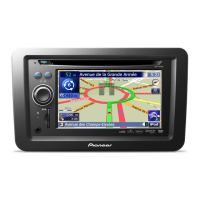
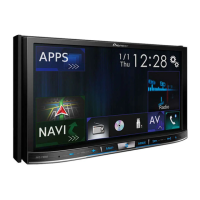
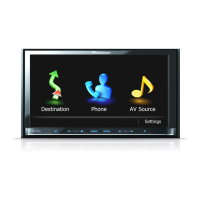
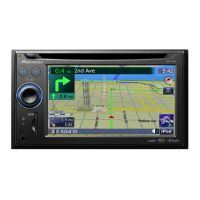
Switching screens using the hardware buttons
a
b
9
1
7
1 Top menu screen
This is the starting menu to access the de-
sired screens and operate the various func-
tions.
p If you press the HOME button, the Top
menu screen is displayed.
p “APPS” is displayed when AppRadio
Mode or MirrorLink mode is on.
p “Android Auto” is displayed when
Android Auto is on (for AVIC -F77DAB
and AVIC-F70DAB).
2 Time and date setting screen
You can set the time and date settings.
3 Setting menu screen
You can customise the system and audio
settings, etc.
4 Phone menu screen
You can access the screen that is related to
hands-free phoning.
5 AV source selection screen
You can select the AV source.
6 Favourite source icons
You can display the icons of frequently used
sources by dragging the icons to the display
area.
= For details of the operation, refer to
Changing the display order of source
icons on page 21.
7 AV operation screen
You can operate each source.
8 Navigation menu screen
You can specify way points and a destina-
tion.
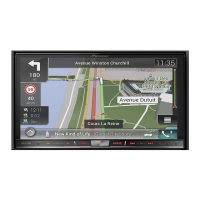
9 Map screen
! You can use this screen to check the cur-
rent vehicle position information and
route to the destination.
! You can customise navigation settings.
p If you press the MAP button, the Map
screen is displayed.
a Application operation screen
You can control the iPhone or smartphone
applications directly on this product.
p If applications are not available, the Ap-
plication operation screen will not be dis-
played.
Engb
19
Chapter
02
Basic operation
Basic operation


 To Next Page
 Loading...