13
3.1 Desktop Installation
To install the FSD-1008HP on desktop, simply follow the following steps:
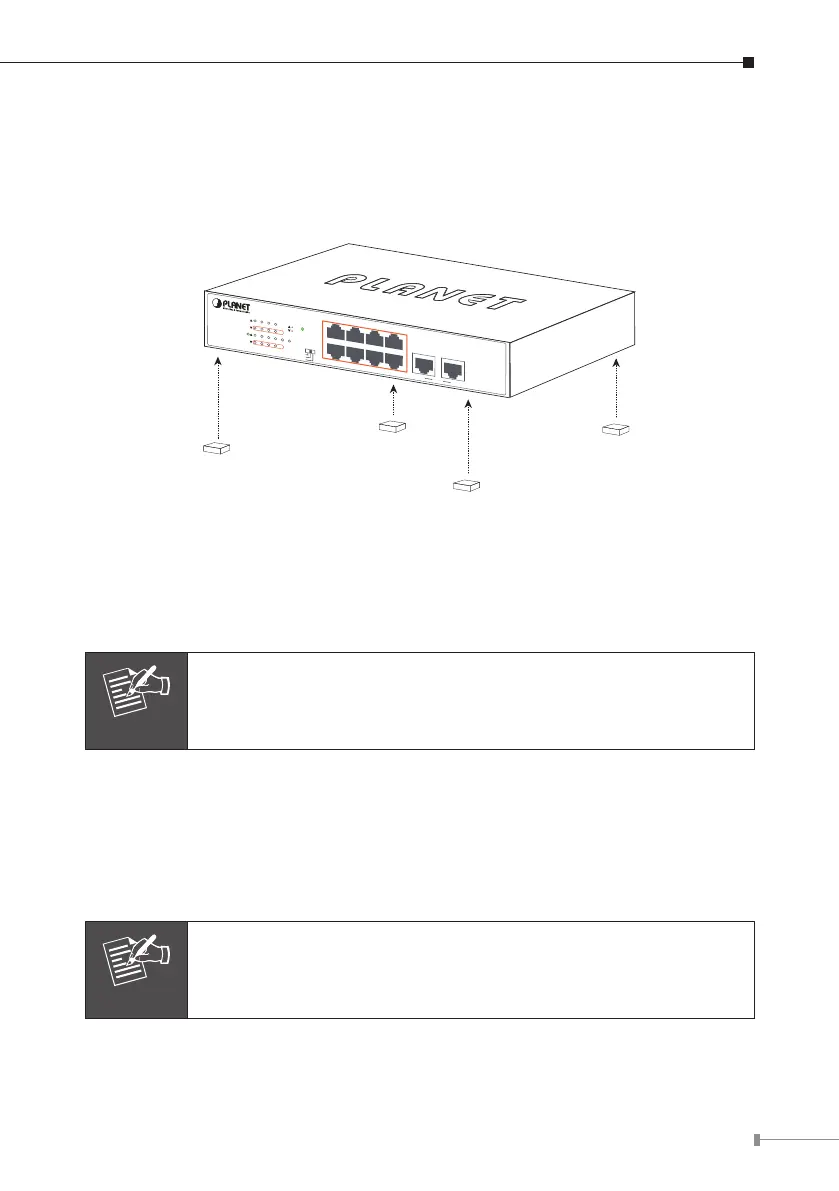
Step 1: Attach the rubber feet to the recessed areas on the bottom of the FSD-
1008HP, as shown in Figure 3-1.
4 6 82
1 3 5 7 9
1
PWR
53 7
2 6
4 8
9 10
PoE
PoE
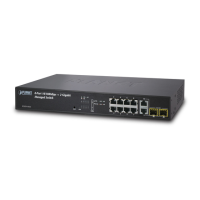
FSD-1008HP
8-Port 10/100TX 802.3at PoE +
2-Port 10/100TX Desktop Switch
PoE In-Use
ACTLNK
Standard
VLAN
Extend
10
Uplink
Figure 3-1: Attaching the Rubber Feet to the FSD-1008HP
Step 2: Place the FSD-1008HP on desktop near an AC power source.
Step 3: Keep enough ventilation space between the FSD-1008HP and the
surrounding objects.
Note
When choosing a location, please keep in mind the environmental
restrictions discussed in Chapter 1, Section 4, under Specifications.
Step 4: Connect your FSD-1008HP to 802.3af/802.3at complied power devices
(PD) and other network devices
A. Connect one end of a standard network cable to the 10/100BASE-TX RJ45
ports on the front panel of the FSD-1008HP.
B. Connect the other end of the cable to the network devices such as printer
servers, workstations, routers, etc.
Note
Connection to the Switch requires UTP Category 5, 5e, 6 network
cabling with RJ45 tips.



 To Next Page