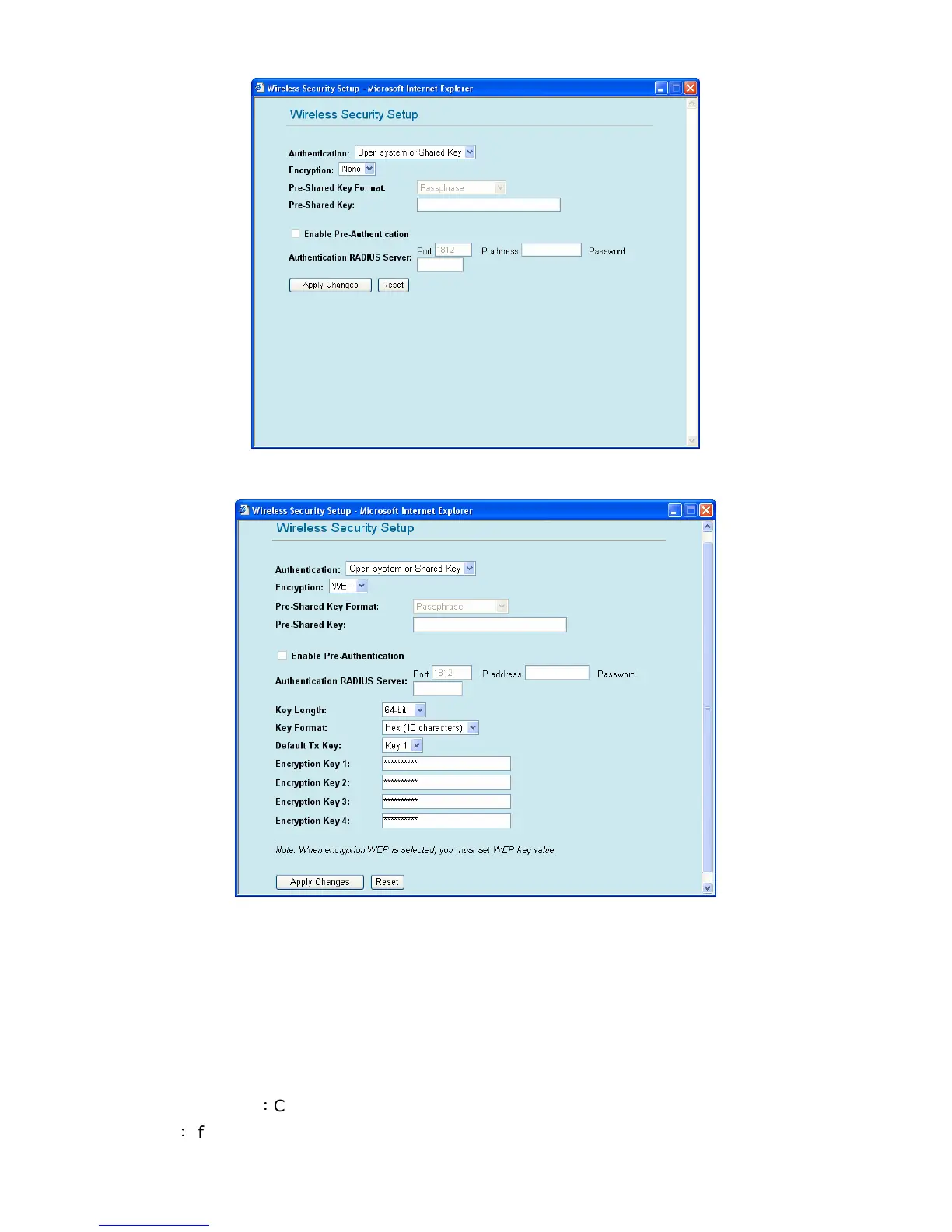
1.1. Open system or Shared Key
Authentication: Scroll down the list and choose the authentication for GW-MF54G2.
Key Length: Here you can choose the length of your authentication key as 64-bit or 128-bit.
Key Format: You can choose the format for your Encryption key here.
Default Tx Key: You can enter four Encryption keys and select one of them as default Tx key.
GW-MF54G2 can receive any packets encrypted by one of the four keys. Only the key you select
it in the "Default Tx key" will take effect.
Encryption Key 1~4: Only the Key select in the Default Tx Key will be used for wireless
transmission encryption.
Apply Changes
:
Click this button to save the settings and restart the GW-MF54G2.
Reset
:
If there is anything wrong with the settings you made, you can click “reset” to configure
the page again.



 To Next Page