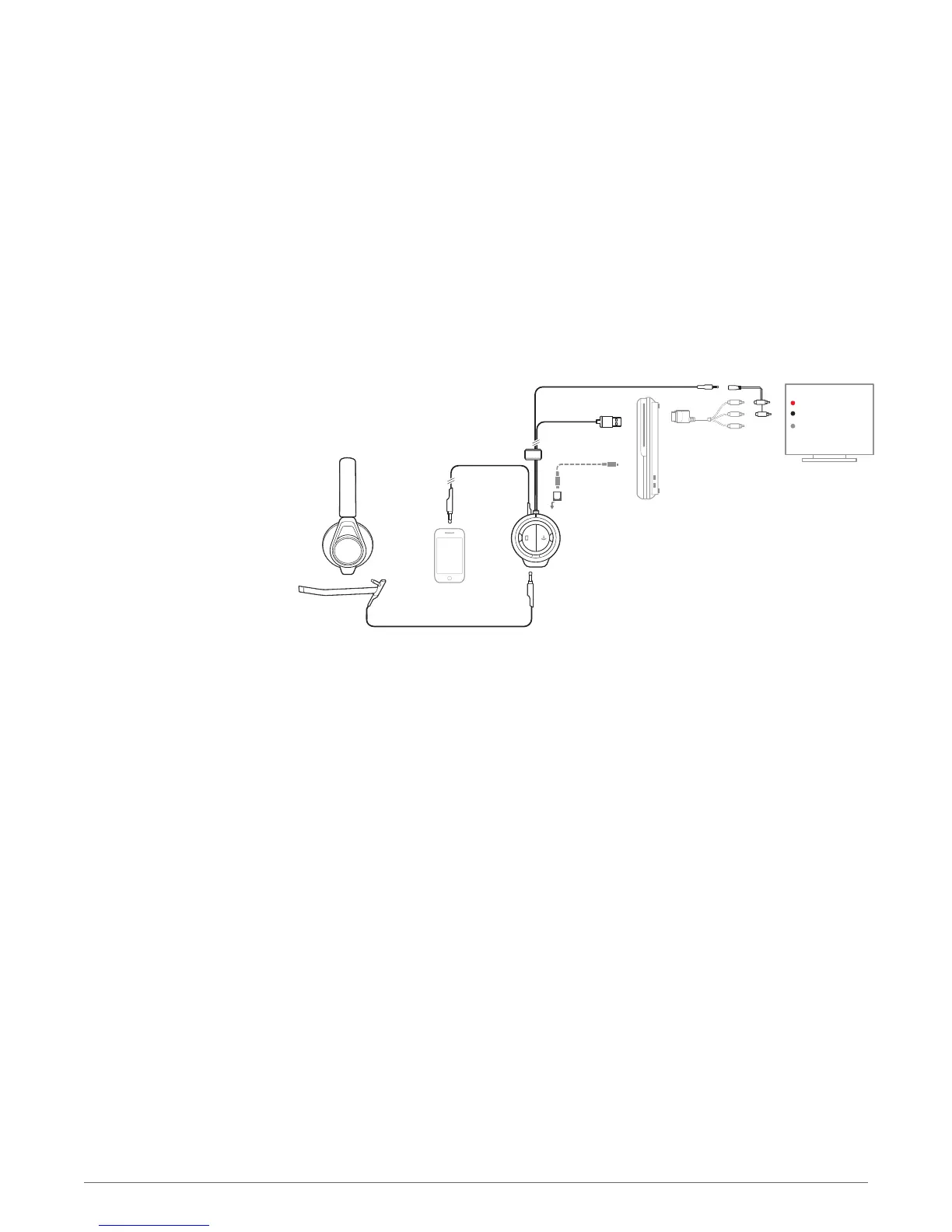
How you connect your Sony PS3 and PS4's audio/video to your TV will
generally be the most important factor in how audio is connected to the
mixer.
Use this setup if your TV or primary audio device has an optical port and if you have an optical
cable (not included in package, sold separately by other manufacturers). An optical cable is an
optional connection method that offers the highest performance audio possible with the mixer.
1
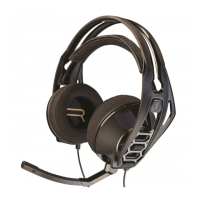
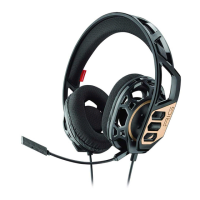
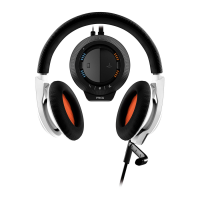
Make sure the boom microphone is attached properly to the RIG headset. Insert the 3.5mm plug
into the headset jack on the front of the mixer located under the RIG logo tab, on the left side.
2
Attach a Toslink digital optical cable to the appropriate port on your Playstation 3, HDTV, A/V
Receiver, or other audio device.
3
Plug the opposite end of the optical cable into the optical port on the rear of the mixer.
4
Set the audio settings to enable chat with the microphone on the PS3. Go to: Settings >
Accessory Settings > Audio Device Settings > Input Device (select "Plantronics RIG") > OK
5
Set the audio settings on the PS3 to output both TV (HDMI) and the mixer. Go to: Settings >
Sound Settings > Audio Output Settings > Audio Multioutput > On
6
Find a good balance of game and voice audio by adjusting the Game/chat sound balancer on the
right side of the mixer (over the orange LEDs). Remember that the 3 o'clock position will enable
equal volume of both game and voice audio signal. Sliding the control upward makes game
sound louder and voice (game chat) quieter. Sliding the control downward increases voice (game
chat) while making game audio quieter.
Sony Playstation setup
PS3 optical cable setup
13



 To Next Page