Install the latest PS4 operating system
Installing System Update V1.50 is required to use the voice communication features. You must
also sign into your account on the PlayStation Network.
PRO TIP Ensure you have the latest PS4 operating system
1
On the PlayStation Dynamic Menu, select Settings > System Software Update.
2
If necessary, follow the on-screen instructions to download and install the latest operating
system on your PS4.
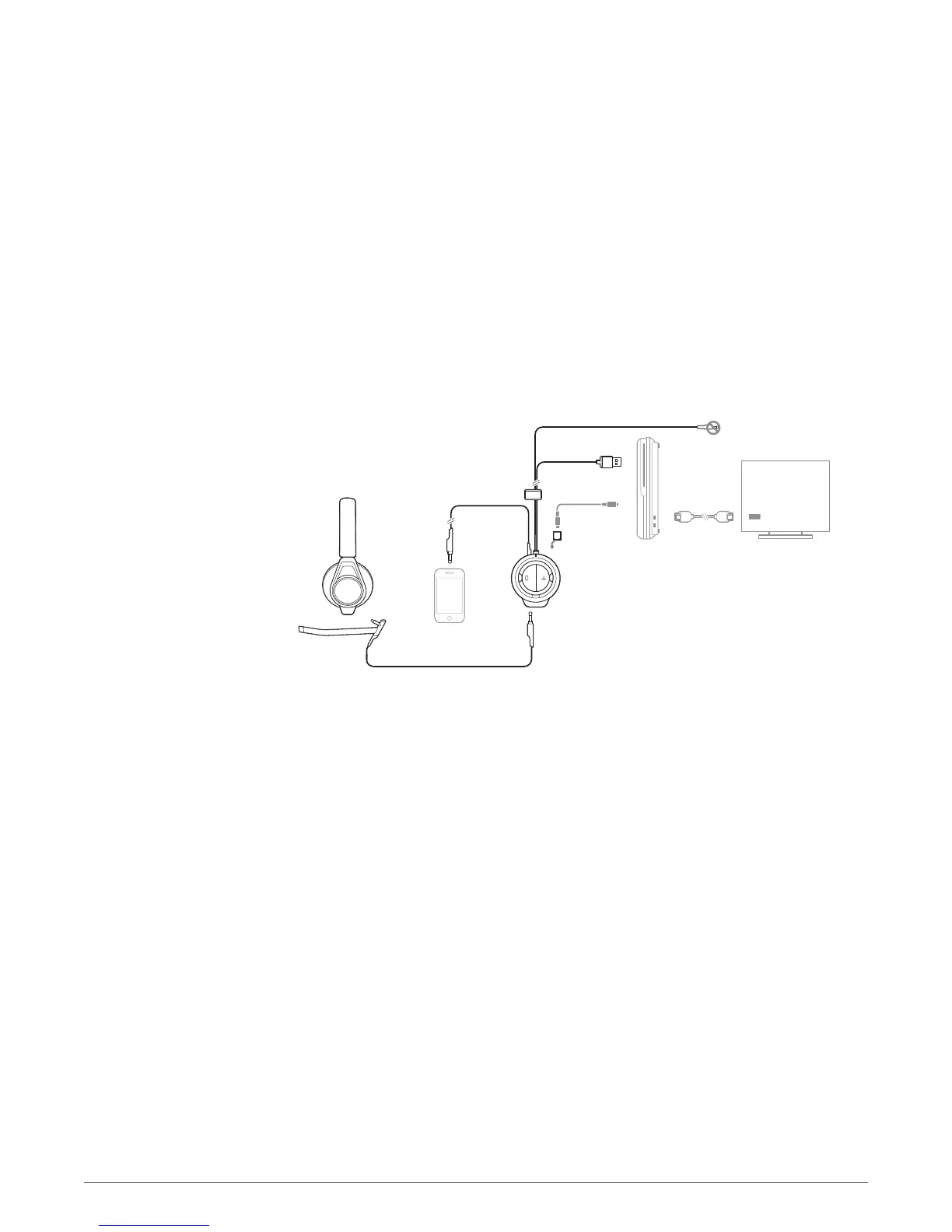
Connect the headset and mixer
1
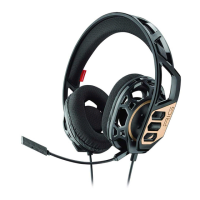
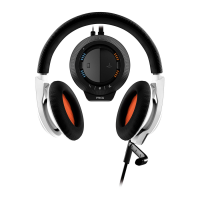
Make sure the boom microphone is attached properly to the headset. Insert the 3.5mm plug
into the headset jack on the front of the mixer located under the RIG logo tab, on the left side.
2
Connect an TOSlink optical cable (sold separately) from the optical input on the rear of the
mixer to the optical output on the back of the PS4.
3
Connect the USB cable from the mixer into an available USB port on the PS4.
Configure PS4 settings
1
On the PlayStation Dynamic Menu, select Settings > Sound and Screen > Audio Output Settings
> Primary Output Port > Digital Out (Optical).
2
Again select Audio Output Settings > Output to Headphones > Chat Audio (default) (ensure Chat
Audio is selected and not All Audio).
3
For the third time, select Audio Output Settings > Audio Format (Priority) > Linear PCM (default).
PRO TIP If RIG isn't detected by the PS4 then Output to Headphones will be grayed out under the
Audio Output Settings. To correct this, unplug the USB cable and plug the cable into the PS4 again.
The PS4 will prompt you to assign the "Headset" to a user. At this point, assign it to your user account
and the Output to Headphones option should be available to you.
PRO TIP If your voice chat suddenly stops working mid-game, press and hold the PlayStation button
for around three seconds to pull up the quick settings. Select Adjust Device and ensure that Volume
Control (Headphones) isn't grayed out and that Output to Headphones is set to Chat Audio and not All
Audio.
4
Find a good balance of game and voice audio by adjusting the game/chat sound balancer on the
right side of the mixer (over the orange LEDs). Remember that the 3 o'clock position will enable
equal volume of both game and voice audio signal. Sliding the control upward makes game
sound louder and voice (game chat) quieter. Sliding the control downward increases voice (game
chat) while making game audio quieter.
PS4 setup
15



 To Next Page