Docking Station with Video User’s Manual
7
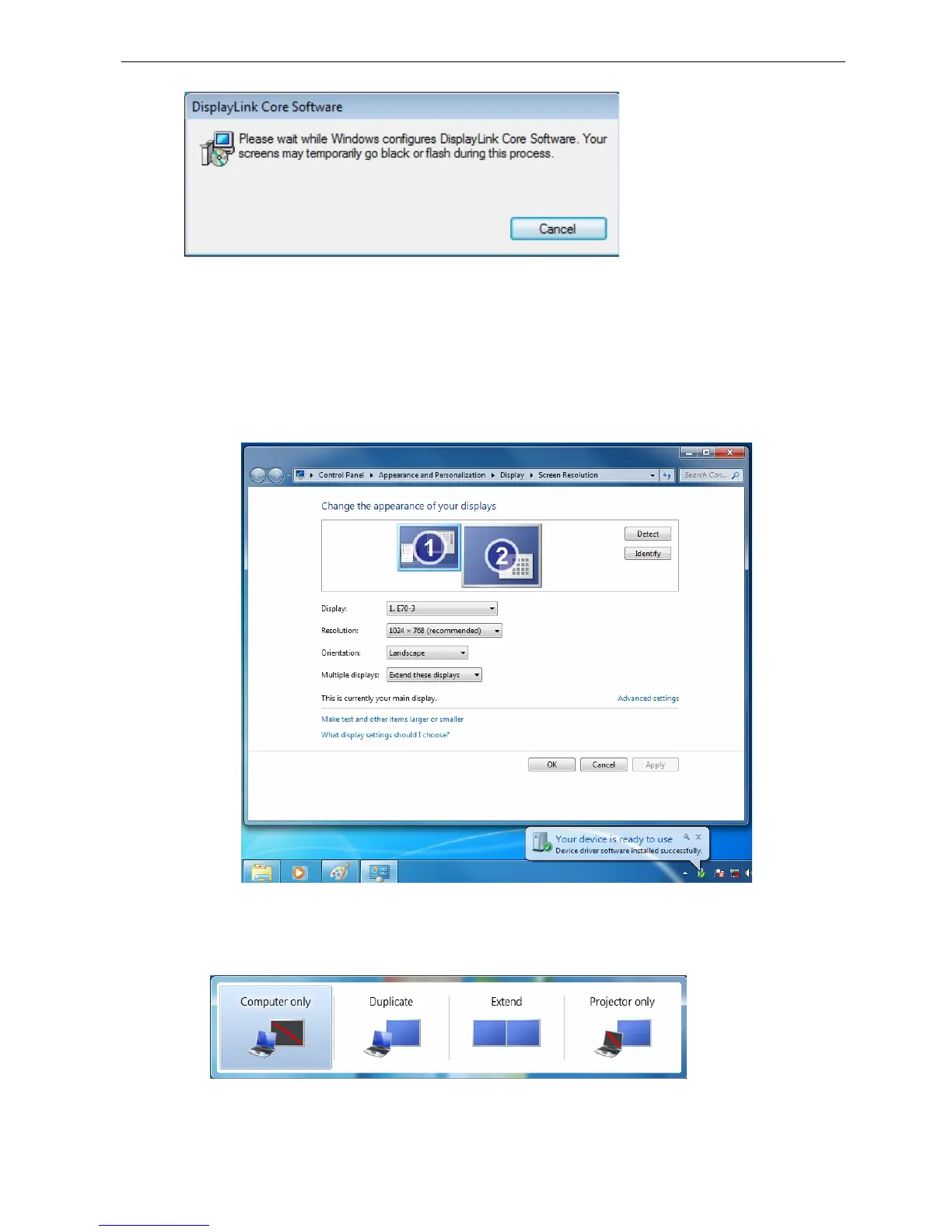
3. After the installation is completed, the following Window will pop up. You can change
the appearance of your displays through the Window. In particular, move the
monitors pictured in the control panel to match how the monitors are physicaly
positioned on your desk. Additional controls are available in Windows
®
7: Orientation
(Portrait, landscape, rotated portrait, rotated landscape)
4. To control the behavior of an attached DisplayLink device (or screen), it is possible to
use Windows Key+P to display a menu (and cycle through it) to allow: Disconnect
Projector, Duplicate, Extend, Projector Only.
*Actual strings depend on your operation system. These screen shots are from Windows
®
7 and
might vary slightly for each operation system.


 To Next Page