Your DECT
™
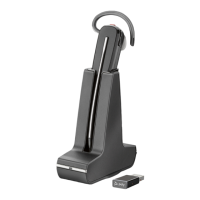
USB adapter is pre-subscribed (connected) to your headset.
1 Turn on your headset and insert the DECT USB adapter into your laptop or PC.
D400 ADAPTER To connect your DECT adapter to a USB-C port, use it with the optional USB-
C adapter.
2 The USB adapter LED is solid red when inserted and then turns solid green or blue to
indicate the headset is connected to the USB adapter. If you are wearing your headset you
will hear “Base connected” to indicate the connection has been established. When on a
call, the LED on the USB adapter flashes green or blue. When not on a call the LED is solid
green or blue. LED color varies by USB adapter model.
Your DECT USB adapter comes ready to take calls. If you want to listen to music, you will
need to configure your DECT USB adapter.
Windows
1 To configure your DECT USB adapter to play music, go to Start menu > Control Panel >
Sound > Playback tab. Select your headset and set it as the Default Device and click OK.
2 To pause music when you place or receive calls, go to Start menu > Control Panel > Sound
> Communications tab and select the desired parameter.
Mac
1 To configure the DECT USB adapter, go to Apple menu > System Preferences > Sound. On
both the Input and Output tabs, select your headset.
Connect to PC
Configure USB adapter
for streaming audio
13



 To Next Page