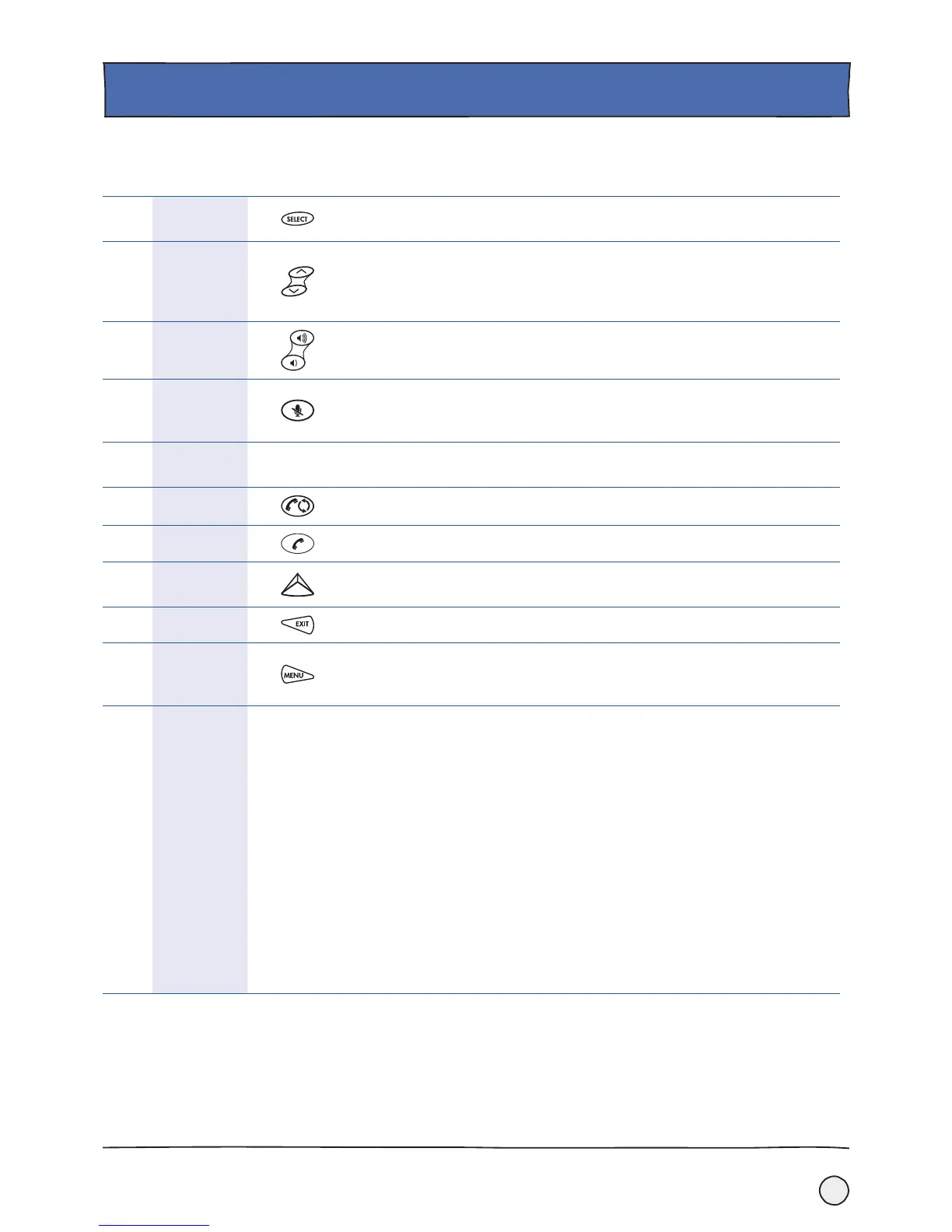
1. Select Key
Press this to choose something you’ve highlighted on the display, or to switch
features on or off.
2. Scroll Keys
Use these to move up and down through information on the screen, or to enable
or disable functions such as Call Forwarding. When the phone is not in use, these
keys also provide you with shortcuts: scroll up to see your speed dial information;
scroll down to view your missed calls.
3. Volume Keys
Change the volume of the speakers and the ringer of the phone with these keys.
4. Mute Key
Press this to turn the microphone on and off during a conversation, so that your
voice can’t be heard at the other end of the line if you need to discuss something
without everyone else hearing.
5. Dial Pad Keys
A standard dial pad layout with 10 digits, 26 letters and other special characters
available in certain applications.
6. Redial Key
Automatically dials the last number you called to save you typing it in again.
7. Call key
A very important key - initiates or ends a call.
8. Soft keys
As mentioned on page 5, these let you choose different functions (shown on the
screen directly above each key) depending on what the phone is doing at the time.
9. Exit Key
Lets you go back from the current screen to the previous menu.
10. Menu Key
Gives you access to additional features and lets you change the set up of your
phone. You can also press this to exit your current screen and go back to the ‘idle’
screen.
11.
LCD Graphic
Display
Shows the time and date, menus and soft keys, as well as information about calls,
messages and features.
The information display line (that shows the directory number) also shows icons
and text, such as:
• Pop up text (eg. network error messages)
• Do Not Disturb text / icon
• Call forwarding text (eg. Call Forwarding Enabled)
• Missed Calls text (eg. ‘4 new missed calls’)
• Presence text (eg. ‘Busy’)
• Prompt text (eg. ‘Enter URL’)
• Time and Date
If there is more than one item to display, they will be shown in a scrolling fashion
so you don’t miss anything.
6
GETTING TO KNOW YOUR PHONE.
Key Functionality.
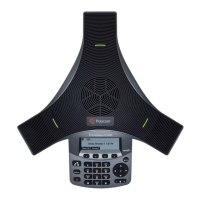
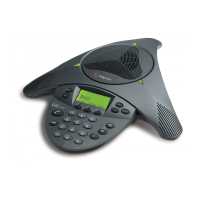
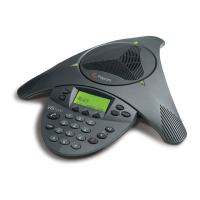
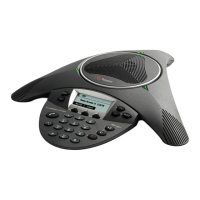
The rest of the buttons on your phone pad have a fixed function. Working your way
around the phone from the right hand side, this is what the keys can do.





 To Next Page