EasyManua.ls Logo

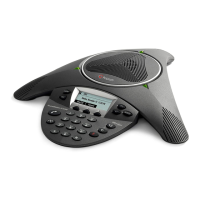
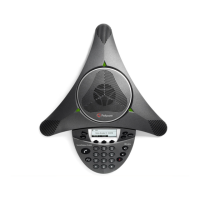
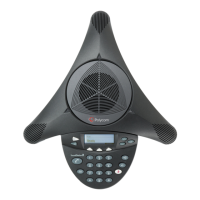
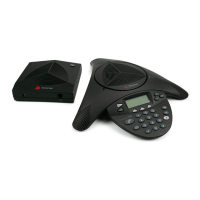
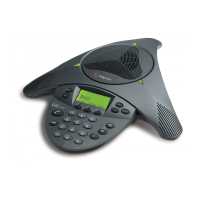
Polycom SoundStation IP 7000 - User Manual

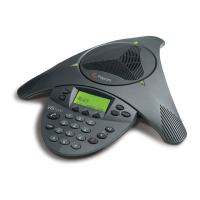
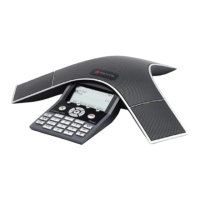
Polycom SoundStation IP 7000
130 pages
Print Icon
To Next Page IconTo Next Page
Loading...
November, 2008 Edition
1725-40075-001 Rev. B
SIP 3.1.1
User Guide for the
Polycom
®
SoundStation
®
IP 7000 Phone
SIP 3.1.1

Table of Contents

Other manuals for Polycom SoundStation IP 7000

Questions and Answers

  • A
    Allison DoyleSep 23, 2025
    Why is the time and date flashing on my Polycom SoundStation IP 7000 Conference Phone?
    • R
      Richard SimmonsSep 23, 2025
      The flashing time and date on your Polycom Conference Phone usually means the phone has been disconnected from the network/LAN or there is no SNTP server configured. The phone does not acquire time from the Polycom HDX system. To resolve this: * Reconnect your phone to the network. * Alternatively, you can disable the time and date display: Press the Menu key, then select Settings > Basic > Preferences > Time & Date. In the Time & Date screen, scroll to Disable, and then press the Select soft key. Press the Menu key to return to the idle screen.
  • A
    Ann LynchAug 23, 2025
    What to do if my SoundStation IP 7000 Polycom Conference Phone does not upgrade?
    • O
      owardAug 23, 2025
      If your SoundStation IP 7000 phone isn't upgrading from the Polycom Customer Support provisioning server, it might be due to blocked network access. Using a computer on the same network as the phone, open a browser and enter http://downloads.polycom.com/voice/IP7000/000000000000.cfg as the web address. If the browser gets an error about not being able to find the file or server, there is a network connectivity issue from your location to the Polycom download server.
  • N
    Nicholas BatesAug 25, 2025
    Why is there no dial tone on my Polycom SoundStation IP 7000 Conference Phone?
    • G
      gregorymaynardAug 26, 2025
      If your Polycom Conference Phone has no dial tone, first ensure that the display is illuminated. Next, check the network cable is properly inserted on the underside of the phone; try unplugging and re-inserting it to make sure.
  • K
    Kenneth RamseyAug 27, 2025
    What to do if the display is not working on my Polycom SoundStation IP 7000 Conference Phone?
    • M
      Mark MortonAug 27, 2025
      If your Polycom Conference Phone display is not working, is incorrect, or has bad contrast, make sure power is correctly applied to the phone. Check that the display is illuminated and that the network cable is properly inserted on the underside of the phone. Try unplugging and re-inserting the cable. If your phone uses in-line power, ask your system administrator to check that the switch is supplying power to the phone.
  • M
    Michael MataAug 27, 2025
    How to fix 'Network Link is Down' on Polycom Conference Phone?
    • M
      Matthew KellerAug 27, 2025
      If your Polycom Conference Phone display shows “Network Link is Down”, verify that the network cable is properly connected. Check the cable termination at the switch or hub and ensure the switch or hub is operational by looking for flashing link/status lights. You can also press the Menu key, then select Status > Network > Ethernet, and verify that the LAN port is Active. Rebooting the phone may also help re-register with the call server.
  • L
    Lisa HarperSep 15, 2025
    How to fix flickering display on Polycom IP Phone?
    • M
      Margaret MooreSep 15, 2025
      If the display on your Polycom IP Phone is flickering, it may be due to the lighting in your environment. Certain types of older fluorescent lighting can cause the display to flicker. Try moving the phone away from the lights or replacing the lights to see if that resolves the issue.
  • M
    Miss Megan Li DDSSep 12, 2025
    What to do if there is no response when I press a feature key on my Polycom IP Phone?
    • E
      Elizabeth JonesSep 13, 2025
      If your Polycom IP Phone doesn't respond when you press a feature key, it might not be in an active state. Try pressing the keys more slowly. Call the phone to see if the inbound call display and ringing are normal; if so, try pressing feature keys during the call. Check if the line is actively registered by pressing the Menu key, then selecting Status > Lines > Line Information, and verifying that your phone line is registered. Rebooting the phone might also help to re-register with the call server.
  • A
    Anthony BernardSep 14, 2025
    Why does my Polycom IP Phone have a hollow phone icon at the top left of the screen?
    • M
      Margaret WheelerSep 14, 2025
      A hollow phone icon at the top left of the screen indicates that the Polycom IP Phone is not registered to a server. Ask your system administrator to register the phone to a server.
  • V
    Victor HigginsSep 5, 2025
    What does the hollow phone icon mean on my Polycom SoundStation IP 7000?
    • J
      johnguerreroSep 5, 2025
      If a “hollow” phone icon displays at the top left of the screen of your Polycom Conference Phone, the phone is not registered to a server.
  • J
    jason07Sep 2, 2025
    Why is the display flickering on my Polycom SoundStation IP 7000?
    • R
      Ronald PerrySep 2, 2025
      If your Polycom Conference Phone display is flickering, it may be due to certain types of older fluorescent lighting. Try moving the phone away from the lights or replacing the lights.

Summary

Getting Started with Your Phone

Parts List

Lists all items included in the basic phone package.

Optional Accessories

Details optional accessories available for the conference phone.

Installing the Phone

Provides instructions for setting up the conference phone.

Registering the Phone

Explains the process of registering the phone with the network.

Features of the Phone

Describes the primary hardware features of the phone console.

Understanding Icons

Explains the meaning of various icons displayed on the phone screen.

Navigating Menus and Entering Data

Provides tips for navigating phone menus and entering text.

Customizing Your Phone

Configuring Basic Settings

Guide to adjusting fundamental phone settings and preferences.

Updating the Ring Tone

Instructions on selecting and setting distinctive ring tones for the phone.

Updating Audio Quality and Capabilities

Steps to adjust sound quality and enable auxiliary audio components.

Adjusting the Speaker and Ringer Volume

How to control the speaker and ringer volume levels.

Using Call Lists

Information on accessing and managing missed, received, and placed calls.

Managing Contacts

Covers adding, editing, deleting, and viewing contacts in the phone directory.

Managing Incoming Calls

Options for handling incoming calls, like distinguishing or rejecting.

Diverting Calls

How to automatically transfer incoming calls to a third person.

Understanding Shared Lines

Explanation of how shared lines function on the phone.

Using the Basic Features of Your Phone

Placing Calls

Detailed guide on initiating calls using various methods.

Answering Calls

Instructions on how to respond to incoming calls.

Ending Calls

Steps to terminate active calls.

Muting the Microphone

How to mute the microphone during calls.

Holding and Resuming Calls

How to put calls on hold and then retrieve them.

Hosting Conference Calls

Guide to setting up and managing conference calls.

Transferring Calls

Methods for transferring calls to other parties.

Forwarding Calls

Instructions on setting up call forwarding rules.

Enabling Do Not Disturb

How to activate the Do Not Disturb feature to silence the phone.

Using the Advanced Features of Your Phone

Using Computer or Mobile Audio with the Conference Phone

Connecting and using audio from computers or mobile phones.

Using the Phone When it is Connected to a Polycom HDX System

How to integrate and use the phone with Polycom HDX systems.

Showing Content When Your Phone is Connected to a Polycom HDX System

Procedures for displaying content during video calls or conferences.

Using Buddy Lists

Setting up and monitoring contacts' presence status.

Integrating With Microsoft Office Live Communications Server 2005

Connecting the phone with Microsoft Lync/OCS for collaboration.

Restarting the Phone

Steps to restart the phone to resolve issues or apply configurations.

Troubleshooting Your Phone

Installation Configuration

Common issues related to phone setup and configuration.

Power and Startup

Solutions for problems with powering on or starting the phone.

Controls

Troubleshooting steps for non-responsive phone controls.

Access to Screens and Systems

Resolving issues with accessing phone screens or systems.

Calling

Common problems and solutions related to making or receiving calls.

Displays

Troubleshooting tips for display-related issues like no display or contrast problems.

Audio

Solutions for problems with speaker volume or sound output.

Testing Phone Hardware

How to run diagnostic tests on the phone's hardware components.

Safety and Compliance

Part 15 FCC Rules

Regulatory compliance information regarding FCC rules.

Industry Canada (IC)

Compliance information for Industry Canada regulations.

CE and VCCI Mark

Information regarding CE and VCCI compliance marks.

Polycom SoundStation IP 7000 Specifications

General IconGeneral
Frequency range160 - 22000 Hz
Telephone dynamic range85 dB
Ethernet LAN (RJ-45) ports1
Operating temperature (T-T)0 - 40 °C
Harmonized System (HS) code85258900
Weight and Dimensions IconWeight and Dimensions
Weight1080 g
Dimensions (WxDxH)394 x 372 x 73 mm

Related product manuals