Member of
Additional Support…
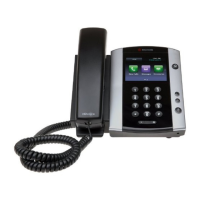
If you require additional support with your Polycom VVX 500 or VVX 600 handset,
please contact our support desk via any of the following options:
Call 1300 668 481 Or Email support@aptel.com.au
VOICE
Quick User Guide
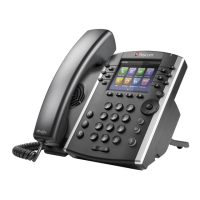
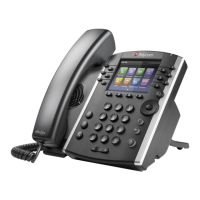
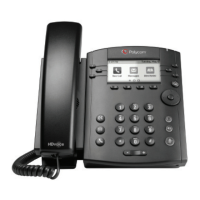
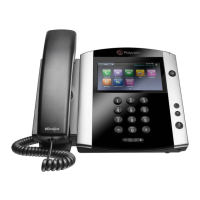
Polycom VVX 410
Message Control
During your voicemail playback the keypad on your
phone can control the playback message via the
following:
Voice Portal Menu
Once you have logged into your Voice Portal the
following menu opons are available to you:
1) Access your Voice Mailbox
2) Change your CommPilot Express prole*
3) Go to the Greengs Menu
4) Change your Call Forwarding opons
5) To record a New Announcement
6) Make a Call
7) Chance your Passcode
8) Exit this menu
#) Repeat this menu
(* only available is service assigned)
Voicemail Nocaon
The voicemail icon on phone will nofy you
when you have any new voicemail messages
Accessing Your Voicemail
To access your voicemail you rs need to log into
the Voice Portal.
Once within the Voice Portal, press 1 for ‘Access
your Voice Mailbox’
The system will advise you if you have any new
messages in your mailbox.
You will then be presented with the following
voicemail opons:
1) Listen to your messages
2) Change your mailbox Busy greeng
3) Change your mailbox No Answer greeng
4) Change your mailbox extended away greeng
5) Compose and send a new message
7) Delete all messages
8) Modify the message deposit sengs for your
mailbox
8) Go to the Voice Portal
#) Repeat this menu
Login to The Voice Portal
To access the Voice Portal:
Tap the mail icon from the Home View.
You will be prompted to enter your passcode
followed by #.









 To Previous Page