Forwarding Incoming Calls
Busy
To forward incoming calls when your line is busy
press the
so key.
Select
Busy
Enter the number/extension you wish to forward
your calls to.
Press the
Enable
so key
To disable the call forward, press the
from the
home view screen.
Press
Busy
Press the
Disable
so key.
Quick User Guide
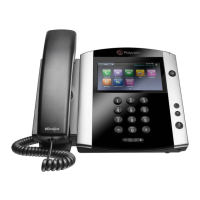
Polycom VVX 410
Placing Conference Calls
Three Way Call
To start a conference call, place a call to the rst
party and aer the call connects press the
Confrc
so key.
Dial the second party you wish to have in the
conference call and once the call connects press
the
More
so key and select the
Confrc
so
key.
Enabling Headset Memory
If you use a headset as your primary method to
make and receive calls you may wish to enable
the memory headset opon so all calls use your
headset.
From the Home View screen, select
Select Basic
Select Preferences
Select Headset
Select Headset Memory
Select Enabled
Press the
buon to return to the home screen.
The phones headset buon will ash to advise this
seng is enabled.
Call History
Your phone is able to show a list of missed,
received, and placed calls. Each list contains up
to 100 entries.
To access your call history, tap the call history
buon to access and view the call history lists:
Press right to view placed calls
Press down to view missed calls
Press up to view favourites
Using Do Not Disturb
When using Do Not Disturb (DND) you disable
your phone from ringing for any incoming calls.
All incoming calls will be sent directly to your
voicemail.
To enable DND you can either:
Press DND from the home view.
DND
Press the ‘Do Not Disturb’ so key.
When DND is enabled the following icon is displayed
on your screen
To disable DND you can either:
Select DND from the home view.
DND
Press the ‘Do Not Disturb’ so key.
Adjusng Ringer, Handset &
Headset Volume
To change the call volume, press
during a call.
Whilst the phone is idle, pressing
will adjust the ringer volume.









 To Next Page