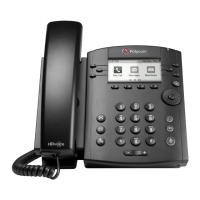
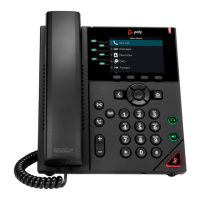
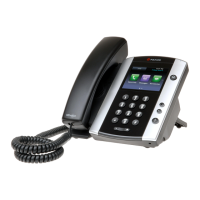
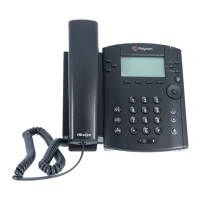
Polycom VVX300
Quick Reference Guide
© 2013 CenturyLink. All Rights Reserved. The CenturyLink
mark, pathways logo and certain CenturyLink product names are
the property of CenturyLink. All other marks are the property of
their respective owners.
Polycom VVX300 QRC – 070815rev2
You can Forward your phone calls to another extension or a phone
outside of the company.
To Enable Forwarding:
1. Press the Forward soft key.
2. Choose from the list of forwarding options: Always, No Answer, or
Busy by using your up/down navigation buttons.
3. With your forwarding options highlighted, press the Select soft key.
4. On the keypad, enter the number or extension where you would like to
forward your calls and then press the Enable soft key.
To Disable Forwarding:
1. Press the Forward soft key, select the forwarding feature you would
like to disable by using your up/down navigation key.
2. With your forwarding option highlighted, press the Select soft key.
3. Press the Disable soft key to remove forwarding.
Your phone retains a list of call logs that you can access by pressing the
Callers soft key. You can also go straight to the call logs by using the
arrow (navigation) keys:
• Down Arrow shows Missed Calls.
• Left Arrow shows Received Calls.
• Right Arrow shows Placed Calls.
All call logs retain records for 60 days.
You can also access more detailed call logs from your Outlook toolbar and
via your Hosted VoIP web portal, reference at the bottom of this page..
Speed Dial 100 allows you to program up to 100 contacts using 2-digit
codes 00 through 99.
• At a dial tone, enter *75 followed by the 2-Digit Speed Dial Code
you’d like program, followed by the 10-digit phone number.
• To use a Speed Dial code, while the phone is on-hook (no dial tone),
enter # + 2-Digit Speed Dial Code, then lift up the handset or press
the handsfree button. Example: Do not establish dial tone, dial #+xx
and lift the handset; xx = the 2-digit code you want to dial.
Do Not Disturb (DND) will send all of your callers directly to voicemail.
To Activate DND:
• Press the DND soft key.
• The icon next to your extension will change to confirm activation of
DND.
To Deactivate DND:
• Press the DND hard key again.
• A phone icon will again display next to your extension to confirm
deactivation of DND.
Three Ways to Access
• From Your Office Phone:
Tap the Messages key, then tap the Connect soft key.
When prompted, enter your Voicemail Passcode, followed by #.
• From Outside the Office*:
Dial your Voicemail Retrieval number.
When prompted, enter your 10-digit phone number followed by #.
Reenter your 10-Digit Phone Number, followed by #.
• By Calling Your Direct Dial Number:
During your greeting, press 7.
Enter your Voicemail Passcode, followed by #.
Note: *You can save a contact in your cell phone to automatically log
you in by adding a contact with the Voicemail Retrieval phone number
<pause> [10-digit number] # <pause> [password] #.
While a Message is Playing
11 .. Check Unheard Messages
1 .... Listen to Messages
2 .... Send Messages
4 .... Mailbox Options
* ..... Disconnect
0 .... More Options
1 .... Repeat Message
2 .... Pause/Resume
3 .... Skip to End
4 .... Slow Down
5 .... Message Details
6 .... Speed Up
7 .... Delete Message
9 .... Save Message
* .... Return to Previous Menu
# .... Skip Message
88 .. Call Sender
Web Address: http://centurylink.com/voip (make this link a favorite)
Username: Indicated on Welcome Email from your administrator
Password: Indicated on Welcome Email from your administrator
Please record your password here:


 To Previous Page
 Loading...