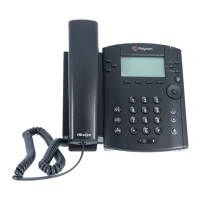
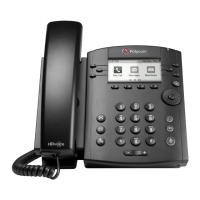
Quick User Guide Polycom VVX300
Phone Views
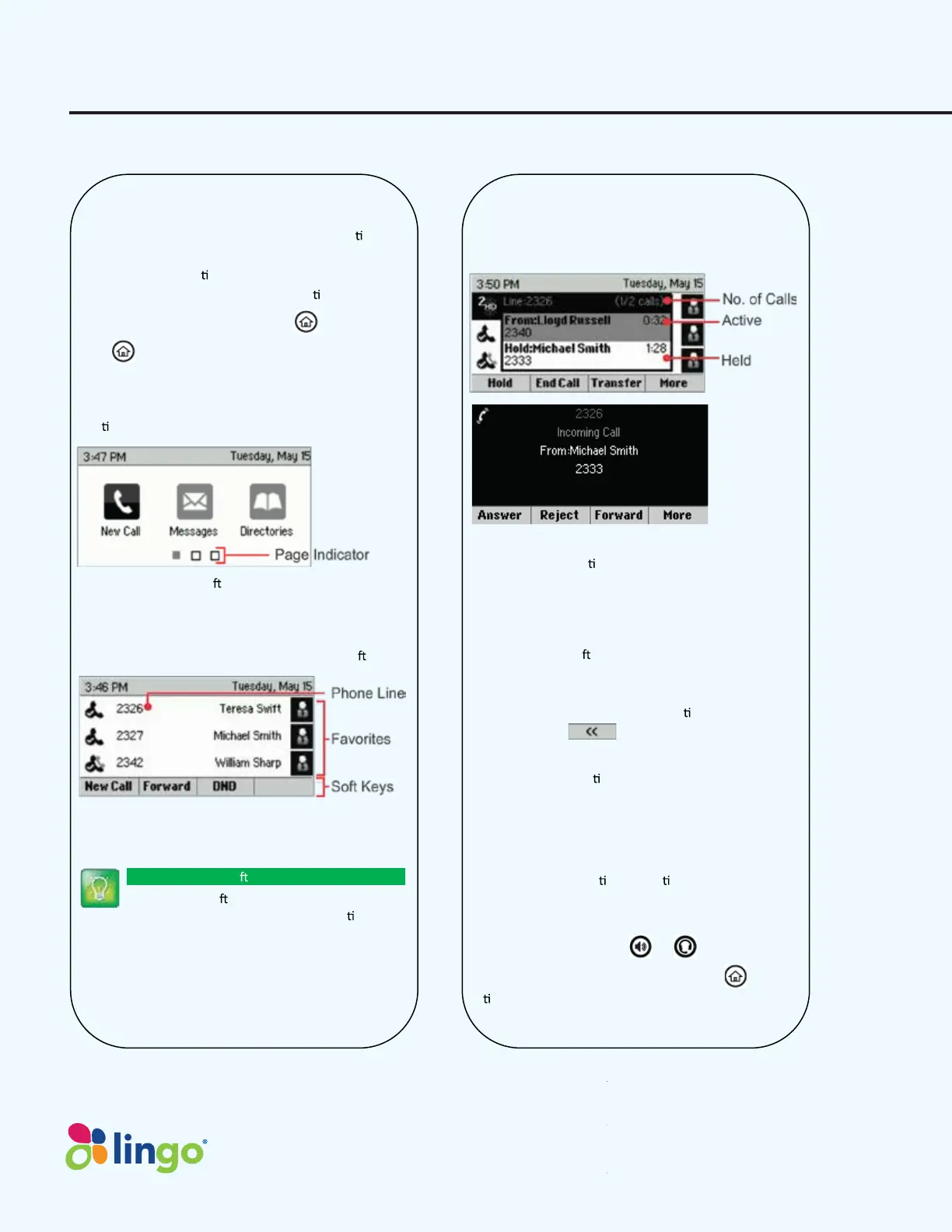
Your phone has four main Views: Home, Calls, Ac ve
Call, and Lines view (the default). You can access Home
and Lines view at any
me. If your phone has one or
more calls, you can also access Calls or Ac
ve Call view.
For Home view from any menu, press .
Press to alternate between Home and Lines view.
Home View
Home view displays icons you can select to access phone
func ons.
You can use the right, le , up , and down arrow keys to
display more icons.
Lines View
Lines view displays phone Lines, Favorites, and so
keys.
If your phone is idle, you can press the Line key to access
the Dialer.
Tip: Referring to So Keys
In this guide, so
keys are referred to by their
name only. For example, to end an ac
ve call,
press End Call.
Calls View
If your phone has one or more calls, you can access Calls
view.
Call color indicates status:
x Medium grey—Ac
ve call
x Dark grey—Incoming call
x White—Held call
Use the up and down arrow keys to select a call
(highlight it). The so
keys control the highlighted call.
Entering Data
Use the dialpad keys to enter informa on. To backspace,
press Backspace .
To type with the dialpad keys, press a key repeatedly to
view the character op
ons and stop to select.
To type other characters, press Encoding or Mode. When
using the dialpad keys, use the 1, *, 0, and # keys.
About Calls
Only one call can be ac ve at one me.
You can use the handset, speakerphone, or headset for
calls. During a call, you can change modes by picking up
the handset, or by pressing or .
If you navigate away from your call(s), press to see
Ac
ve Call or Calls view again.
ImpactConnect Hosted PBX




 To Next Page